
Blog
WordPress: Reorder Custom Post Types with ACF Plugin
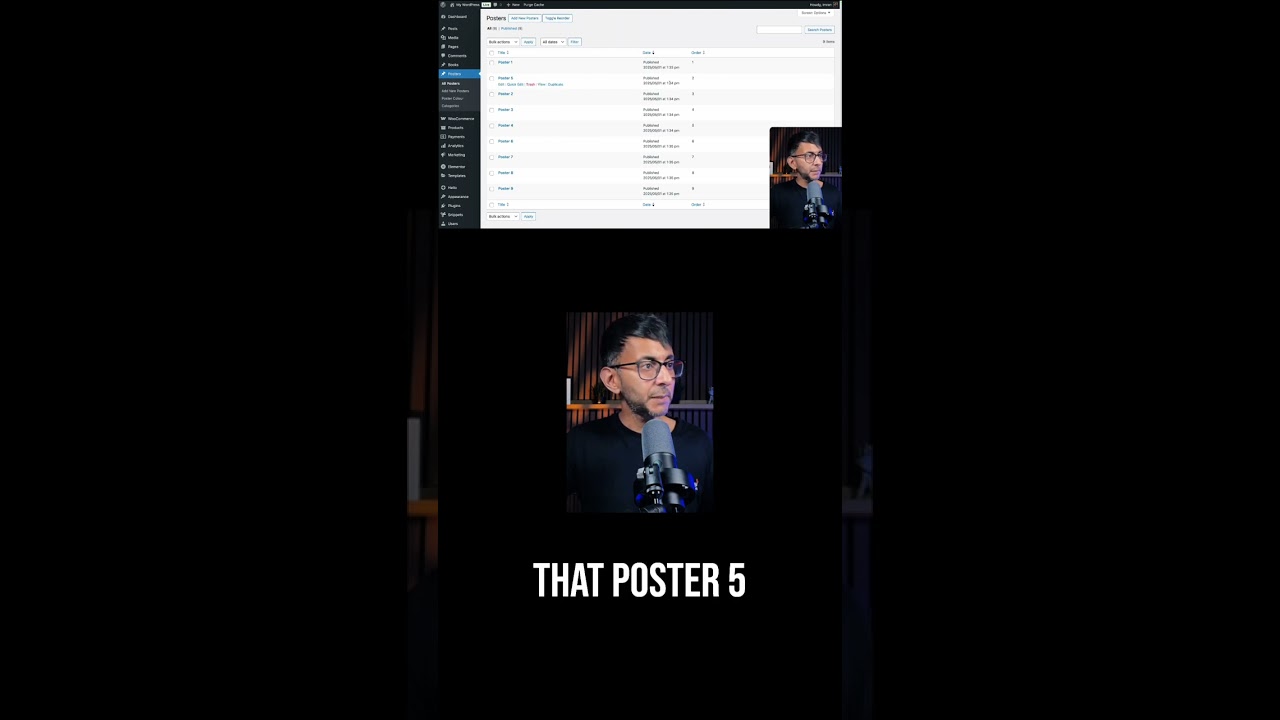
Understanding Custom Post Types in WordPress
In the realm of WordPress, Custom Post Types (CPTs) offer users a powerful way to create unique content structures beyond the conventional posts and pages. Whether you’re building an online portfolio, a product catalog, or a recipe collection, CPTs help you manage content effectively. However, managing and reordering these custom post types can sometimes be challenging. This is where Advanced Custom Fields (ACF) comes into play, making it easier to customize the back end of your WordPress site.
What is the ACF Plugin?
Advanced Custom Fields is a popular WordPress plugin designed to enhance the flexibility of content management. By enabling users to create custom fields for various post types, ACF allows you to add more dimensions to your content. Fields can include text, images, dates, and more, giving you the freedom to tailor the layout and format of your posts.
The Importance of Reordering Custom Post Types
Reordering custom post types can greatly improve user experience. A well-arranged list of posts allows visitors to find information quickly and enhances site navigation. For instance, if you’re managing a portfolio, you might want to showcase your best works at the top. The ability to reorder posts seamlessly translates into an organized presentation of content, which can drive more engagement.
Setting Up ACF for Custom Post Types
To get started with reordering custom post types using ACF, follow these essential steps:
Step 1: Install and Activate the ACF Plugin
- Navigate to the WordPress dashboard.
- Click on "Plugins" and then "Add New."
- Search for "Advanced Custom Fields."
- Install and activate the plugin.
Step 2: Create Your Custom Post Type
Before you can reorder your posts, you need to create a custom post type:
- Use a code snippet in your theme’s
functions.phpfile or employ a CPT plugin. - Register your custom post type with a unique name and specify its settings such as
supports,taxonomies, andrewrite rules.
Adding Custom Fields
After setting up your custom post type, the next step is to add custom fields through ACF:
- Navigate to the ACF menu in your WordPress dashboard.
- Click "Add New" to create a field group.
- Add fields that will allow you to arrange your content efficiently, such as an "Order" field or "Priority" dropdown selection.
Steps to Reorder Custom Post Types Using ACF
With your custom post type and fields in place, you can now focus on the reordering aspect.
Step 1: Add an Order Field
Create a custom field named "Order" that will assign numerical values to control the sorting of your posts:
- Inside your field group, add a new field.
- Choose the field type as "Number."
- Label it "Order" and adjust any settings as needed.
Step 2: Assign Values to the Order Field
Once the "Order" field is created, go to your custom post type and assign values:
- Edit each post within your custom post type.
- Input a numeric value into the "Order" field representing the desired position. For example, set the top-most post to 1, the next to 2, and so forth.
Step 3: Modify the Query to Order Posts
To reorder the posts based on the "Order" field, you’ll need to modify the query that retrieves your custom posts:
- Use the
WP_Queryclass in your template files. - Include the
meta_keyandorderbyparameters in your query to sort posts by the "Order" field.
Here’s a sample code snippet to illustrate:
php
$args = array(
‘post_type’ => ‘your_custom_post_type’,
‘meta_key’ => ‘order’,
‘orderby’ => ‘meta_value_num’,
‘order’ => ‘ASC’,
);
$query = new WP_Query($args);
This code queries the custom post type and sorts the posts based on the numerical value in the “Order” field.
Advanced Techniques for Reordering
Drag-and-Drop Functionality
For websites that require a more user-friendly approach, integrating a drag-and-drop feature can streamline the process of reordering posts:
- Consider using additional plugins like "Post Types Order" or "Simple Page Ordering."
- These plugins enable an intuitive interface where you can reorder posts by dragging them into position within the admin dashboard.
Customizable Front-End Sorting
If you want users to have control over the order in which they view your content, implement front-end sorting options:
- Use AJAX for a smoother user experience.
- Add buttons or dropdowns to allow visitors to sort posts by criteria such as date, popularity, or custom fields.
Best Practices for Using ACF in WordPress
When working with ACF and custom post types, consider these best practices:
- Keep it Simple: Only add fields that are necessary to avoid overwhelming users.
- Consistent Naming Conventions: Use clear, concise naming for fields to facilitate ease of use.
- Regular Backups: Always back up your data before making significant changes, especially when creating or modifying custom fields.
- Optimize for Performance: Limit the number of custom fields. Excessive fields can slow down your site.
Conclusion
Using Advanced Custom Fields to reorder custom post types can significantly enhance your WordPress site’s usability and organization. Through a combination of custom fields, modifications in your queries, and possibly the integration of additional plugins, you can create a streamlined experience for both administrators and users. Whether you’re showcasing portfolio pieces, managing a products list, or curating content collections, utilizing ACF will enable you to effectively manage custom post types tailored to your specific needs. Happy organizing!
