
Blog
WordPress Error SSL on Cloudflare and cPanel – How to Fix It
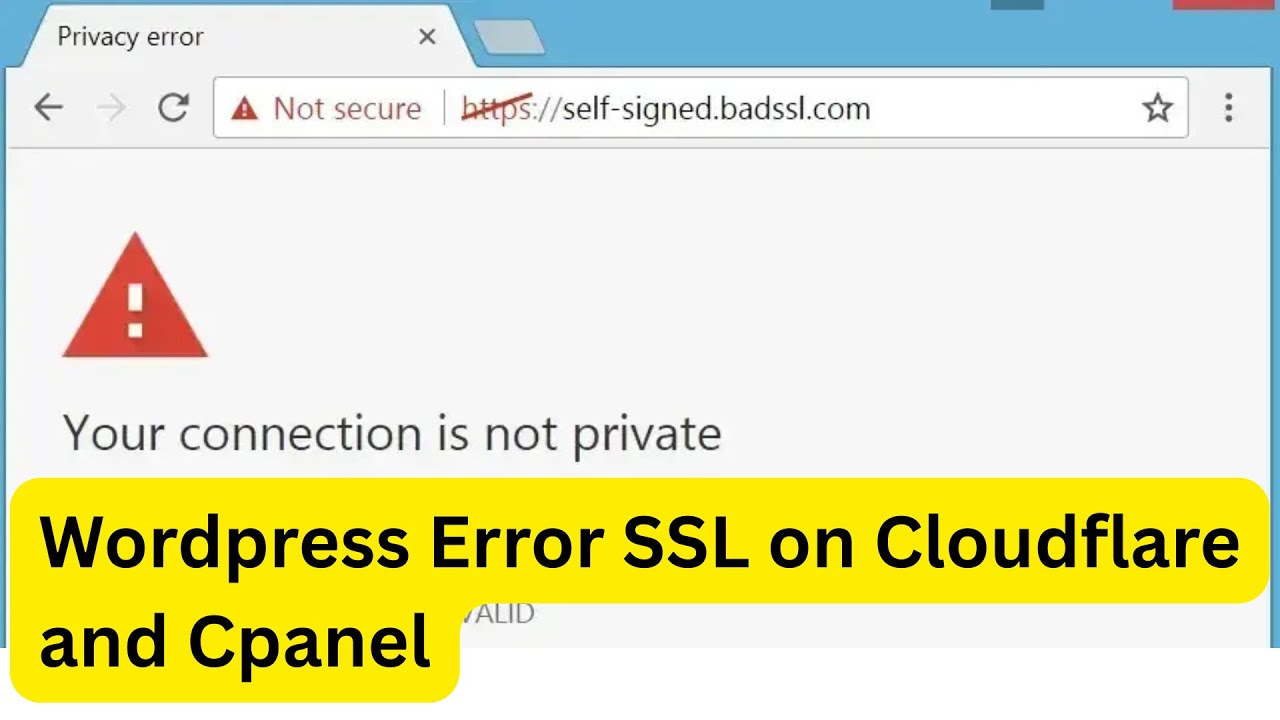
Understanding WordPress SSL Errors on Cloudflare and cPanel
Navigating the digital landscape of websites can sometimes feel overwhelming, especially when you face issues like SSL errors. If your website is hosted on cPanel and behind Cloudflare, encountering an SSL (Secure Socket Layer) error can be particularly frustrating. This post will explore why these errors occur and provide a comprehensive guide on how to resolve them effectively.
What is SSL?
SSL is an essential protocol that encrypts data between a user’s browser and your web server. It ensures that sensitive information, such as passwords and credit card details, remains confidential. Moreover, having an SSL certificate is crucial for building trust with your visitors and enhancing your website’s SEO ranking.
Recognizing SSL Errors
When dealing with SSL certificates, various issues can arise. Common errors include:
- Mixed Content Warnings: This occurs when your website uses both HTTP and HTTPS elements.
- Certificate Expiry: SSL certificates need renewal; if expired, users will see security warnings.
- Cloudflare SSL Issues: Configuring Cloudflare incorrectly can lead to SSL-related errors.
Why SSL Errors Occur on Cloudflare and cPanel
A combination of settings between Cloudflare and cPanel could lead to SSL errors. Here are the primary reasons:
- Incorrect SSL Settings: If Cloudflare and cPanel settings do not match, conflicts will arise.
- SSL Certificate Problems: Issues such as expired or incorrectly installed certificates often lead to errors.
- Caching Issues: Old cached versions of your website can sometimes display SSL errors due to outdated information.
Step-by-Step Guide to Resolving SSL Errors
Resolving SSL errors on WordPress utilizing Cloudflare and cPanel can be achieved through a series of straightforward steps. Follow these guidelines carefully to ensure a successful fix.
Step 1: Verify SSL Certificate Installation
Ensure your SSL certificate is properly installed on your cPanel. Follow these steps:
- Log in to cPanel.
- Navigate to the “SSL/TLS” section.
- Click on “Manage SSL Sites”.
- Check if your domain’s SSL certificate appears here and is valid.
If your certificate is not present or expired, you may need to install a new one. You can obtain a free SSL certificate from services like Let’s Encrypt through cPanel.
Step 2: Configure Cloudflare SSL Settings
After ensuring your SSL is active on cPanel, the next step is to configure Cloudflare’s SSL settings.
- Log into your Cloudflare account.
- Select the domain you’re working on.
- Navigate to the “SSL/TLS” tab.
-
Choose the appropriate mode:
- Off: No SSL (not recommended for websites processing sensitive information)
- Flexible: SSL between users and Cloudflare but not between Cloudflare and your server. This might lead to mixed content errors.
- Full: Secure connection between users and Cloudflare, and between Cloudflare and your server. This is often the recommended choice.
- Full (Strict): Highest level of security that requires a valid SSL certificate on the origin server.
Selecting Full or Full (Strict) is generally advised for maximum security.
Step 3: Adjust WordPress Settings
Next, make sure your WordPress settings are pointing to HTTPS:
- Log in to your WordPress dashboard.
- Go to “Settings” > “General”.
- Ensure both the “WordPress Address (URL)” and “Site Address (URL)” begin with
https://.
Step 4: Force HTTPS
To ensure all traffic is redirected to HTTPS, consider adding a redirect. You can do this by modifying your .htaccess file:
- Open your cPanel and navigate to your file manager.
- Locate the
.htaccessfile in your site’s root directory. - Back up your original
.htaccessfile before making any changes. - Add the following code at the top of the file:
plaintext
RewriteEngine On
RewriteCond %{HTTPS} off
RewriteRule ^(.*)$ https://%{HTTP_HOST}%{REQUEST_URI} [L,R=301]
This code forces all visitors to use the secure HTTPS version of your site.
Step 5: Resolve Mixed Content Errors
Mixed content errors arise when secure and insecure HTTP resources are mixed. To resolve these errors:
- Use a plugin such as Really Simple SSL to automatically fix mixed content issues.
- Alternatively, manually update your site’s URLs in your database using a search and replace tool to ensure all resources are loaded through HTTPS.
Step 6: Clear Caches
Caching can sometimes display outdated information. Clear browser caches, as well as any server-side and Cloudflare caches:
- Cloudflare: In your Cloudflare dashboard, go to “Caching” and click on “Purge Everything”.
- Browser: Clear your browser’s cache. This is often found in the settings or preferences menu.
Step 7: Test Your Site
After making all these changes, it’s essential to verify that the SSL error is resolved. Check your site in an incognito window or using another browser. Tools like SSL Labs can also run a thorough analysis of your SSL certificate’s status.
Conclusion
Encountering SSL errors on WordPress when using cPanel and Cloudflare can be daunting but resolving them is generally straightforward if you follow the outlined steps. Ensuring your site operates with an SSL certificate not only boosts your visitors’ trust but also enhances your search engine ranking. By verifying SSL installations, configuring settings accurately, and managing content appropriately, you can maintain a secure and reliable website.
Keep these techniques handy, as they will serve you well in managing your WordPress site’s security needs effectively.
