
Blog
Create Advanced Image Slider in WordPress
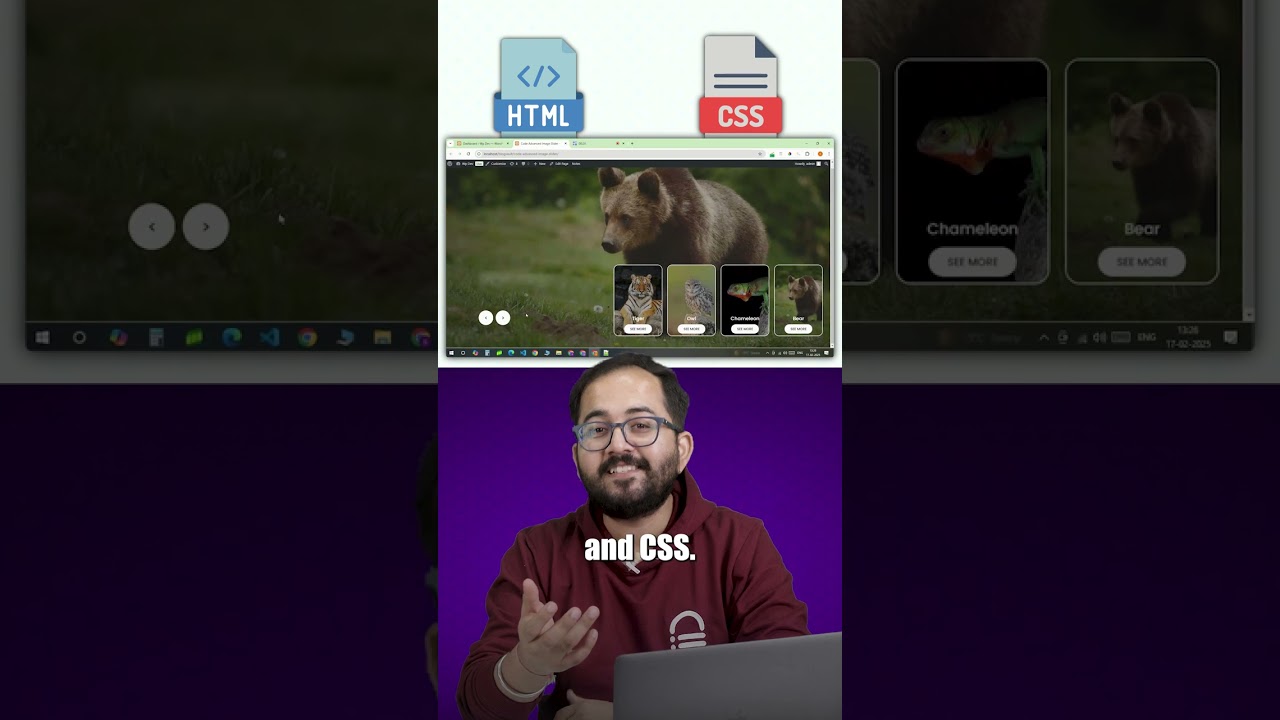
Introduction to Image Sliders in WordPress
Image sliders are a vital component of modern web design, enhancing aesthetics and user engagement on websites. Using an advanced image slider in WordPress can significantly improve the visual presentation of your content, making it more appealing to visitors. This guide walks you through the intricate steps of creating and customizing an advanced image slider in WordPress, ensuring that your website stands out from the competition.
Why Use an Image Slider?
Enhanced User Experience
An image slider provides a dynamic way to display multiple images without requiring users to navigate through different pages. This allows for a more fluid and engaging user experience, enabling visitors to view more content in a shorter time.
Improved Aesthetic Appeal
A well-designed slider adds a professional touch to your website, transforming a boring static page into something visually stimulating. With options for transitions and animations, sliders can make your site feel more dynamic.
Effective Storytelling
Image sliders can help you tell a story or convey messages more effectively. By guiding users through a series of images, you can help them grasp your brand, product, or service narrative in a more structured manner.
Steps to Create an Advanced Image Slider in WordPress
Step 1: Choosing the Right Slider Plugin
Before diving into the creation process, it’s crucial to choose a suitable slider plugin. There are various options available in the WordPress repository, each with unique features. Some popular advanced slider plugins include:
- Slider Revolution: Known for its rich functionality, including animations and layer support.
- Smart Slider 3: A user-friendly plugin that offers drag-and-drop functionality and numerous customization options.
- MetaSlider: Great for those who need a balance between simplicity and flexibility, with multiple slider types.
Take the time to evaluate your needs and choose a plugin that aligns with your goals.
Step 2: Installing and Activating Your Chosen Plugin
Once you’ve selected a plugin, the next step is to install it on your WordPress site:
- Log in to your WordPress dashboard.
- Navigate to
Plugins>Add New. - Search for your chosen slider plugin.
- Click
Install Nowand thenActivate.
After activation, you’ll typically find a new menu item specifically for your slider plugin.
Step 3: Creating Your Image Slider
This section varies slightly depending on the chosen plugin, but the general process is similar:
-
Create a New Slider:
- Navigate to the slider plugin’s menu.
- Look for an option to create a new slider (often labeled as "Add Slider" or "Create Slider").
-
Add Images:
- Click on the option to upload images.
- You can either upload new images directly from your computer or select existing ones from your media library.
- Configure Slider Settings:
- Set the slider’s dimensions according to where it will be displayed on your site.
- Adjust settings such as autoplay, navigation controls (arrows/dots), and whether to include captions or descriptions.
Step 4: Customizing the Slider
The customization options will depend on the plugin you’re using. Here are some common settings you might want to adjust:
- Transitions: Select the type of transition (fade, slide, etc.) that suits your aesthetic.
- Animation Effects: Most plugins allow you to add unique animations to each slide.
- Responsive Design: Ensure that your slider looks great on all devices. Many plugins offer responsive settings for mobile optimization.
Step 5: Embedding the Slider into Your Website
Once you’ve created and customized your slider, it’s time to add it to your website pages. This is usually done using a shortcode:
- Go back to your slider plugin dashboard.
- Locate the shortcode for your created slider.
- Copy the shortcode to your clipboard.
- Navigate to the page or post where you want to display the slider.
- Paste the shortcode into the WordPress block editor or classic editor where you want the slider to appear.
Step 6: Optimizing for SEO
While sliders are visually appealing, they need to be optimized for search engines to ensure they contribute positively to your SEO efforts:
- Image Alt Text: Each image should have relevant alt text that describes the content. This helps with image search optimization and accessibility.
- Size Optimization: Large images can slow down your site. Use an image optimization tool or plugin to reduce file sizes without compromising quality.
- Content Structure: Try to supplement your slider with relevant content. This could be in the form of captions or additional text that gives context to the images displayed.
Step 7: Testing and Troubleshooting
After embedding the slider, it’s essential to thoroughly test how it performs across various devices and browsers. Make sure to check:
- Loading times
- Responsiveness
- User interactions (like clicking through slides)
If you encounter issues, revisit your slider settings, check for conflicts with other plugins, or consult the plugin support documentation.
Step 8: Regularly Update Your Slider
An advanced image slider is not just a one-time setup. Regularly updating the images, refining the text, and making changes to the design are crucial for maintaining its relevance and appeal. A fresh slider can engage returning visitors and optimize overall site performance.
Best Practices for Using Image Sliders
- Limit the Number of Slides: Avoid overwhelming your visitors with too many slides. Three to five high-quality images are often enough to convey your message.
- Quality Over Quantity: Always opt for high-resolution images that load quickly.
- Include Clear Calls to Action: Use captions or buttons to guide users to take specific actions, such as visiting a product page or signing up for a newsletter.
- Monitor Performance: Utilize analytics tools to track how users interact with your slider. This data can help you make informed decisions about future updates.
Conclusion
Creating an advanced image slider in WordPress can significantly enhance your website’s visual appeal and user engagement. By selecting the right plugin, following the steps to create and customize your slider, and optimizing for SEO, you can create a powerful tool that captivates and informs your visitors. Remember that ongoing maintenance and regular updates are essential to keep your content fresh and relevant. Engaging images and a well-executed slider can lead to increased competition and better user retention on your site. Happy sliding!
