
Blog
Understanding Every Single Flexbox Setting In Divi 5
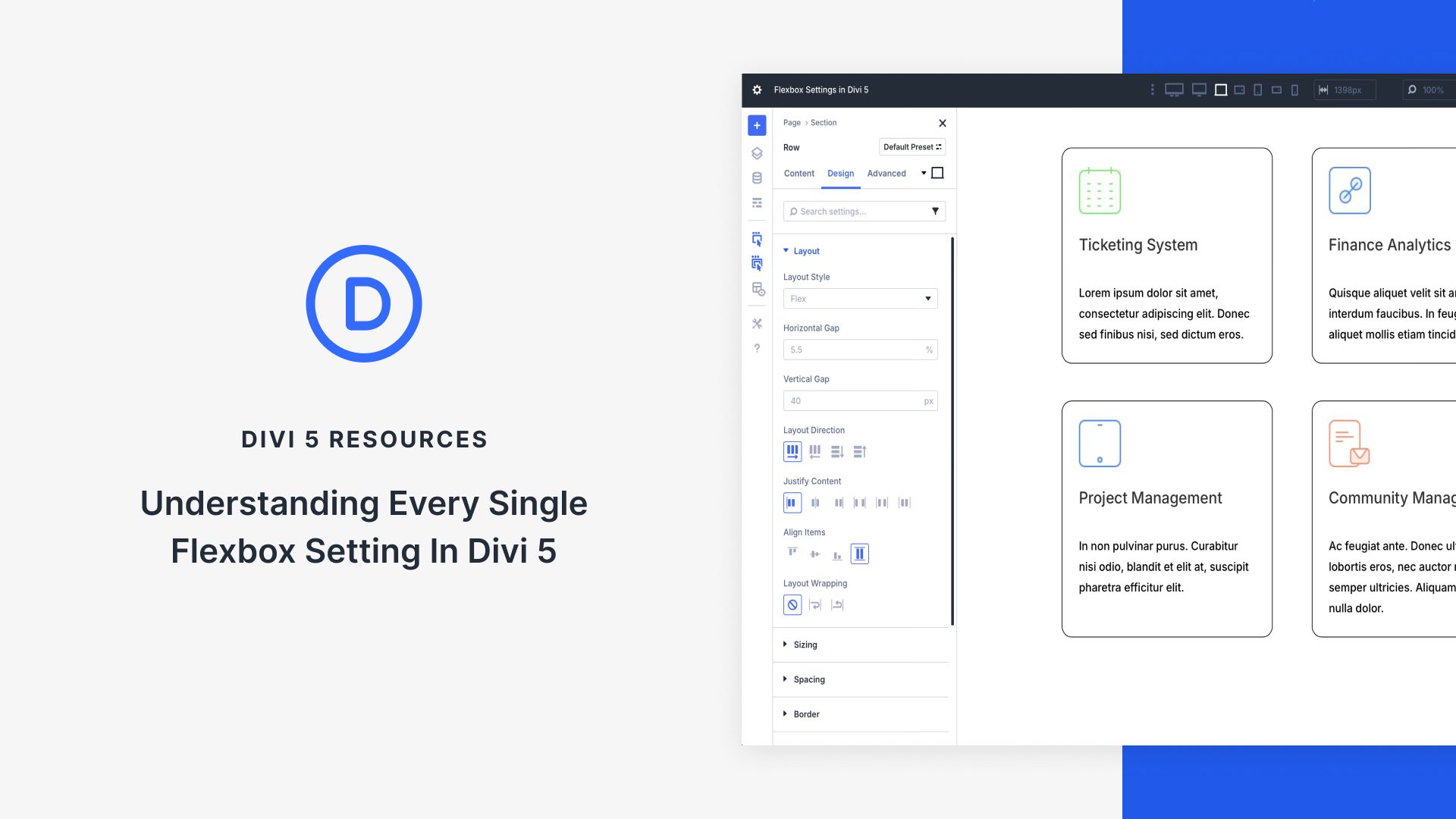
Understanding Flexbox Settings in Divi 5
If you’re diving into web design, mastering Flexbox is essential, especially when working with Divi 5. This powerful layout model simplifies the way elements are arranged on a web page, providing more flexibility than traditional CSS layouts. In this post, we will explore the various Flexbox settings available in Divi 5, guiding you through their functionalities and how they can enhance your designs.
What is Flexbox?
Flexbox, or the Flexible Box Layout, is a CSS module that enables responsive design by distributing space along a single row or column. It allows you to align items, distribute space dynamically, and manage the flow of content within a container. In Divi 5, Flexbox is integrated seamlessly, making it easier for designers to implement complex layouts without much hassle.
How Flexbox Works
The core idea behind Flexbox is simple: it organizes items in a container—known as the flex container. These items, known as flex items, adapt their sizes according to the available space. This adaptability makes Flexbox perfect for modern web designs where responsiveness is crucial.
Key Flexbox Properties in Divi 5
Divi 5 offers several settings to manage and customize your Flexbox layout effectively. Understanding these properties is vital for creating visually appealing designs.
1. Flex Container Properties
Display Property
The first step in utilizing Flexbox in Divi is setting the container’s display property to flex. This enables Flexbox on the container and allows its properties to be applied to the child elements.
Flex Direction
This property defines the direction in which the flex items are laid out. You can choose from:
- Row: Items are arranged in a horizontal line.
- Column: Items stack vertically.
- Row Reverse: Items are laid out in reverse horizontal order.
- Column Reverse: Items stack vertically in reverse order.
Justify Content
This property manages the alignment of flex items along the main axis. It can help you space items evenly or align them in a specific manner. Options include:
- Flex Start: Aligns items at the start of the container.
- Flex End: Aligns items at the end.
- Center: Centers items within the container.
- Space Between: Distributes items evenly, leaving space between them.
- Space Around: Items have equal space around them.
Align Items
This property aligns items along the cross axis, allowing you to adjust vertical alignment in a horizontal layout and vice-versa. The options include:
- Stretch: Items stretch to fill the container.
- Flex Start: Aligns items at the top (for a row) or left (for a column).
- Flex End: Aligns items at the bottom or right.
- Center: Centers items vertically or horizontally.
2. Flex Item Properties
Flex Grow
This property determines how much a flex item will grow relative to the other items in the flex container. A value of 1 means the item can grow to fill available space, while a value of 0 means it will not grow at all.
Flex Shrink
This property controls how a flex item will shrink when the container is too small. It allows fine control over the resizing of items under constraints.
Flex Basis
This property defines the initial size of a flex item before space distribution occurs. You can set it to a specific length (e.g., pixels, percentages) that dictates how much basis space an element should occupy.
Best Practices for Using Flexbox in Divi 5
While Flexbox provides tremendous capabilities for layout design, using it effectively requires some best practices to optimize your experience.
1. Start Simple
Begin with basic layouts to familiarize yourself with Flexbox properties. Once you feel comfortable, progressively incorporate more complex structures. This gradual approach allows you to troubleshoot issues easily.
2. Utilize Browser Developer Tools
Make use of browser developer tools to see how Flexbox properties affect your layout in real time. Adjusting properties directly in the console can help you visualize changes and understand their effects.
3. Responsive Design
Flexbox is inherently responsive, making it easier to design layouts that adjust to different screen sizes. Always test your designs on various devices to ensure they display as intended.
4. Combine with Other CSS
Don’t hesitate to complement Flexbox with other CSS properties like margins, padding, and media queries. A multifaceted approach can yield robust designs that are both visually appealing and functional.
Enhancing Your Divi Projects with Flexbox
By leveraging the power of Flexbox in Divi 5, you can create a wide variety of layouts that work seamlessly across devices. Here are a few ways to enhance your projects further:
1. Build Dynamic Grids
Flexbox allows you to create dynamic grids that automatically adjust as items are added or removed. This feature is particularly useful for portfolios or galleries where content can vary in quantity.
2. Create Centered Forms
Using Flexbox, you can easily center forms within a section. This not only improves aesthetics but also enhances user experience by making forms more accessible.
3. Design Alert Boxes
Flexbox can help in designing alert boxes with icons, text, and buttons aligned in a visually appealing manner, thus improving engagement with your content.
Conclusion
Flexbox is a powerful addition to your web design toolbox, especially when working with Divi 5. By understanding the settings and properties of Flexbox, you can create sophisticated, responsive layouts that adapt seamlessly to various screen sizes. Practice implementing these Flexbox features in your projects, and you’ll soon find yourself crafting impressive designs that stand out while also providing an exceptional user experience.
Take your web design skills to the next level by diving into the world of Flexbox, and make the most of what Divi 5 has to offer!
