
Blog
Learn the WordPress Editor
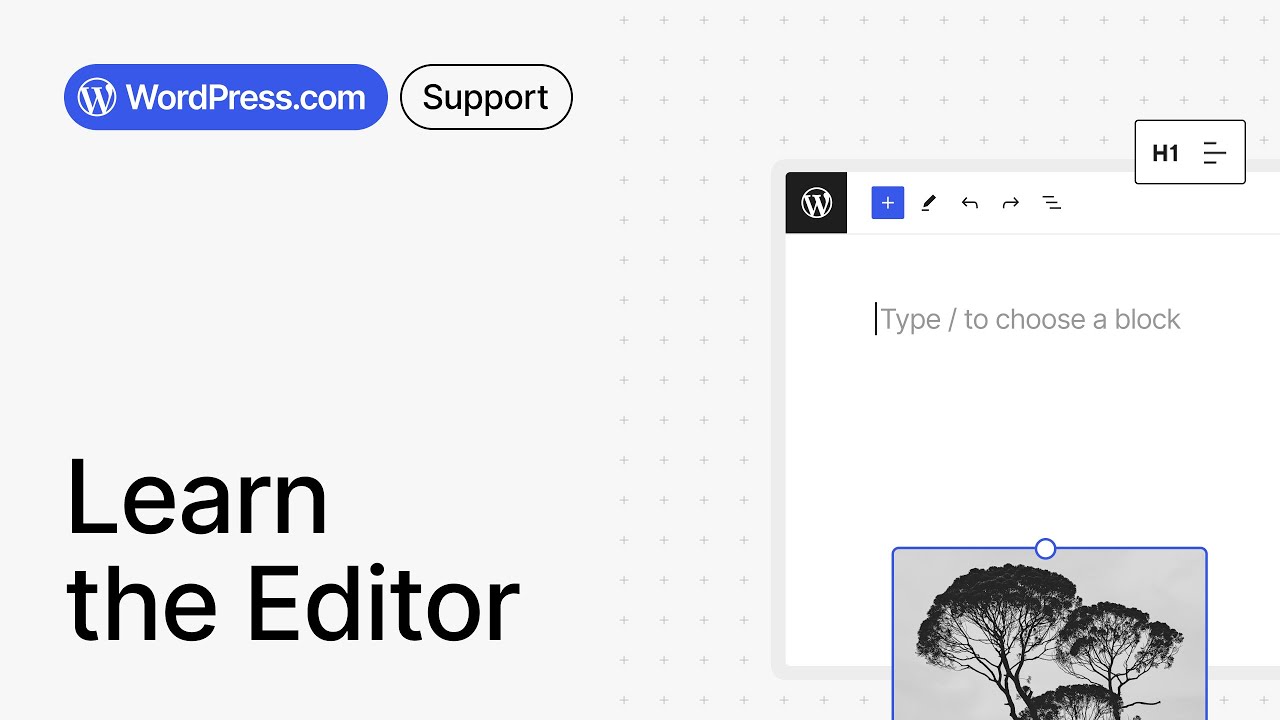
The digital landscape of content creation is constantly evolving, and at the forefront of this evolution for millions of website owners is the WordPress Editor. Moving beyond the classic TinyMCE box, the modern editor offers a powerful, block-based approach that redefines how we build web pages. This comprehensive guide will walk you through everything you need to know to master this tool, transforming your workflow from functional to fantastic.
Whether you’re a seasoned blogger, a small business owner, or just starting your online journey, understanding the intricacies of the editor is the key to unlocking WordPress’s full potential. Let’s dive in and explore how you can harness its power to create stunning, professional-grade content with ease.
What Exactly is the WordPress Editor?
Often referred to as the Block Editor or by its development codename, Gutenberg, the WordPress Editor is the default content creation tool built into the core of the WordPress platform. It represents a fundamental shift from the old way of working with a single text field to a modular, component-driven system.
Instead of writing one long stream of content and then formatting it with complex shortcodes or HTML, you build your pages and posts using individual "blocks." Each block is a self-contained unit for a specific type of content. Think of them as digital Lego bricks: you stack, arrange, and customize each one to construct your final design. This could be a paragraph, an image, a heading, a button, a gallery, or any number of specialized elements. This intuitive method provides unparalleled flexibility and visual control, making web design more accessible than ever before.
Navigating the Interface: A Tour of Your Workspace
When you create a new post or page, you’ll be greeted by the editor’s clean interface. While it might seem minimalist at first, it’s packed with powerful features. Let’s break down the key areas:
1. The Top Toolbar: This horizontal bar at the top of your screen is your command center. Here, you’ll find:
- Document Settings: On the left, icons for undo/redo, access to the detailed post settings (like categories, tags, and featured image), and a quick save button.
- Block Navigation: Helps you see the hierarchy of blocks on your page.
- Content Tools: Options to edit your content in code view, manage block patterns, and access the full tools menu.
2. The Content Area: This is the main canvas where you’ll spend most of your time. It’s where you add, edit, and arrange your blocks. A blinking cursor indicates where your next block will be placed.
3. The Settings Sidebar: Located on the right-hand side, this panel is context-sensitive, changing its options based on what you have selected.
- When a block is selected, it shows the Block Tab with specific settings for that block (e.g., font size, color, width for a paragraph).
- When nothing is selected (or when you click the post title), it shows the Post Tab, which contains all the traditional post settings like categories, tags, featured image, excerpt, and discussion settings.
The Heart of the Matter: Understanding and Using Blocks
Blocks are the fundamental building blocks of your content. To add a new block, you can click the black ‘+’ icon in the top toolbar or the ‘+’ icon that appears within the content area or between existing blocks.
Common Block Categories:
- Text Blocks: Paragraph, Heading, List, Quote, Code, Classic, and more.
- Media Blocks: Image, Gallery, Audio, Cover, File, and Video.
- Design Blocks: Buttons, Columns, Separator, Spacer, and More.
- Widgets: Shortcode, Archives, Categories, Latest Posts.
- Embeds: Blocks for embedding content from YouTube, Twitter, Spotify, etc. (Note: These simply create the embed frame; the actual content is pulled from the source platform).
Mastering Block Manipulation:
Each block has its own toolbar that appears when you click on it. Common options include:
- Transformation: Change a paragraph block into a heading block, or a list into a quote.
- Alignment: Align text or media left, center, or right.
- Drag and Drop: Use the six-dot handle to drag a block to a new location.
- Move Blocks: Use the up and down arrows to reposition the block.
- Additional Settings: Options like bold, italic, link, and more specific controls.
To rearrange blocks, you can also use the drag handle or the up and down arrows on the block toolbar. For bulk actions, the settings sidebar offers advanced block controls like duplicating or deleting.
Beyond Basic Blocks: Leveraging Patterns and Reusable Blocks
As you become more proficient, you’ll want to work smarter, not harder. This is where patterns and reusable blocks come into play.
Block Patterns: These are pre-designed layouts made up of multiple blocks grouped together. They are a fantastic way to create complex, professional-looking sections—like a call-to-action, a team member profile, or a multi-column text section—with a single click. You can find them in the block inserter under the "Patterns" tab. WordPress includes many by default, and many themes add their own custom patterns.
Reusable Blocks: Have you ever created a perfect sign-up form or a special disclaimer that you want to use across multiple posts? Instead of rebuilding it every time, you can save any group of blocks as a "Reusable Block." Once saved, it appears in your block inserter. The magic is that if you edit the reusable block from one place, it updates everywhere it’s used across your site, ensuring consistency and saving you immense time.
Pro Tips for a Streamlined Workflow
Mastering the editor is about more than just knowing where the buttons are; it’s about developing an efficient process.
-
Learn the Keyboard Shortcuts: Speed up your work significantly. Press
Shift + Alt + Hto bring up a full list of available shortcuts. Essential ones include:/to quickly search for and insert a block.Enterto create a new paragraph block.Ctrl/Cmd + Zto undo.
-
Use the List View: The list view button in the top toolbar provides a clean, hierarchical outline of all the blocks on your page. This is invaluable for navigating long documents, selecting blocks that are nested inside others (like columns), and understanding the structure of your content at a glance.
-
Embrace Full-Width and Wide-Width Blocks: Many blocks, like the Cover block or the Image block, can be adjusted to break out of the default content container. Using "Wide Width" or "Full Width" options (if supported by your theme) can create dramatic, visually engaging layouts that make your pages stand out.
- Don’t Fear the HTML: While the block editor is designed to be visual, you can still switch to the Code Editor view if you need to make precise tweaks. This hybrid approach gives you the best of both worlds: ease of use and ultimate control.
Customizing Your Experience
The editor is highly adaptable. Under Settings > Writing, you can control which blocks are available on your site, helping to simplify the interface for other content creators if needed. Furthermore, the vast WordPress plugin ecosystem offers countless add-ons that introduce new, specialized blocks for everything from advanced tables and testimonials to interactive pricing charts and sliders.
Embracing the Future of Content Creation
The WordPress Editor is more than just a tool; it’s a new philosophy for building the web. It empowers users to create rich, engaging layouts without needing to know how to code. While there was a learning curve when it was first introduced, its intuitive, block-based approach has proven to be a powerful and user-friendly system.
By taking the time to understand its components—from basic blocks to reusable templates and efficient keyboard shortcuts—you elevate your content creation from simple typing to true digital craftsmanship. The platform is continually improving, with each new version bringing enhancements and new features. Investing time in mastering the WordPress Editor today is an investment in a more efficient, creative, and powerful tomorrow for your website.
