
Blog
How to Build a Multilingual OCR AI Agent in Python with EasyOCR and OpenCV
Introduction
In today’s interconnected world, the ability to process text across different languages is critical. Whether for improving accessibility, enhancing user experience, or automating data entry, a multilingual Optical Character Recognition (OCR) system can be immensely beneficial. This blog post will guide you through the steps to build a multilingual OCR AI agent using the powerful libraries EasyOCR and OpenCV in Python.
Understanding OCR Technology
Optical Character Recognition (OCR) involves converting images of text into machine-encoded text. This technology is widely used in various applications, from digitizing printed documents to facilitating machine translation. A multilingual OCR system can recognize texts in various languages, making it a versatile tool for global applications.
Prerequisites
Before diving into the development process, ensure you have a basic understanding of Python programming and have installed the following libraries:
- Python 3.x
- OpenCV: A computer vision library for image processing.
- EasyOCR: A flexible OCR library supporting multiple languages.
- Pillow: For image manipulation.
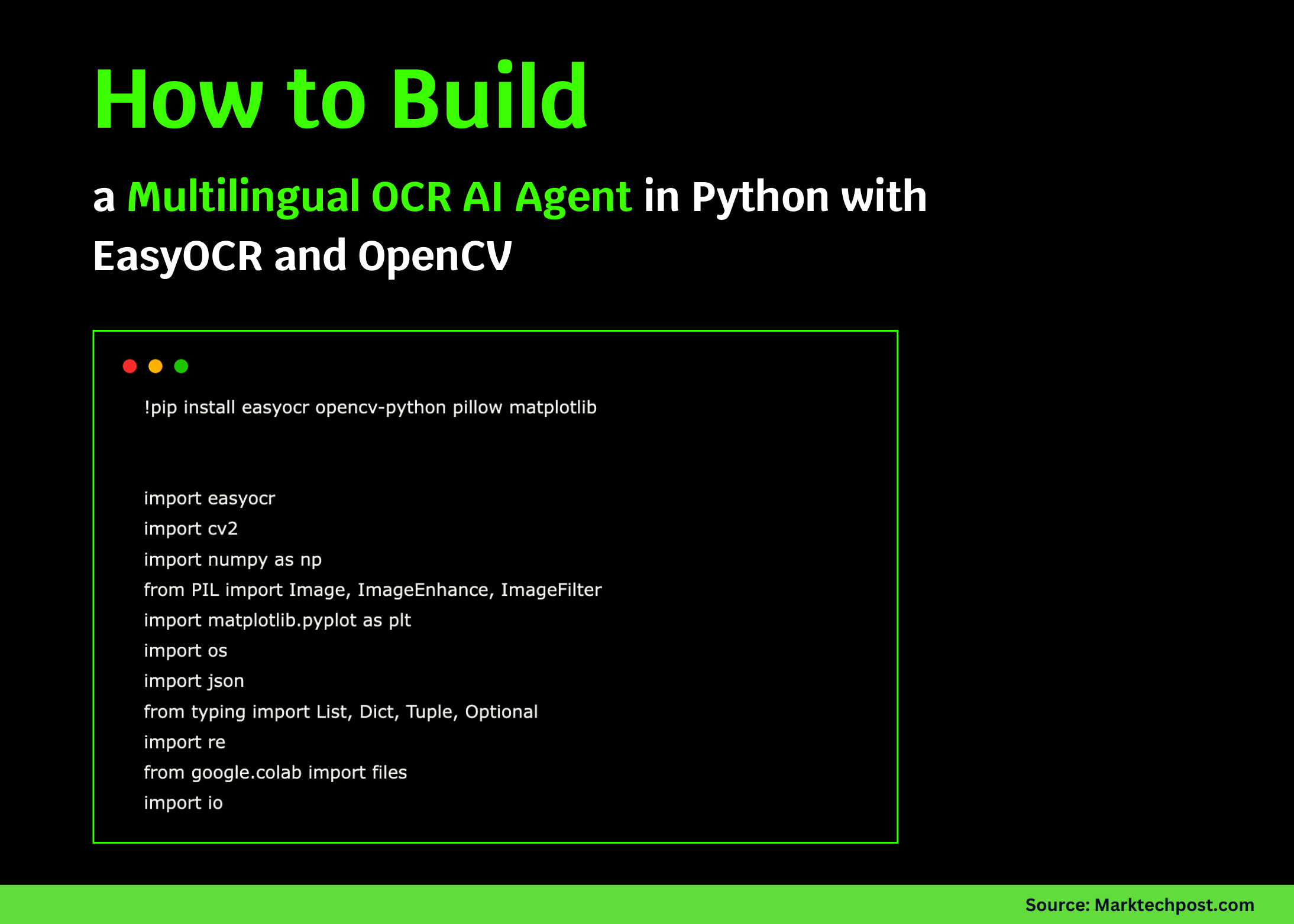
You can install these libraries using pip:
bash
pip install opencv-python easyocr pillow
Setting Up Your Environment
-
Create a New Project Directory: Organize your project by creating a new folder. This will keep your files tidy and easy to manage.
- Set Up a Virtual Environment: It’s a good practice to use virtual environments to prevent library version conflicts. Use the following commands to create and activate a virtual environment:
bash
Create a virtual environment
python -m venv ocr_env
Activate the virtual environment
On Windows
ocr_env\Scripts\activate
On macOS/Linux
source ocr_env/bin/activate
Importing Required Libraries
Once the environment is set up, import the necessary libraries into your Python script:
python
import cv2
import easyocr
from PIL import Image
Initializing the OCR Reader
With EasyOCR, initializing the OCR reader is straightforward. Specify the languages you want to support by passing a list of language codes. Here’s how to set it up:
python
Initialize the EasyOCR Reader
languages = [‘en’, ‘fr’, ‘de’, ‘es’] # English, French, German, Spanish
reader = easyocr.Reader(languages)
This flexibility allows you to add or remove languages based on your application’s needs.
Loading and Preprocessing Images
Before feeding images to the OCR system, it’s crucial to preprocess them to enhance text recognition. This typically involves converting the image to grayscale, blurring it to reduce noise, and applying binary thresholding.
python
def preprocess_image(image_path):
Load the image
img = cv2.imread(image_path)
# Convert to grayscale
gray = cv2.cvtColor(img, cv2.COLOR_BGR2GRAY)
# Apply Gaussian blur
blurred = cv2.GaussianBlur(gray, (5, 5), 0)
# Apply binary thresholding
_, thresh = cv2.threshold(blurred, 128, 255, cv2.THRESH_BINARY_INV)
return thresh
Performing OCR on Images
Now, with the preprocessed image ready, you can extract text using the EasyOCR reader. Here’s how to do it:
python
def perform_ocr(image_path):
Preprocess the image
processed_image = preprocess_image(image_path)
# Use EasyOCR to read text
results = reader.readtext(processed_image)

# Extract text and confidence levels
extracted_text = []
for (bbox, text, prob) in results:
    extracted_text.append((text, prob))
return extracted_text
Displaying Results
To make the output user-friendly, consider formatting the extracted text neatly. You can also visualize the bounding boxes around recognized text in the original image.
python
def display_results(image_path, results):
img = cv2.imread(image_path)
for (bbox, text, prob) in results:
Draw bounding box
    cv2.rectangle(img, (int(bbox[0][0]), int(bbox[0][1])), (int(bbox[2][0]), int(bbox[2][1])), (0, 255, 0), 2)
    # Put extracted text on the image
    cv2.putText(img, text, (int(bbox[0][0]), int(bbox[0][1]) - 10), cv2.FONT_HERSHEY_SIMPLEX, 0.5, (255, 0, 0), 2)

# Show the output image
cv2.imshow('OCR Results', img)
cv2.waitKey(0)
cv2.destroyAllWindows()
Integrating User Input
To make your OCR system more interactive, you can prompt users to upload images. Utilize Python’s built-in input function or develop a simple graphical user interface (GUI) with libraries like Tkinter.
python
image_path = input("Enter the path to the image: ")
results = perform_ocr(image_path)
print("Extracted Text:")
for text, prob in results:
print(f"{text} (Confidence: {prob:.2f})")
display_results(image_path, results)
Enhancing Accuracy
To improve the performance of your multilingual OCR system, consider implementing the following strategies:
-
Fine-tuning Preprocessing: Adjust the image-processing techniques based on the types of images you’re handling.
-
Training on Custom Data: If your application requires recognition of specific fonts or languages not well supported by default, consider training EasyOCR on your custom data.
- Error Handling: Implement error handling to manage cases where the OCR process may fail to read text, ensuring a smooth user experience.
Conclusion
Building a multilingual OCR AI agent using Python, EasyOCR, and OpenCV is both rewarding and practical. By following the steps outlined in this post, you can create a versatile tool capable of recognizing text in multiple languages. Whether you aim to streamline data entry or develop innovative applications, this guide serves as a foundation for your future projects.
Feel free to experiment with additional features and improvements, tailoring the system to meet your specific needs. As technology advances, the potential applications for OCR will continue to expand, making it a valuable skill for developers and data scientists alike. Happy coding!
