
Blog
Customise WordPress Dashboard for FREE!
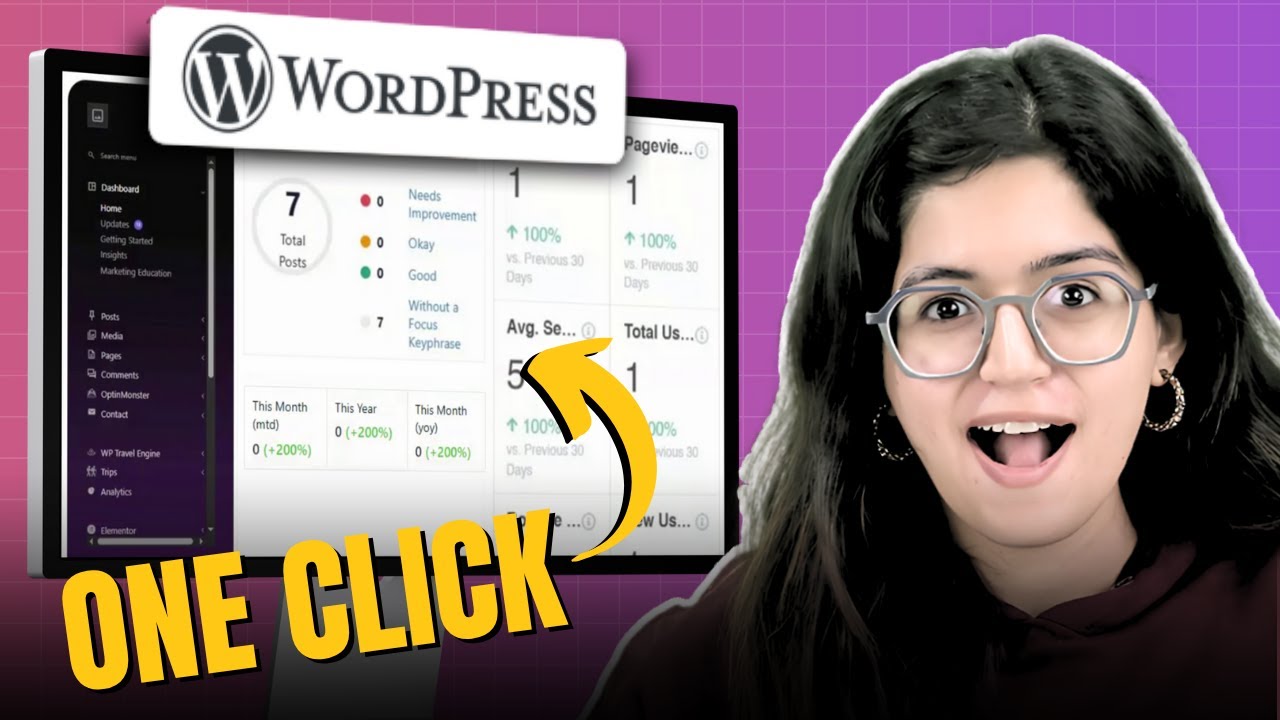
Customizing Your WordPress Dashboard: A Step-by-Step Guide
The WordPress dashboard is your command center for managing your website. By customizing it to suit your needs, you can streamline your workflow, enhance your productivity, and create a more engaging experience. In this guide, we will explore various ways to personalize your WordPress dashboard without spending a dime.
Understanding the WordPress Dashboard
Before diving into customization options, it’s crucial to understand the basic layout of the WordPress dashboard. It consists of several key components:
- Admin Menu: Located on the left side, this menu provides access to different sections of your site, including posts, pages, media, comments, and appearance settings.
- Toolbar: This horizontal bar at the top of the screen offers quick access to essential functions and notifications.
- Main Content Area: This section showcases the different modules and widgets that you can customize based on your preferences.
Understanding these components will help you make informed decisions while customizing.
Why Customize Your Dashboard?
Customizing the WordPress dashboard enhances usability and could lead to a more efficient workflow. Here are several reasons to consider customizing:
- Improved Efficiency: Tailoring the dashboard layout allows you to access important features more quickly.
- Personalized Experience: A well-organized dashboard reflects your preferences, making it easier for you to manage your content.
- Enhanced Focus: By removing distractions and clutter, you can focus more on your core tasks.
Step 1: Rearranging Dashboard Widgets
The WordPress dashboard comes with various pre-installed widgets. You can rearrange them according to your workflow preferences.
- Access the Dashboard: Log into your WordPress admin panel.
- Drag and Drop: Click and hold on a widget’s title bar and drag it to your desired location on the dashboard.
- Customize Each Widget: Some widgets offer settings that allow you to display specific information. Explore these settings to make each widget more useful.
Step 2: Adding New Widgets
If the default widgets don’t meet your needs, you can add new ones to the dashboard.
-
Install a Plugin: Numerous plugins are available to extend dashboard functionality. Some popular options include:
- WP Dashboard Notes: This widget allows you to create and view notes, providing a quick reference for important tasks.
- Site Health: Monitor the status of your site with additional analytics and performance insights.
- Activate the Plugin: Once installed, follow the plugin’s instructions to add the new widgets to your dashboard.
Step 3: Hiding Unnecessary Widgets
If certain widgets do not serve a purpose in your workflow, you can hide them to reduce clutter.
- Open the Screen Options: Click on the “Screen Options” tab in the top right corner of the dashboard.
- Uncheck the Widgets: From the dropdown menu, uncheck the boxes beside the widgets you want to hide.
- Apply Your Changes: Click “Apply” to save your preferences.
Step 4: Customize the Admin Menu
The admin menu can also be customized for better accessibility. You can hide menu items that you seldom use.
- Use a Plugin: Plugins like “Admin Menu Editor” let you modify the admin menu structure seamlessly.
- Rearrange Menu Items: Drag and drop to rearrange items.
- Hide Unused Items: Hide any menu items that are irrelevant to your workflow.
Step 5: Personalizing Your Profile
Personalizing your WordPress profile can make your dashboard experience more enjoyable.
- Access Your Profile: Go to “Users” and click on “Your Profile.”
- Add a Gravatar: This personalized avatar appears next to your name throughout the admin area.
- Adjust Your Display Options: Modify what information displays, like your color scheme or how you want your dashboard widgets to appear.
Step 6: Setting Up Custom Dashboard Widgets
For those with coding skills, creating custom dashboard widgets can offer personalized functionality.
- Use Code Snippets: Add custom PHP code to functions.php within your theme directory to create a new widget.
- Use the Widgets API: Familiarize yourself with the Widgets API to build robust and functional widgets tailored to your needs.
- Include Functionality: Whether you want a simple note-taking widget or a complex analytics dashboard, your creativity is the only limit.
Step 7: Utilizing Third-Party Plugins
Numerous third-party plugins cater to dashboard customization. Here are some recommendations:
- Ultimate Dashboard: This plugin allows complete control over dashboard widgets.
- WP Adminify: A powerful tool that offers various customization options for a polished dashboard appearance.
Step 8: Keep It Clean and Organized
As you make your customizations, remember that less is often more. Avoid overcrowding your dashboard with unnecessary widgets or plugins.
- Regularly Review Your Dashboard: Take the time to review and remove any features you no longer use.
- Prioritize Essential Tools: Focus your dashboard on the widgets and tools that truly enhance your workflow.
Step 9: Leverage User Roles for Different Dashboards
If you manage a multi-user site, customizing dashboard views based on user roles is beneficial.
- Install a User Role Editor Plugin: Plugins like “User Role Editor” allow different roles to see only the widgets they need.
- Tailor Widgets for Each Role: Decide which dashboard components are necessary for each user role, improving the workflow for everyone.
Step 10: Regular Backups and Testing
Before implementing major changes, ensure that you back up your site. Regular backups prevent data loss and provide peace of mind.
- Use Backup Plugins: Consider using plugins like “UpdraftPlus” to automate and manage your backups effectively.
- Test Changes in Staging: If you have access to a staging environment, test all significant changes there first before rolling them out to your live site.
Conclusion
Customizing your WordPress dashboard can significantly enhance your productivity and streamline your workflow. By rearranging widgets, adding new elements, and personalizing features to your preferences, you can create an optimal working environment. Remember to keep your dashboard organized and regularly review your customizations to ensure they align with your evolving needs. With these steps, you’ll be well on your way to a tailored WordPress experience that works for you.
