
Blog
Add Stripe to #WordPress in 2 Minutes
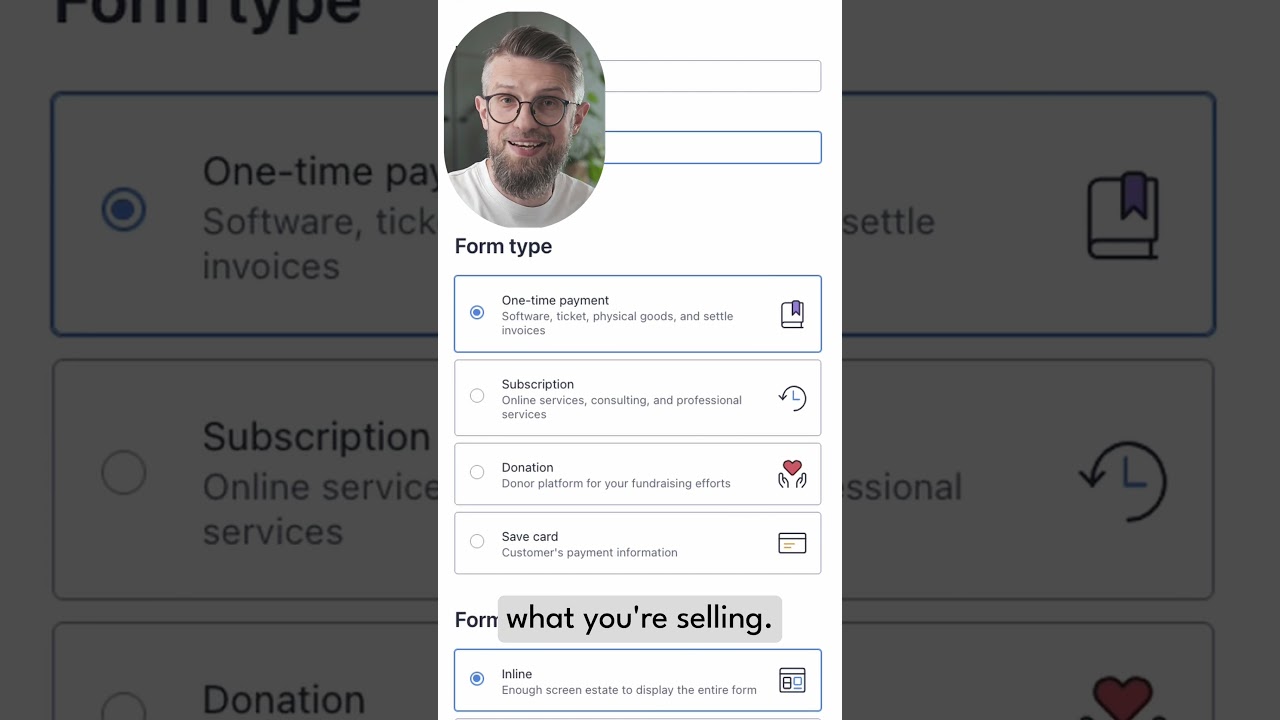
Integrating a robust payment processing system is no longer a luxury for online businesses; it’s an absolute necessity. For WordPress site owners, finding a solution that is both powerful and simple to implement can feel like a daunting task. The good news? If you’re looking to add Stripe—a global leader in online payments—to your WordPress site, the process can be remarkably straightforward, often taking just minutes rather than days.
This guide will walk you through the most efficient methods to seamlessly connect Stripe with your WordPress website, empowering you to accept payments, process donations, and sell products or services with confidence and ease.
Why Stripe is the Go-To Choice for WordPress Websites
Before we dive into the "how," it’s crucial to understand the "why." Stripe has earned its reputation as a premier payment gateway for several compelling reasons:
- Developer-Friendly API: While its backend technology is incredibly sophisticated, Stripe is designed to be integrated easily, making it a favorite among developers and non-developers alike.
- Top-Tier Security: Stripe is a PCI Service Provider Level 1, the most stringent certification in the payments industry. It handles all sensitive data, ensuring your customers’ credit card information is never stored on your server.
- Global Reach: Accept payments from customers in over 135 countries and support dozens of local payment methods, from credit cards to digital wallets like Apple Pay and Google Pay.
- Transparent Pricing: Stripe offers a clear, pay-as-you-go pricing model with no hidden fees, monthly charges, or setup costs. You only pay a small percentage per successful transaction.
Method 1: The Fastest Path – Using a Dedicated Stripe WordPress Plugin
For the vast majority of users, the quickest and most reliable way to add Stripe to WordPress is by using a dedicated plugin. This method abstracts away the complex code and provides a user-friendly interface within your WordPress dashboard.
Step-by-Step Guide: Installing the Official Stripe Plugin
While several excellent plugins support Stripe, the official "Stripe Payment Plugin" is a fantastic starting point for accepting simple payments and donations.
-
Install and Activate the Plugin: Navigate to your WordPress admin panel. Go to
Plugins > Add New. In the search bar, type "Stripe Payment Plugin." Locate the official plugin by "WordPress.com" (Automattic) and click "Install Now," then "Activate." -
Connect Your Stripe Account: Once activated, you’ll find a new "Stripe" menu item in your dashboard. Click on it to begin the setup. You will be prompted to connect your WordPress site to your Stripe account. Click the "Connect with Stripe" button. This will securely redirect you to Stripe’s website to log in and authorize the connection. This step seamlessly handles the API key exchange behind the scenes.
-
Configure Payment Settings: After connecting, you’ll be returned to your WordPress site to configure basic settings. You can set your currency, payment method types (cards, digital wallets), and customize the text on your payment button.
- Add a Payment Button to Your Site: The plugin provides a simple shortcode. To add a payment button to any post or page, simply use the
[stripe_payment]shortcode. You can customize the amount, description, and other parameters directly within the shortcode.
Pro Tip: For more advanced e-commerce functionality, such as selling multiple products, managing inventory, or creating subscriptions, consider a full-featured plugin like WooCommerce (with the Stripe Payment Gateway extension) or Easy Digital Downloads. These plugins offer deep Stripe integration and transform your site into a powerful online store.
Method 2: Leveraging WooCommerce for Advanced E-Commerce
If your goal is to build a comprehensive online store, WooCommerce is the industry standard for WordPress. Its seamless integration with Stripe is arguably the most powerful way to add payment processing.
-
Install WooCommerce and the Stripe Extension: First, install and activate the free WooCommerce plugin. During setup, it will guide you through essential store configurations. Afterwards, go to
Plugins > Add Newand search for "WooCommerce Stripe Payment Gateway." Install and activate this official extension. -
Configure the Stripe Gateway: Navigate to
WooCommerce > Settings > Payments. You will see "Stripe" listed as a payment method. Click the "Set up" button next to it. -
API Key Integration: This is the core of the connection. In your Stripe dashboard, you need to retrieve your API keys. Go to the Stripe Developers section and find your "Publishable key" and "Secret key." Copy and paste these into the corresponding fields in your WooCommerce Stripe settings. This securely links your store to your Stripe account.
- Enable and Customize: Enable the payment method and customize options like payment request buttons (Apple Pay, Google Pay), saved cards, and transaction descriptors. WooCommerce allows you to fine-tune the customer checkout experience.
Ensuring a Secure and Professional Payment Experience
Simply connecting Stripe isn’t the final step. To build trust and maximize conversions, you must present a professional and secure payment flow.
- SSL Certificate is Non-Negotiable: Any page on your site that handles payment information must have an SSL certificate installed. This encrypts data between your customer’s browser and your web server. You will see a padlock icon in the browser’s address bar (e.g.,
https://). Most reputable hosting providers offer free SSL certificates via Let’s Encrypt. Without SSL, Stripe will not function correctly, and browsers will warn users that your site is insecure. - Clear Communication: Ensure your checkout pages are clean, professional, and free of distractions. Clearly display accepted payment methods and security badges to reassure customers.
- Mobile Optimization: A significant portion of online purchases happen on mobile devices. Test your payment buttons and checkout process on smartphones and tablets to ensure a smooth user experience.
Beyond the Basics: Maximizing Your Stripe Integration
Once your basic integration is live, explore Stripe’s powerful features to grow your business:
- Subscriptions and Recurring Billing: Offer weekly, monthly, or annual subscription plans for your services or products. Stripe handles the complex billing logic, failed payment retries, and customer management.
- Multiple Payment Methods: Go beyond credit cards. Enable Alipay for customers in China, iDEAL for the Netherlands, SEPA Direct Debits for Europe, and other local payment methods to tap into global markets.
- Detailed Reporting and Analytics: Use the Stripe Dashboard to gain deep insights into your revenue, customer growth, and payment success rates. Identify trends and make data-driven decisions for your business.
Troubleshooting Common Connection Issues
Even with a simple process, you might occasionally encounter hiccups. Here are quick fixes for common problems:
- "Invalid API Key Provided": Double-check that you’ve correctly copied and pasted your publishable and secret keys from the Stripe dashboard. Ensure you haven’t accidentally mixed them up or included any extra spaces.
- Payment Button Not Appearing: Verify that the required shortcode is placed correctly in your page editor and that the page is published.
- Checkout Not Working: Confirm your SSL certificate is active and working properly on your live site (not just in development). Check that your WordPress address and site address URLs (in
Settings > General) are both set tohttps://.
Adding Stripe to your WordPress website is a transformative step that unlocks the potential for revenue generation and global sales. By choosing the right plugin for your needs—whether a simple payment button or a full-featured WooCommerce store—you can achieve a secure, professional, and highly functional payment system in a remarkably short amount of time. The investment of a few minutes in setup will pay dividends in customer trust and business growth for years to come.
