
Blog
Word Press Day-5 How to edit the About Us Page in Word Press #digitalmarketingcourse #godigital
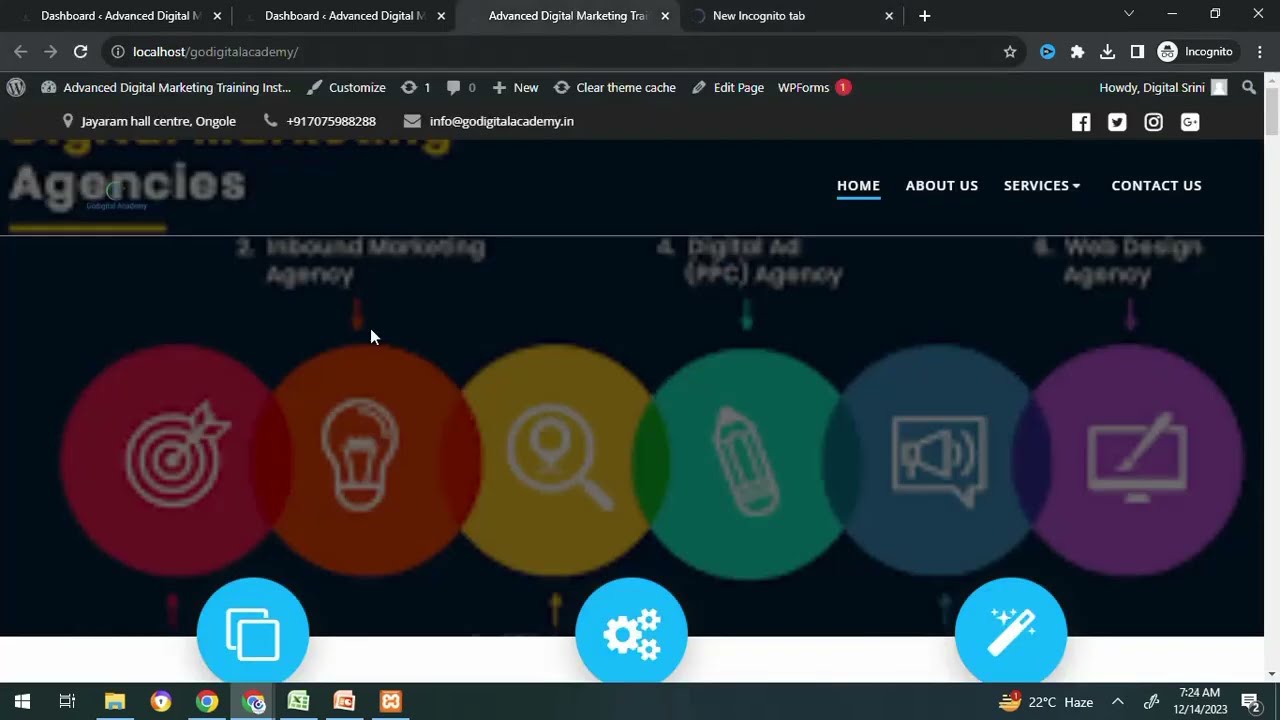
Mastering the About Us Page: A Comprehensive Guide to Editing in WordPress
Creating an engaging and informative "About Us" page is crucial for establishing credibility and fostering trust with your audience. In this post, we’ll delve into easy steps to edit this important page in WordPress, ensuring your content aligns with your brand’s voice and speaks directly to your audience’s needs.
Understanding the Importance of the About Us Page
The "About Us" page serves as a digital introduction to your brand. It’s an opportunity to tell your story, highlight your values, and connect with visitors on a personal level. When crafted effectively, it can significantly influence customer perception and engagement.
How to Access the About Us Page in WordPress
To start editing your "About Us" page, you first need to log into your WordPress dashboard. Here are the steps to locate and access the page:
-
Log In: Go to your WordPress site’s admin login page. Enter your username and password to access the dashboard.
-
Navigate to Pages: On the left-hand menu, click on "Pages." This will display all the pages currently set up on your site.
-
Find About Us: Look for the "About Us" page in the list. You can use the search bar for quicker access.
- Edit the Page: Hover over the "About Us" title and click "Edit." This will open the page editor, where you can make changes.
Choosing the Right Editor: Classic vs. Block
WordPress provides two primary editing environments: the Classic Editor and the Block Editor (Gutenberg). Understanding both will help you choose the one that suits your needs.
-
Classic Editor: More straightforward, resembling traditional word processing. It’s ideal for users familiar with HTML and those who prefer a simpler interface.
- Block Editor (Gutenberg): Offers a more flexible approach, allowing you to create content by adding various blocks (text, images, videos, etc.). This method provides greater design freedom and is generally recommended for new users.
Switching Between Editors
If you’re using the Block Editor but prefer the Classic Editor (or vice versa), you can switch by installing the Classic Editor plugin or by adjusting your settings based on the WordPress version.
Crafting Compelling Content
Once you’ve accessed the About Us page, the next step is to focus on creating engaging content. Here are some tips for crafting a compelling narrative:
1. Start with a Hook
Begin with an engaging opening sentence that captures attention. Use a powerful statement or question that relates to your audience’s needs or interests.
2. Tell Your Story
Share your brand’s journey. Discuss how and why you started, the challenges faced, and your mission. Personal anecdotes can significantly enhance relatability.
3. Highlight Core Values
Clearly articulate your business’s core values. This can create an emotional connection with your audience. Make sure these values resonate throughout your site.
4. Introduce the Team
If applicable, introduce team members. Include photos and brief bios to humanize your brand and build trust.
5. Include Call-to-Actions (CTAs)
Engage your visitors further by incorporating CTAs. Encourage them to check out your services, read your blog, or follow you on social media.
Editing the Page Elements
Adding Text
To add or edit text in the Block Editor:
-
Select a Block: Click on the ‘+’ icon to add a new block, then choose the "Paragraph" block for text.
- Type Your Content: Start typing, and use the formatting options for bold, italics, or bullet points as needed.
Adding Images
-
Insert Image Block: Click on the ‘+’ icon and select the "Image" block.
-
Upload or Select: You can either upload a new image or choose one from the Media Library.
- Add Alt Text: For SEO and accessibility, always include descriptive alt text for images.
Adding Links
-
Highlight the Text: Select the text you want to link.
- Insert Link: Click on the link icon in the formatting toolbar, enter the URL, and hit "Enter."
Formatting Tips for Readability
To ensure your content is reader-friendly:
-
Use Headers: Use headings (H1, H2, H3) to break up the text and guide readers.
-
Short Paragraphs: Aim for shorter paragraphs to enhance readability.
- Bullet Points and Lists: Use lists to highlight key information clearly.
Previewing and Publishing Changes
Before publishing your changes:
-
Preview the Page: Click on the "Preview" button to see how your revisions will appear to visitors.
-
Check for Errors: Review for spelling and grammar mistakes. Tools like Grammarly can be helpful.
- Save Changes: Once satisfied, hit the “Update” button to make your changes live.
SEO Best Practices for Your About Us Page
Integrating SEO practices is essential for increasing visibility:
-
Keyword Optimization: Identify relevant keywords related to your brand and incorporate them naturally into your content.
-
Meta Description: Write a compelling meta description that includes primary keywords to improve click-through rates.
-
Responsive Design: Ensure your page looks good on both desktop and mobile devices.
- Internal Linking: Link to other relevant pages and blog posts within your site, enhancing user experience and boosting SEO.
Monitoring Performance
After publishing, keep an eye on how your About Us page performs. Tools like Google Analytics can provide insights into visitor behavior, helping you make necessary adjustments over time.
Conclusion
Editing your "About Us" page in WordPress is a straightforward yet essential task. By reflecting your brand’s story, values, and offerings, you can create an engaging page that resonates with your audience. Use this guide as a roadmap to maximize the impact of this critical part of your website. Embrace the power of storytelling and watch as your connection to your audience deepens.
