
Blog
Word Press Day-4 How to Install the WP form Plugin and how to setup the Contact form #godigital #job
Mastering Your Website: A Guide to Installing and Setting Up WP Form Plugin
As businesses and individuals alike strive to establish their online presence, having an efficient contact form is essential. The WP Form plugin offers a user-friendly solution for creating customizable forms on WordPress websites. This guide will walk you through the steps to install and set up the WP Form plugin, ensuring you can effortlessly collect inquiries, feedback, and other important information from visitors.
Understanding WP Form Plugin
WP Form is a powerful drag-and-drop form builder for WordPress that allows users to create various forms without needing coding knowledge. Whether you need a simple contact form or a complex multi-step form, WP Form provides an intuitive interface to make the process seamless. Features like spam protection, email notifications, and mobile responsiveness make it an excellent choice for users seeking efficiency and flexibility.
Why Choose WP Form?
- User-Friendly Interface: The drag-and-drop builder allows anyone to create forms quickly.
- Customizable Templates: Choose from pre-designed templates to save time.
- Responsive Design: Forms automatically adjust to different screen sizes, ensuring a smooth experience for users on mobile and desktop devices.
- Integration Options: WP Form can connect with various marketing and payment platforms, streamlining your workflow.
Installing the WP Form Plugin
Installing the WP Form plugin on your WordPress site is a straightforward process. Follow these steps to get started:
Step 1: Access Your WordPress Dashboard
Log into your WordPress admin account. This is typically accessed by adding /wp-admin to your website’s URL.
Step 2: Navigate to the Plugin Section
In the left sidebar menu, hover over or click on “Plugins” and then select “Add New.” This will take you to the plugin directory.
Step 3: Search for WP Form
In the search bar on the top right, type “WP Form” and hit enter. You will see the WP Form plugin in the search results, usually listed as "WPForms."
Step 4: Install the Plugin
Click the “Install Now” button next to the WP Forms listing. After installation, the button will change to “Activate.” Click it to activate the plugin on your website.
Step 5: Configure Settings
Once activated, WP Forms will add a new menu item to your dashboard. Visit "WPForms" in the sidebar, where you’ll find options to manage your forms and settings.
Setting Up Your First Contact Form
Now that you’ve installed the WP Form plugin, it’s time to create your first contact form. Here’s how:
Step 1: Create a New Form
- Click on "WPForms" in the left sidebar.
- Select "Add New" to start creating your form.
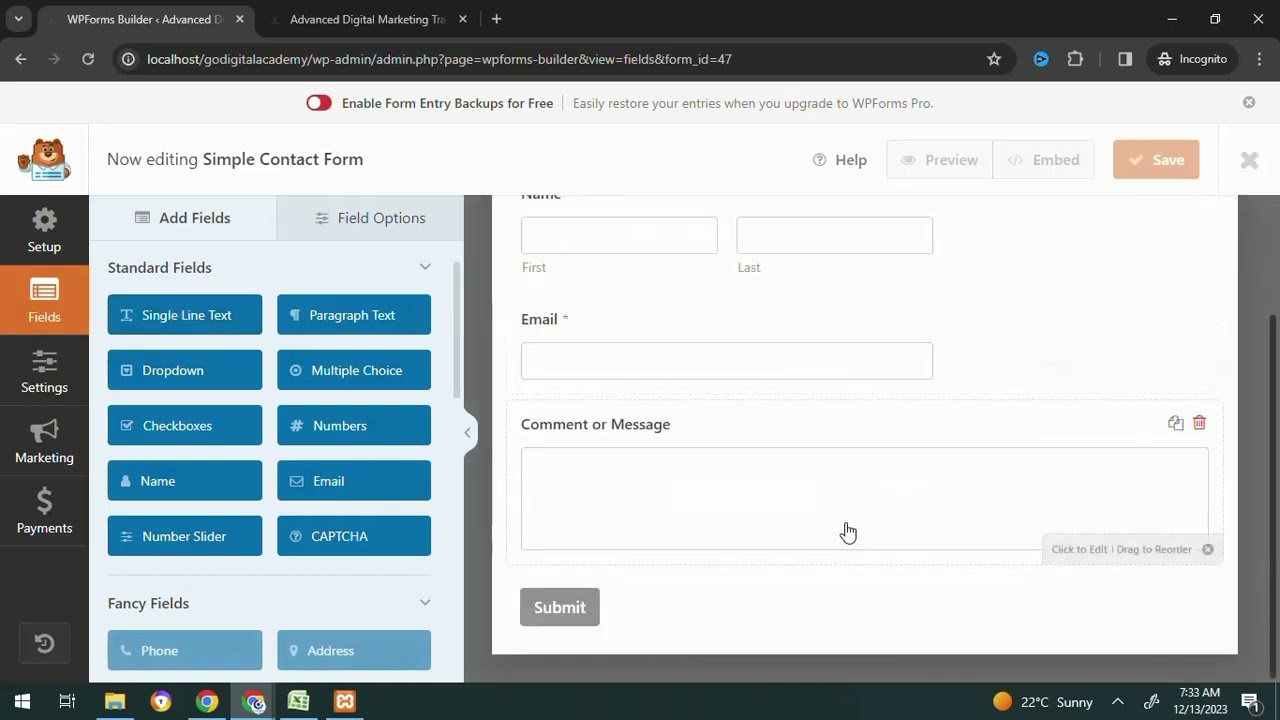
- You’ll be prompted to choose a template. For a basic contact form, select “Simple Contact Form.”
Step 2: Customize Your Form
The WP Form builder opens with a panel on the left and a preview of your form on the right side.
-
Adding Fields: Drag and drop fields from the left panel to the right preview area to create your form. You can add fields like Name, Email, Phone, Message, and more based on your requirements.
-
Field Customization: Click on each field in the preview area to customize labels, placeholder text, and settings such as required fields.
- Advanced Options: Explore the “Smart Tags” feature for personalized interactions, enabling conditional logic based on user responses.
Step 3: Configure Form Settings
To ensure your contact form functions smoothly, you’ll need to configure its settings:
-
General Settings: Click on the “Settings” tab, where you can adjust form name, description, and button text.
-
Notifications: Set up notifications to receive alerts when someone submits a form. You can choose to send these to your email address or to multiple recipients.
- Confirmations: Specify what users see after successfully submitting the form. This could be a simple message, a redirect to another page, or a display of custom content.
Step 4: Embed the Form on Your Website
After customizing your form, it’s time to embed it on your site:
- Click on the “Embed” button at the top right of the form builder.
- You can either embed it directly into a page/post or use a shortcode. To add it to a page, select the page where you want the form to appear, and click “Add Form.”
- If using a shortcode, copy the generated shortcode and paste it into the WordPress editor of the desired page or post.
Testing Your Contact Form
Before officially launching your contact form, testing is crucial. Go to the page where your form is embedded, fill it out, and submit it. Ensure that notifications arrive in your inbox and that the confirmation message displays correctly. This will help you identify any potential issues and improve the user experience.
Enhancing Your Form’s Functionality
Once you’re comfortable with the basics, consider utilizing additional features to enhance your form’s functionality:
- Spam Protection: Enable reCAPTCHA to minimize spam entries.
- Payment Integration: If you plan to collect payments or donations, look into upgrading to WP Forms Pro, which allows PayPal or Stripe integration.
- Analytics: Use the WP Forms Lite or Pro to track submissions and gain insights into user interactions.
Conclusion
Installing and setting up the WP Form plugin on your WordPress site can significantly enhance user interaction and streamline your communication. With its intuitive interface, customizable features, and robust support, WP Form is a practical choice for anyone looking to manage forms efficiently. By following the steps outlined in this guide, you’ll not only create a vital tool for your website but also lay the foundation for better engagement with your audience. Get started today and take your online presence to the next level!
