
Blog
Word Press Day-2 How to create the Pages and Menu and also Creating and uploading logo in website
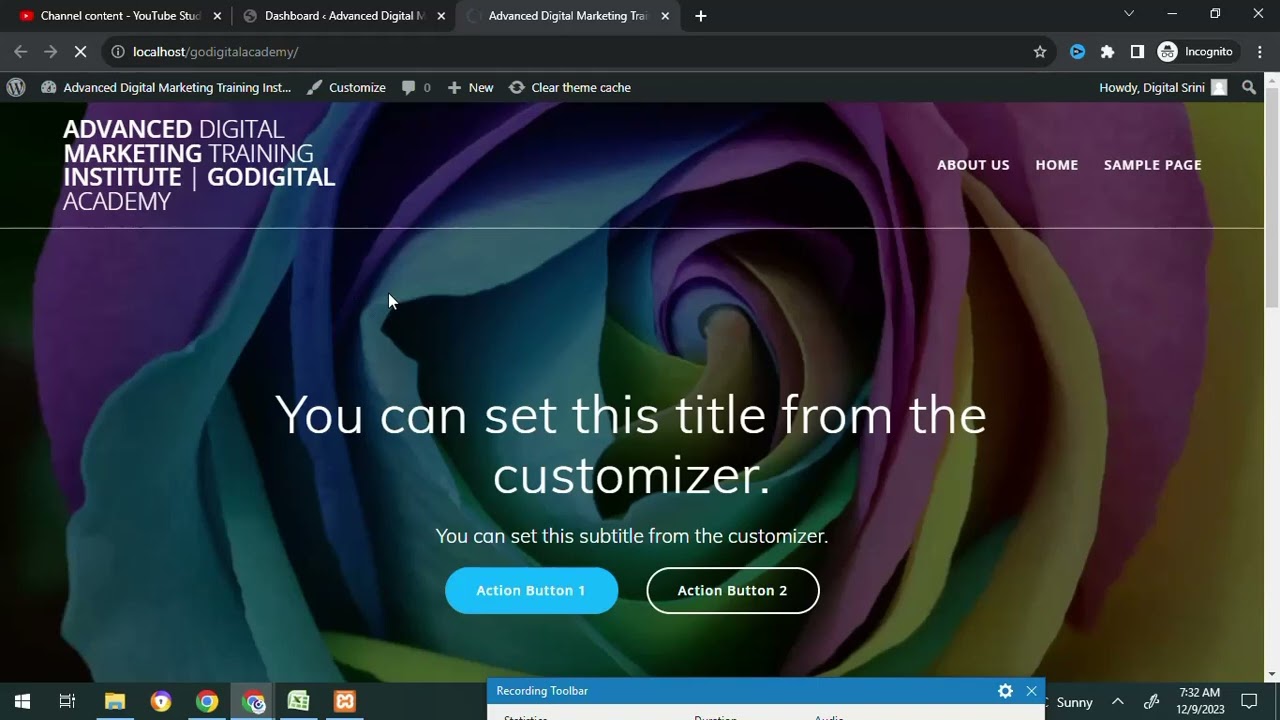
Mastering WordPress: A Comprehensive Guide to Creating Pages, Menus, and Uploading Your Logo
WordPress has emerged as one of the most widely used content management systems (CMS), offering an array of features that empower users to create and manage websites effortlessly. In this guide, we will delve into the intricacies of creating pages, building menus, and uploading a logo to elevate the visual appeal of your site. Let’s embark on this journey to enhance your WordPress experience.
Understanding WordPress Pages
Pages are integral to your website, serving as standalone sections that house essential content. Unlike posts, which are part of a blog, pages are typically used for static information, such as "About Us" or "Contact" sections. Here’s how to create pages effectively.
Step 1: Access the WordPress Dashboard
Log into your WordPress dashboard by entering your credentials. Once logged in, you will find various options in the left sidebar.
Step 2: Create a New Page
- Navigate to Pages on the left sidebar.
- Click on Add New.
- A new editing screen will appear. Here, you can enter the title of your page and add content using the block editor.
Step 3: Add Content Using the Block Editor
WordPress employs a block-based editor that allows for diverse content formats. You can add text, images, videos, and other elements by selecting the appropriate block. Here’s a quick rundown:
- Text Block: For paragraphs, headings, and lists.
- Image Block: To add visuals that enhance your message.
- Video Block: For embedding video content.
After adding your desired content, remember to preview your page to assess its appearance before publishing.
Step 4: Publish Your Page
Once you’re satisfied with your content, click the Publish button on the right side. Your page is now live!
How to Create Menus in WordPress
Menus are vital for navigation and allow users to explore your website seamlessly. Creating a user-friendly menu increases usability and enhances the overall user experience.
Step 1: Navigate to Menus
- In the WordPress dashboard, go to Appearance and select Menus.
- If this is your first menu, you can create a new one by giving it a name and clicking on Create Menu.
Step 2: Add Pages to Your Menu
Once you’ve created a menu, you can start adding pages:
- On the left side of the menu screen, you will see a list of your available pages.
- Select the pages you want to include and click Add to Menu.
Step 3: Organize Your Menu
After adding pages, you can rearrange them by dragging and dropping them into your desired order. Additionally, you can create sub-menus by indenting items beneath their parent pages.
Step 4: Assign Menu Location
Once satisfied with your menu items, choose where you want your menu to appear on your site. Most themes offer multiple menu locations—these options might include the primary navigation, footer, or sidebar.
Step 5: Save Your Menu
Finally, click on the Save Menu button. Your newly created menu is now live and will be visible to visitors navigating your site.
Uploading Your Logo to Your WordPress Site
A logo is a crucial aspect of your brand identity. Incorporating it into your website establishes credibility and fosters recognition. Here’s how to upload your logo in WordPress.
Step 1: Access the Customizer
- Go to Appearance in the WordPress dashboard.
- Click on Customize to open the WordPress Customizer.
Step 2: Locate the Site Identity Section
Within the Customizer, find the Site Identity section. This is where you can add your logo.
Step 3: Upload Your Logo
- Click on the Select Logo button.
- Upload your logo file by either selecting it from your media library or uploading a new one from your computer.
- After selecting your logo, you can crop it if needed and click on Publish to save the changes.
Tips for Optimizing Your Pages and Menus
While creating pages, menus, and uploading logos is relatively straightforward, optimizing these elements for search engines and user experience is essential. Here are some valuable tips:
- Use SEO-Friendly Titles: Incorporate relevant keywords naturally into your page titles and headings.
- Easy Navigation: Maintain a user-friendly structure for your menus, ensuring items are logically categorized.
- Responsive Design: Confirm that your logo and menu display correctly on all devices, including mobile phones and tablets.
- Image Optimization: Make sure your logo and other images are optimized for faster loading times without compromising quality.
Conclusion
Creating pages, menus, and uploading your logo are foundational steps in establishing a professional and user-friendly website on WordPress. With these tools at your disposal, you can significantly enhance the navigation and visual appeal of your site. Remember to keep optimizing your content and structure as you grow. Embrace these features to make your website stand out in the crowded online landscape!
