
Blog
Word Press Day-1 How to login the Word press website and Choosing Themes Install and adding new page
Getting Started with WordPress: A Comprehensive Guide for Day 1
As an aspiring website creator, your journey into the world of WordPress begins with understanding how to log in, choose themes, and create pages. This guide will walk you through the essential steps to set up your WordPress site effectively, ensuring you have a strong foundation to build upon.
Logging into Your WordPress Website
The first step to managing your WordPress site is logging in to the dashboard. Follow these simple instructions:
-
Access the Login Page:
To log in, navigate to your website’s URL followed by/wp-admin(for example,www.yourwebsite.com/wp-admin). This will take you to the WordPress login page. -
Enter Your Credentials:
Here, you need to input your username and password. If you’ve just set up your site, you would have created these credentials during the installation process. - Click "Log In":
After entering your details, click on the “Log In” button. If your credentials are correct, you’ll be taken to the WordPress dashboard, the central hub for all your site’s management tasks.
Navigating the WordPress Dashboard
Once logged in, familiarize yourself with the dashboard. It includes various sections that allow you to manage your posts, media, pages, comments, appearance, and plugins. Each area is designed to help you manage specific elements of your website.
Selecting the Right Theme for Your Website
Choosing the right theme is crucial as it defines your website’s look and functionality. WordPress offers thousands of themes, both free and premium, to suit various types of websites.
Steps to Choose a Theme:
-
Go to the Theme Section:
In the dashboard, navigate toAppearance>Themes. Here you’ll find your currently activated theme and other installed themes. -
Add New Theme:
Click on the “Add New” button. You can explore the featured, popular, and latest themes listed. -
Use Filters:
Utilize the filter feature to sort themes by different criteria, such as layout, features, and industry type, ensuring you choose one that aligns with your website’s goals. - Preview and Install:
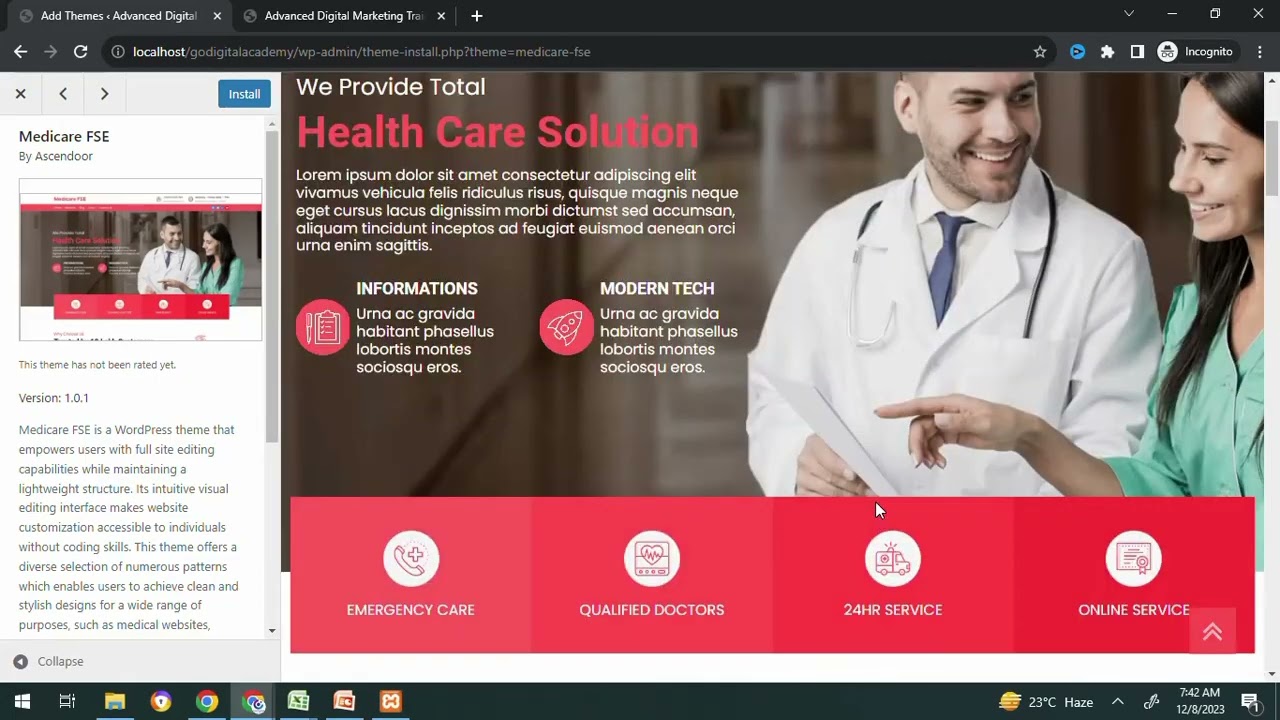
Hover over a theme you like, click “Preview” to see how it looks, and if satisfied, click “Install” followed by “Activate” to make it live.
Customizing Your Theme
After activating your chosen theme, you may want to customize it to align with your brand.
-
Access the Customizer:
Go toAppearance>Customize. This will allow you to change various aspects of your theme such as colors, fonts, and layouts. -
Modify Site Identity:
Here, you can set your site title, tagline, and logo, which enhance your brand’s presence. -
Adjust Header and Footer Settings:
Customize how your header and footer appear, including navigation menus and social media links, if applicable. - Save Changes:
Once you’re satisfied with the adjustments, click “Publish” to save your changes.
Creating New Pages
With your theme set up, it’s time to create content. Pages are essential for the structure of your website, enabling you to provide static content like "About Us", "Contact", and service-related information.
Steps to Add a New Page:
-
Navigate to Pages:
In your dashboard, clickPagesfollowed byAdd New. This will take you to the page editor. -
Enter Page Title and Content:
In the editor, enter the title of your page at the top. Below it, you can add your content using the block editor. Here, you can insert text, images, videos, and other media. -
Utilize Blocks:
WordPress uses a block-based editor which allows you to easily add different types of content blocks (paragraphs, headings, images, galleries, etc.). Customize each block’s settings to suit your page’s design. - Save or Publish Your Page:
Once your content is in place, you can save your draft to make changes later or click the “Publish” button to make your page live.
Enhancing Your Site’s Functionality with Plugins
Plugins are an essential feature of WordPress, allowing you to extend the functionality of your website without needing to code. From SEO tools to security enhancements, the right plugins can transform your site.
Installing New Plugins:
-
Access Plugin Section:
Navigate toPlugins>Add Newin your dashboard. -
Search for Plugins:
Use the search bar to find plugins relevant to your needs, such as SEO optimization, contact forms, or security. -
Install and Activate:
Click “Install Now” on your chosen plugin, then click “Activate” once installation is complete. - Configure Plugin Settings:
Some plugins require configuration. You can typically find their settings under the ‘Settings’ menu or within the plugin section.
Final Touches: Making Your Site Comprehensive
Now that you have the basics covered, consider these additional aspects to make your site more engaging and user-friendly:
-
Optimize for SEO:
Install an SEO plugin, such as Yoast SEO or All in One SEO Pack, to help optimize your content for search engines. -
Set Up Menus:
Strategically organize your website’s navigation by going toAppearance>Menus. Create a clear menu structure that helps visitors find content easily. -
Add Widgets:
Enhance your sidebar or footer with widgets. These can include recent posts, categories, or custom HTML to add more functionality. - Regular Backups:
Consider using a backup plugin to regularly back up your website, ensuring you have a copy of your site in case of data loss.
Conclusion
Your first day with WordPress sets the stage for your website’s success. By learning how to log in, select themes, create pages, and enhance functionality with plugins, you’ve taken significant steps toward building an engaging online presence. As you become more comfortable navigating the platform, you’ll discover countless additional features and customization options to refine your site further. Continue exploring, learning, and enhancing your WordPress knowledge to create a remarkable website that meets your goals.
