
Blog
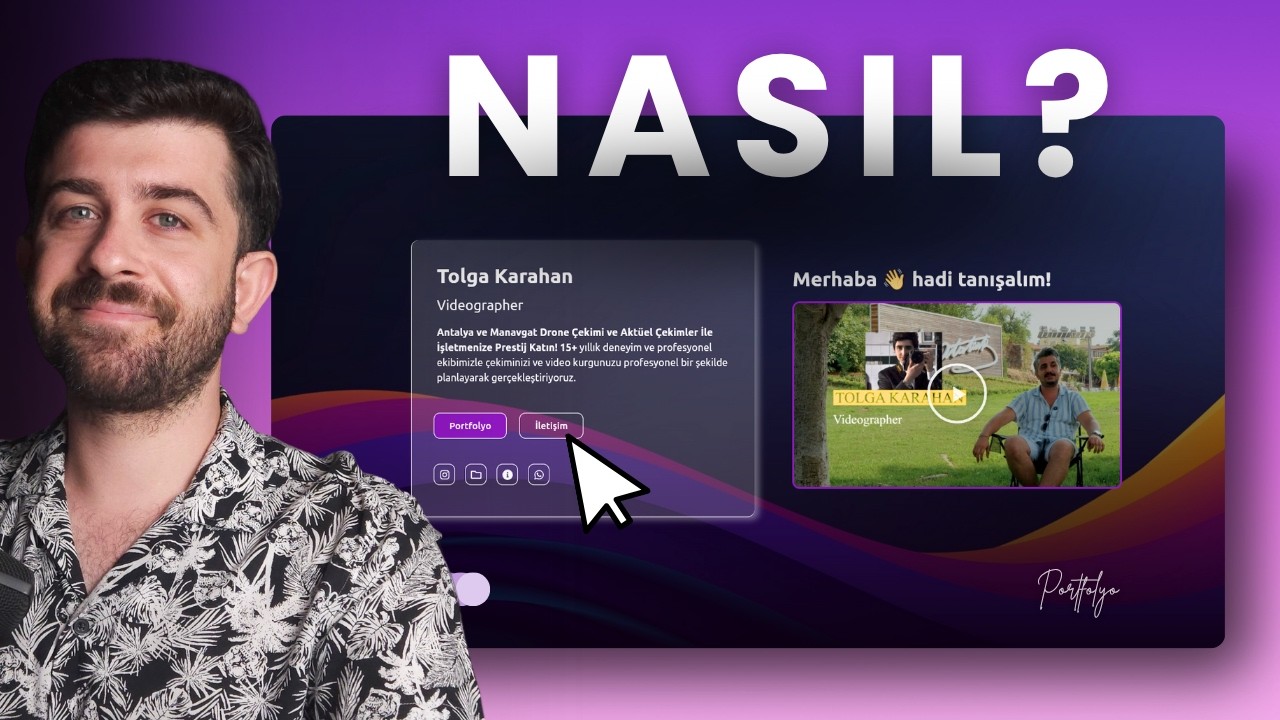
Web Sitesi Nasıl Yapılır? WordPress ve Elementor ile SIFIRDAN Tasarım (Ücretsiz Tema – Eklenti)
Building a Website from Scratch: A Comprehensive Guide Using WordPress and Elementor
Creating a website may seem daunting, but with the right tools, it can be a straightforward and enjoyable process. In this guide, we’ll explore how to build a website from scratch using WordPress and Elementor—a powerful combination that allows you to create stunning, professional-looking websites without needing advanced coding skills.
Understanding WordPress and Elementor
Before diving into the nitty-gritty of building your website, it’s essential to understand what WordPress and Elementor are.
What is WordPress?
WordPress is an open-source content management system (CMS) that powers over 40% of the web. It’s user-friendly, customizable, and provides a wealth of themes and plugins to enhance your site. Whether you want to start a blog, an online store, or a portfolio, WordPress can cater to your needs.
What is Elementor?
Elementor is a drag-and-drop page builder plugin for WordPress that simplifies the design process. With its intuitive interface, users can create beautiful, responsive web pages without writing a single line of code. Elementor offers a free version, which includes numerous features, along with a premium version that unlocks even more advanced tools.
Steps to Build Your Website
Let’s break down the process of creating your website into manageable steps.
Step 1: Choosing a Domain Name and Hosting Service
The first step in building a website is selecting a domain name—a unique address that visitors will use to find your site. Choose a name that reflects your brand and is easy to remember. Next, you’ll need to pick a hosting service to store your website’s files. Popular options include Bluehost, SiteGround, and HostGator, all of which offer seamless WordPress integration.
Step 2: Installing WordPress
Once you have your domain and hosting set up, it’s time to install WordPress. Many hosting providers offer a one-click installation feature. After installation, you’ll have access to your WordPress dashboard, the control center for your site.
Step 3: Selecting a Theme
Your website’s theme defines its overall appearance. With thousands of free and premium themes available in the WordPress repository, you can easily find one that fits your style. Consider your website’s purpose when selecting a theme—some are better suited for blogs, while others are designed for e-commerce.
- Access the Theme Repository: Navigate to the "Appearance" section in your WordPress dashboard.
- Explore Themes: You can search for themes by keywords, popularity, or featured sections.
- Install and Activate: Choose a theme, click "Install," and then "Activate" to apply it to your website.
Step 4: Installing Elementor
After selecting your theme, it’s time to install Elementor.
- Navigate to Plugins: In your WordPress dashboard, go to "Plugins" and then click "Add New."
- Search for Elementor: Use the search bar to find the Elementor plugin.
- Install and Activate: Click "Install Now," and then "Activate" once the installation is complete.
Once activated, you’ll see a new Elementor option in your dashboard, which sets the stage for easy page building.
Creating Your First Page
Now that you have WordPress and Elementor installed, it’s time to build your first page.
Step 1: Adding a New Page
- Navigate to Pages: Click on "Pages" in the dashboard.
- Add New Page: Hit "Add New" and give your page a title (e.g., "Home").
Step 2: Editing with Elementor
Once you’ve created a new page, you can start editing with Elementor:
- Click on ‘Edit with Elementor’: This option will take you to the Elementor editing interface.
- Choose a Layout: Elementor offers various layout options. You can select a full-width layout, which provides maximum flexibility in design.
- Drag and Drop Widgets: Elementor’s library is filled with elements like text boxes, images, buttons, and more. Simply drag and drop these widgets onto your page.
Step 3: Customizing Your Page
Customization is the key to making your site truly yours. Here are a few tips to help you get started:
- Adjust Typography: Use Elementor’s typography settings to modify font styles, sizes, and colors.
- Embed Images and Videos: Visual content enhances your website’s appeal. Upload images that are relevant to your content or embed videos when necessary.
- Add Sections and Columns: Organize your content by adding different sections and columns to create a visually appealing layout.
Enhancing Functionality with Plugins
While Elementor covers a lot of design needs, additional plugins can help extend your website’s functionality. Consider installing the following:
- SEO Plugins: Tools like Yoast SEO help optimize your content for search engines, boosting visibility.
- Security Plugins: Use plugins such as Wordfence to protect your site from potential threats.
- Backup Plugins: Regular backups are vital. WP Last Backup can automate this process for you.
Finalizing Your Website
Before launching your website, ensure everything is in order.
Step 1: Review Content
Go through each page to check for typos, broken links, or missing images. Quality content is essential for user engagement and search engine ranking.
Step 2: Check Responsiveness
With so many users accessing websites on mobile devices, it’s crucial to ensure your site is mobile-friendly. Elementor provides responsive editing features that allow you to customize how your site appears on different devices.
Step 3: Optimize for SEO
Don’t forget to implement basic SEO practices. This includes optimizing your titles, meta descriptions, and using alt text for images. Structured data can also enhance search visibility.
Launching Your Website
Once you’re satisfied with your content and design, it’s time to launch! Go to your hosting provider’s settings and point your domain to your WordPress installation. Announce your launch on social media or via email newsletters to start driving traffic.
Ongoing Website Management
Building the website is just the beginning. Regularly update your content, analyze performance using tools like Google Analytics, and engage with your audience through comments or social media links.
Conclusion
Creating a website using WordPress and Elementor allows you to build a professional-looking site from scratch without developer skills. With the right planning and tools, your dream website is just a few steps away. Whether for personal use, a business venture, or a portfolio, the power is in your hands to create something impactful. Start your journey today, and enjoy the process of bringing your vision to life!
