
Blog
Introducing Custom Attributes For Divi 5
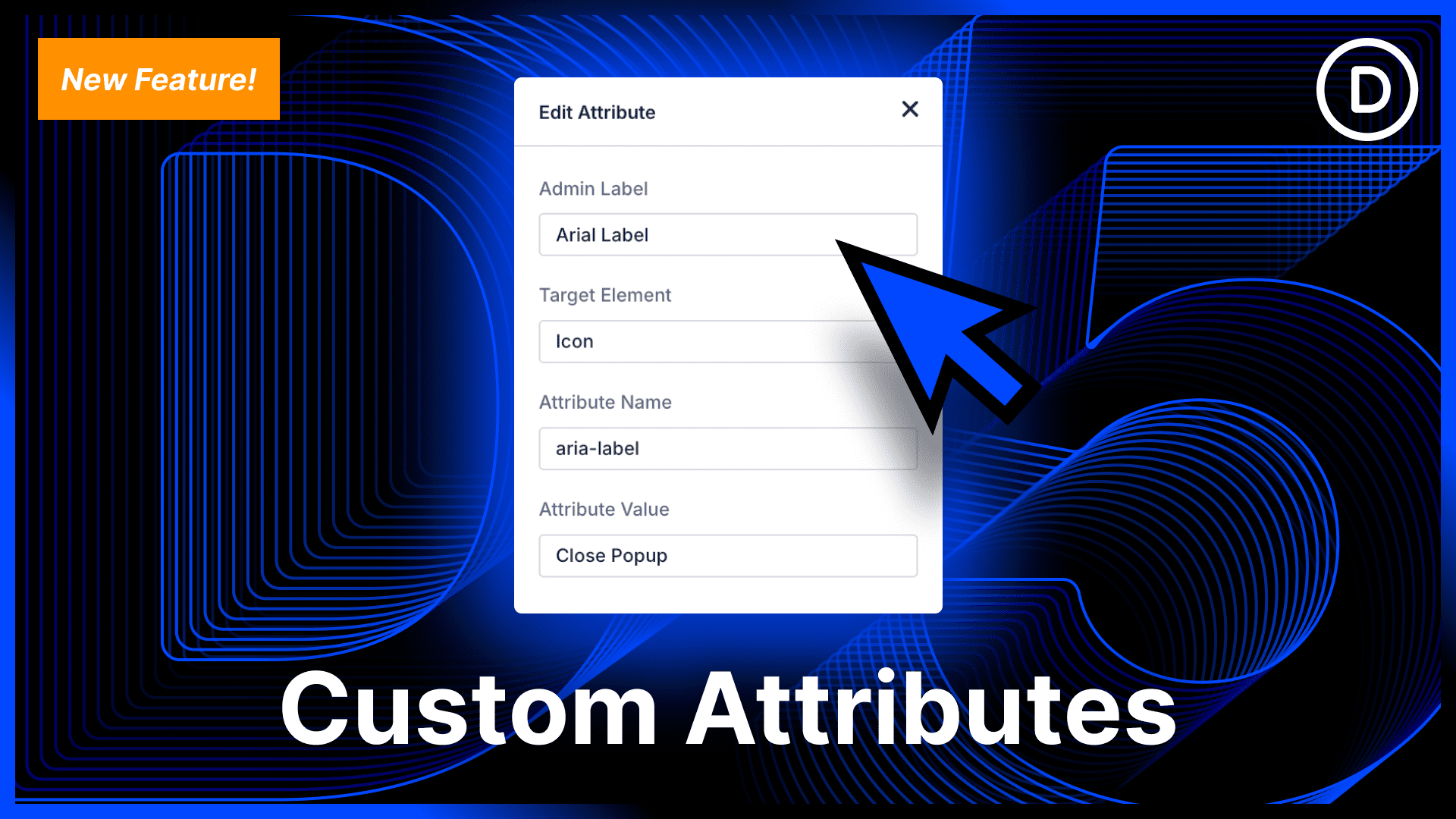
Understanding Custom Attributes in Divi 5
The introduction of Divi 5 has brought a wealth of features designed to elevate your website-building experience. One of the standout additions is the capability to implement custom attributes, which will significantly enhance how you personalize and optimize elements within your Divi layouts. In this post, we’ll delve into what custom attributes are, how to utilize them effectively, and the benefits they bring to your web design projects.
What Are Custom Attributes?
Custom attributes are additional pieces of information that can be added to HTML elements within your Divi website. These attributes allow you to tailor various components, enhancing functionality or providing extra context without affecting the main structure of your layout. By leveraging custom attributes, you can achieve a more versatile and dynamic site.
Why Use Custom Attributes?
Custom attributes offer several advantages that can help both developers and marketers streamline their efforts. Here are a few key reasons to incorporate them into your Divi 5 projects:
-
Enhanced Functionality: Custom attributes can modify how elements behave when interacted with. This can be especially useful for complex interactions.
-
Better Tracking: If you’re using tools for analytics or marketing, custom attributes can facilitate better tracking of user behavior, allowing you to gather valuable insights.
- Greater Customization: With custom attributes, you can offer tailored features that align with your specific needs and goals, making your website stand out.
How to Implement Custom Attributes in Divi 5
Getting started with custom attributes in Divi 5 is straightforward. Here’s a step-by-step guide to help you integrate them into your design seamlessly.
Step 1: Accessing the Module Settings
First, open your page in the Divi Builder. Click on the module you want to edit. This could be any element—from buttons to text modules—to which you want to add custom attributes.
Step 2: Navigating to the Advanced Tab
Once the module settings are open, navigate to the "Advanced" tab. Here, you’ll find the section dedicated to custom CSS and attributes. This is where all the magic happens.
Step 3: Adding Custom Attributes
Within the advanced settings, locate the option labeled "Custom Attributes." You can input key-value pairs for your attributes here. For example, if you wanted to track a button click for analytics, you might enter data-tracking="button_click".
Step 4: Saving Changes
After entering your custom attributes, make sure to save your changes. You can then preview your updates in real-time to see how the attributes influence your elements.
Best Practices for Using Custom Attributes
To maximize the effectiveness of custom attributes, consider the following best practices:
Keep Attributes Meaningful
When naming your custom attributes, ensure they are descriptive and meaningful. This will make it easier for you or any developer working on the site down the line to understand the purpose of each attribute.
Limit the Number of Attributes
While it can be tempting to add numerous custom attributes to your elements, overloading them can lead to confusion and performance issues. Keep your attributes to a minimum, focusing only on what you really need.
Test Thoroughly
Always test the functionality of your custom attributes across different devices and browsers. This ensures that they work as expected and enhances the overall user experience.
Examples of Custom Attribute Use Cases
Here are a few examples of how custom attributes can be effectively used within your Divi 5 projects:
Call-to-Action Buttons
By adding a custom tracking attribute to your call-to-action (CTA) buttons, you can better analyze their performance. This can help you make data-driven decisions to optimize conversions.
Tooltips and Additional Information
For sections where extra information is beneficial, you can use custom attributes to create tooltips. This adds an interactive layer to your site without cluttering the design.
Personalized Experiences
Custom attributes can also facilitate personalization. For instance, you might use them to customize content based on user interactions, enhancing engagement levels.
Conclusion
The introduction of custom attributes in Divi 5 opens up a new realm of possibilities for web designers and marketers alike. By enabling greater customization and enhanced functionality, custom attributes allow you to create a more engaging and dynamic user experience. As you begin integrating these attributes into your projects, ensure you follow best practices to maximize their effectiveness.
Whether you’re tracking user behavior, enhancing interactions, or providing additional context, custom attributes are a powerful tool that can significantly elevate your Divi website. Embrace this feature and watch as it transforms your web design projects, leading to more successful outcomes in the digital landscape.
Final Thoughts
Divi 5’s new features set the stage for innovative web design. Custom attributes stand out among these offerings, providing flexibility and greater control over how your website operates. Start experimenting with custom attributes today, and see how they can bring new life to your online presence. Your visitors—and your analytics—will thank you!
