
Blog
How to Create Restaurant Food Menu in WordPress Website #foodmenu #wordpressplugin #restaurant
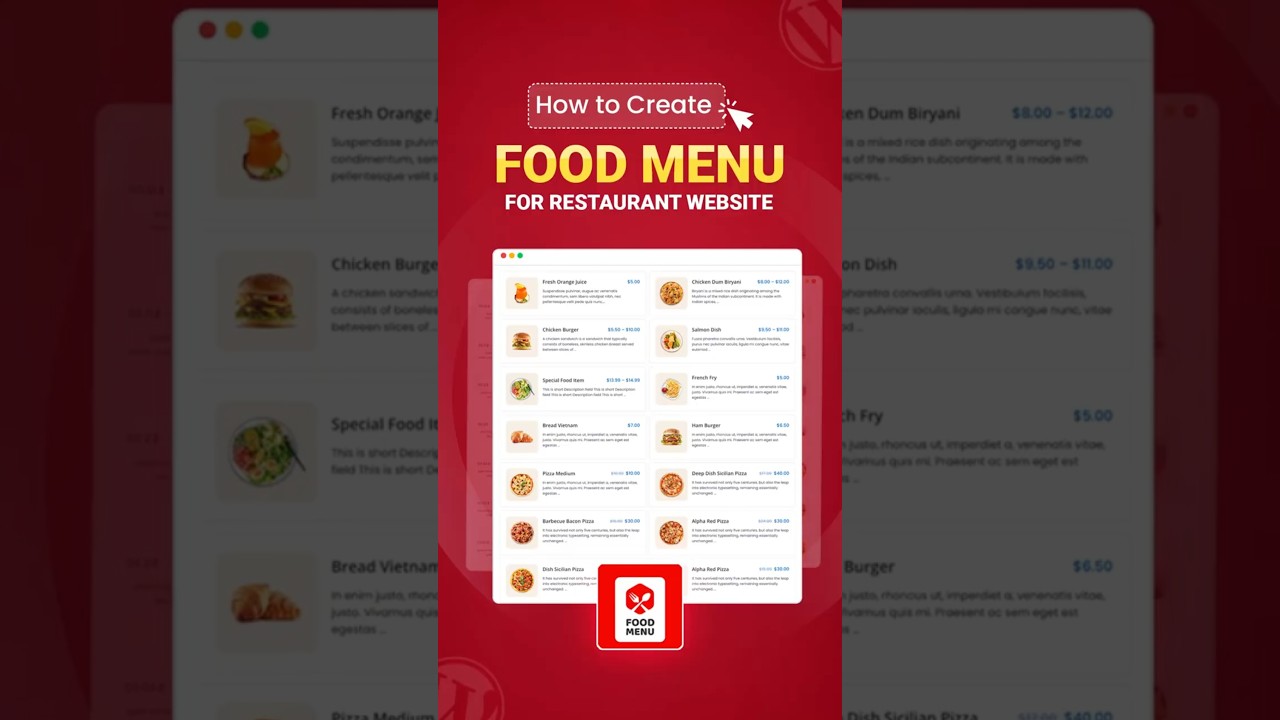
Creating a compelling and functional food menu is one of the most critical elements of your restaurant’s online presence. It’s the digital storefront for your culinary offerings, directly influencing a customer’s decision to dine with you. For WordPress website owners, the process doesn’t have to be complicated. With the right approach and tools, you can design a menu that is not only visually stunning but also optimized for search engines and user experience.
This guide will walk you through the entire process, from initial planning to publication, ensuring your menu becomes a powerful asset for your business.
Laying the Foundation: Pre-Design Planning
Before you even log into your WordPress dashboard, successful menu creation begins with strategic planning. Rushing into design without a clear blueprint often leads to a cluttered and ineffective result.
1. Define Your Menu’s Structure and Categories
Start by organizing your offerings into logical, easy-to-navigate sections. Typical categories include:
- Appetizers
- Main Courses (sometimes split into Meat, Seafood, Vegetarian)
- Desserts
- Beverages (Alcoholic, Non-Alcoholic)
- Sides & Extras
- Chef’s Specials or Seasonal Features
Think like your customer. Grouping items intuitively helps them find what they want quickly, enhancing their overall experience.
2. Craft Enticing Descriptions
The words you use sell the dish. Move beyond simple listings. Instead of "Cheeseburger," try "Juicy Angus Beef Patty grilled to perfection, topped with melted cheddar, crisp lettuce, ripe tomato, and our signature sauce, served on a toasted brioche bun."
Use sensory language that evokes taste and aroma. Incorporate keywords potential customers might search for, such as "gluten-free," "vegan," "locally-sourced," or "spicy," but always write for humans first.
3. High-Quality Photography is Non-Negotiable
We eat with our eyes first. Professional, high-resolution images of your dishes are arguably the most important investment for your menu. Blurry, poorly lit photos can detract from the perceived quality of your food. If possible, hire a professional food photographer. Consistency in style and lighting across all images creates a polished, credible look.
4. Strategic Pricing Presentation
How you display prices can impact perception. Avoid columns of dollar signs, as this can emphasize cost over value. Simply listing the numerical price next to the description is often the cleanest approach. Ensure your pricing is updated regularly to avoid customer frustration.
Choosing Your WordPress Menu Building Tool
WordPress offers several paths to create your menu. The best choice depends on your technical comfort and desired functionality.
Option 1: Using a Dedicated Restaurant Menu Plugin
This is the most powerful and recommended method for most restaurants. These plugins are specifically designed for food service and offer advanced features.
- Why Use a Plugin? They provide dedicated shortcodes, customizable layouts, category filtering, and often come with features like nutritional information labels, price comparisons, and online ordering integration.
- Popular Choices: Explore options like WP Menu Card, Food and Drink Menu, or Restaurant Menu by MotoPress. These plugins typically offer drag-and-drop builders, making the process visual and intuitive.
Option 2: Utilizing a Page Builder Plugin
If you already use a powerful page builder like Elementor, Brizy, or Divi, you can leverage their built-in modules to create a custom menu layout.
- The Advantage: You have complete design freedom to match your menu to the rest of your website’s aesthetic. You can use image galleries, text blocks, and dividers to create a unique look.
- The Disadvantage: It can be more time-consuming than using a dedicated menu plugin, as you’ll be building the structure from scratch.
Option 3: Using Native WordPress Blocks (Gutenberg Editor)
For a very simple, text-based menu, the default WordPress Block Editor (Gutenberg) can suffice.
- How It Works: You can use a combination of Heading blocks for categories, Paragraph blocks for descriptions, and Image blocks for pictures. The Table block can be used for a basic layout, though it offers limited styling options.
- Best For: Cafés or pubs with a small, simple menu that doesn’t require advanced filtering or styling.
A Step-by-Step Guide to Building with a Menu Plugin
For this walkthrough, we’ll focus on the most effective method: using a dedicated plugin.
Step 1: Install and Activate Your Chosen Plugin
Navigate to Plugins > Add New in your WordPress admin panel. Search for your chosen restaurant menu plugin (e.g., "WP Menu Card"). Click "Install Now" and then "Activate."
Step 2: Configure the Plugin Settings
Most plugins will add a new menu item to your dashboard, often labeled "Menu" or "Menu Items." Before adding dishes, explore the plugin’s settings to configure general options like currency symbol, slug for menu pages, and default labels.
Step 3: Create Your Menu Categories
Go to your new Menu > Categories section. Here, create the categories you defined in your planning phase (e.g., Appetizers, Mains, Desserts). Adding categories first keeps your workflow organized.
Step 4: Add Your Menu Items
Now, head to Menu > Add New Item. You’ll see a familiar editor screen with specific fields for a restaurant:
- Title: The name of the dish (e.g., "Truffle Mushroom Pasta").
- Description: Your carefully crafted, keyword-rich description.
- Price: The item’s price.
- Category: A box to assign this item to one or more of the categories you created.
- Featured Image: Upload your beautiful, high-quality photo of the dish.
- Additional Fields: Some plugins offer fields for nutritional info, allergens, spice levels, or a secondary label like "Chef’s Recommendation."
Fill this out for every menu item you offer.
Step 5: Create and Publish Your Menu Page
Once all items are added, create a new page in WordPress (Pages > Add New). Give it a title like "Our Menu" or "Dinner Menu." Within the page editor, you will typically find a new block added by the plugin—for example, a "Menu List" block.
Add this block to your page. You will then be able to select which menu categories to display, choose a layout (e.g., grid, list), and configure display settings. Once you’re happy with the preview, click "Publish."
Advanced Tips for a Standout Menu
Prioritize Mobile Responsiveness
Over half of all web traffic comes from mobile devices. Ensure your menu plugin or theme displays flawlessly on smartphones and tablets. Test scrolling, image sizing, and touch-friendly buttons to guarantee a smooth experience for users on the go.
Integrate Online Ordering and Reservations
Boost functionality by integrating your menu with plugins for online food ordering (e.g., for delivery or pickup) or reservation systems. This transforms your menu from a passive list into an active revenue-generating tool.
Implement SEO Best Practices
Your menu can be a fantastic source of SEO traffic. People search for "[Your City] best burger" or "vegan pasta near me."
- Use descriptive, keyword-rich alt text for all your food images.
- Structure your page with proper heading tags (H2 for category titles, H3 for dish names).
- Ensure your menu page loads quickly, as site speed is a ranking factor.
Keep It Updated
An outdated menu with discontinued items or old prices erodes customer trust. Make a schedule to review and update your digital menu weekly or whenever your physical menu changes. The ease of updating a WordPress menu is a significant advantage over printed alternatives.
Conclusion: Your Menu is a Dynamic Marketing Tool
Your WordPress food menu is far more than a simple list; it’s a central hub for your restaurant’s digital identity. By investing time in thoughtful planning, compelling descriptions, and professional imagery, and by leveraging the powerful tools available within the WordPress ecosystem, you create an experience that engages and convinces potential diners.
A well-executed online menu works tirelessly for you, attracting new customers through search engines, showcasing your brand’s quality, and providing the convenience that modern consumers expect. Launch your new menu and watch as it helps turn browsing into bookings and curiosity into cravings.
