
Blog
Formation WordPress 2025 : Créer un SITE de A à Z (100% Gratuit)
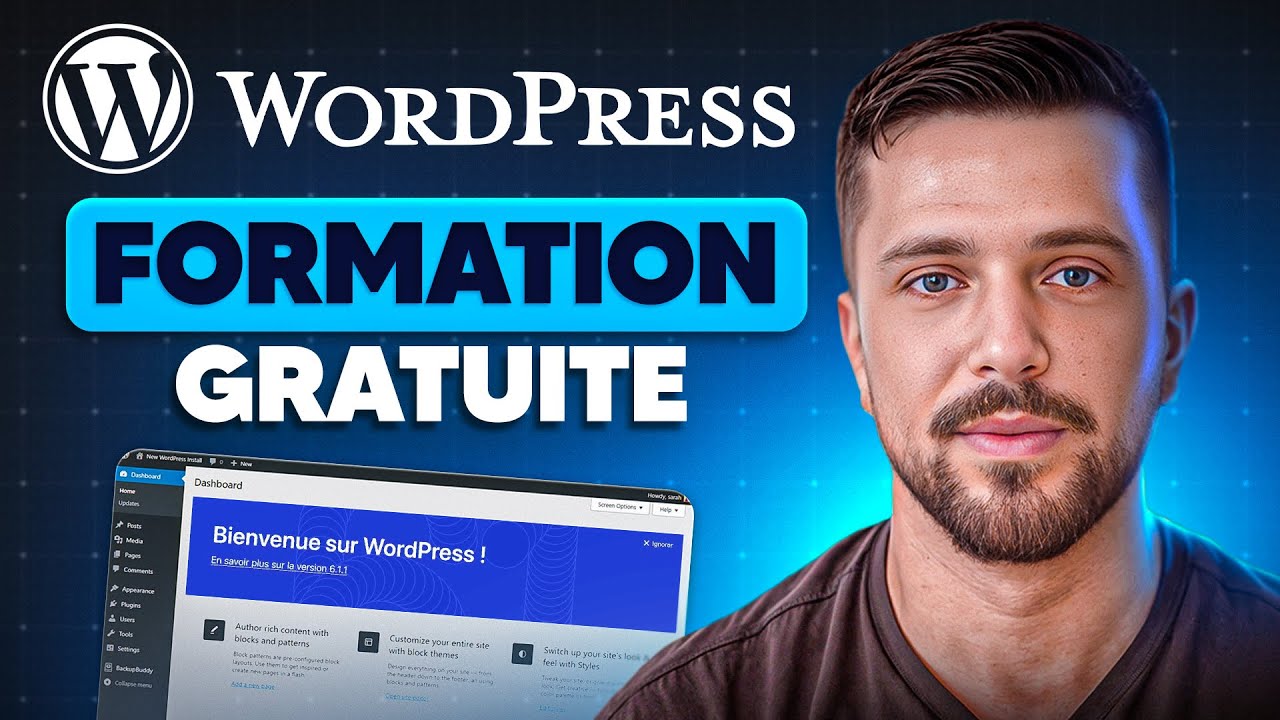
The digital landscape is constantly shifting, but one truth remains: a powerful online presence is non-negotiable for any business, creator, or individual with a message to share. If you’ve ever felt that building a professional website is a complex, expensive endeavor reserved for coding experts, it’s time to reconsider that notion. WordPress, the world’s leading content management system, empowers anyone to craft a stunning, fully-functional website from the ground up.
This comprehensive guide is designed to be your definitive roadmap for 2025. We will walk through every critical step, from securing your domain name to publishing your first page, all without requiring a single line of code or a hefty budget.
Why WordPress is the Uncontested Platform of Choice
Before we dive into the practical steps, it’s essential to understand why WordPress powers over 40% of all websites on the internet. Its dominance isn’t accidental; it’s built on a foundation of unparalleled flexibility, accessibility, and power.
Unmatched Flexibility and Customization: Unlike restrictive website builders, WordPress is an open-source platform. This means you have complete control over your site’s design and functionality. Through a massive ecosystem of themes and plugins, you can transform a simple blog into an e-commerce store, a membership portal, a learning management system, or anything in between.
Complete Ownership and Portability: When you self-host your WordPress site (as we will in this guide), you own your digital property outright. Your data, your content, and your design are yours to keep and move as you wish, free from the risk of a platform shutting down or changing its terms of service.
SEO-Friendly Architecture: Search Engine Optimization is crucial for visibility. WordPress is inherently structured in a way that search engines love. With clean code, easy-to-customize meta tags, and a plethora of powerful SEO plugins like Rank Math or Yoast SEO, optimizing your content for Google becomes an integrated part of your workflow.
A Thriving Global Community: As an open-source project, WordPress is supported by a massive global community of developers, designers, and users. This translates to an endless wealth of free tutorials, forums brimming with support, and constant innovation. Help is always available.
Laying Your Digital Foundation: Domain and Hosting
Every great website starts with a solid foundation. This involves two key elements: your domain name and your web hosting.
Choosing Your Domain Name: Your domain name is your digital address (e.g., yourbusiness.com). It should be memorable, easy to spell, and reflective of your brand or purpose. Keep it concise, avoid hyphens and numbers where possible, and opt for a reputable top-level domain (TLD) like .com, .org, or .net.
Selecting a Web Hosting Provider: Web hosting is the service that stores all your website’s files and makes them accessible on the internet. For a new website, we highly recommend starting with a provider that offers optimized WordPress hosting. Providers like Hostinger, DreamHost, or Bluehost are excellent choices. They often provide affordable plans that include a free domain name for the first year, a one-click WordPress installation, and essential features like SSL certificates (which provide the secure HTTPS protocol) at no extra cost. This bundling makes the initial setup seamless and cost-effective.
The Installation Process: Getting WordPress Live
With your domain and hosting secured, it’s time to install WordPress. The beauty of modern hosting is that this process is almost entirely automated.
- Access your hosting account’s control panel (typically cPanel).
- Locate the "WordPress" or "Website" section and find the one-click install tool, often managed by Softaculous.
- Follow the simple prompts. You will need to select the domain you want to install it on.
- You will then set up your primary administrative account. Choose a strong username (avoid "admin") and a complex password. You will also enter your site’s title and admin email address.
- Complete the installation. Within minutes, you’ll receive a confirmation email with a link to your new WordPress login page (usually yoursitename.com/wp-admin).
First Steps Inside Your New WordPress Dashboard
Logging into your WordPress dashboard for the first time can be exhilarating. This is your website’s command center, where every aspect of your site is managed. The interface is intuitive, but let’s break down the primary areas you’ll use most frequently:
- Posts: This is where you will write and manage blog articles.
- Media: Your library for all images, videos, and documents.
- Pages: For creating static content like your Home, About, and Contact pages.
- Comments: To moderate feedback from your visitors.
- Appearance: The hub for controlling your site’s visual design through Themes, Menus, and the Customizer.
- Plugins: Where you extend your site’s functionality by adding new features.
- Settings: For configuring the global options for your site, from your site title to how permalinks are structured.
Crafting Your Site’s Visual Identity with a Theme
Your theme dictates the overall design, layout, and style of your website. WordPress comes with a default theme, but you’ll undoubtedly want to install one that aligns with your vision.
Finding and Installing a Theme: Navigate to Appearance > Themes > Add New. Here, you can browse thousands of free themes from the official WordPress directory. You can filter by layout, features, and industry. Once you find one you like, click "Install" and then "Activate."
For 2025, we recommend starting with a flexible, lightweight, and highly customizable theme like Astra or Kadence. These themes are built for performance and integrate seamlessly with powerful page builders, giving you immense design freedom without slowing down your site.
Extending Functionality with Essential Plugins
Plugins are like apps for your WordPress site, adding features that aren’t included in the core software. The key is to be selective—only install well-coded, reputable plugins to maintain site security and speed.
Here are a few indispensable free plugins for any new website:
- SEO Plugin (Rank Math or Yoast SEO): Guides you in optimizing every page and post for search engines.
- Page Builder (Elementor or Astra Pro): Allows you to design complex, beautiful layouts with a drag-and-drop interface, making web design truly visual.
- Security (Wordfence or Sucuri): Adds a firewall, malware scanner, and login security to protect your site from threats.
- Backup (UpdraftPlus): Automatically backs up your entire site to a cloud service like Google Drive or Dropbox, giving you peace of mind.
- Contact Form (WPForms Lite): Lets you easily create professional contact forms for your pages without any code.
Creating Your Essential Pages and Content
With your theme and core plugins active, you can begin building out your site’s content. Every website, regardless of its niche, should have a few foundational pages:
- Homepage: The front door to your site. Use your page builder to create a compelling layout that introduces your brand and guides visitors deeper into your site.
- About Page: This is where you build connection and trust. Share your story, your mission, and what makes you unique.
- Contact Page: Make it easy for people to get in touch. Embed your contact form and include any relevant business details.
- Blog Page: The dynamic heart of your site for sharing articles, news, and insights. This is crucial for SEO and engaging your audience.
To create a new page, go to Pages > Add New. You’ll be greeted by the WordPress Block Editor (Gutenberg) or your page builder interface, where you can drag and drop elements to construct your layout visually.
Configuring Crucial Settings for Performance and SEO
Before you launch, take a moment to configure a few vital settings:
- Permalinks: Go to Settings > Permalinks. Ensure this is set to "Post name." This creates clean, readable URLs (yoursite.com/sample-post/) that are better for users and SEO.
- General Settings: Under Settings > General, double-check your Site Title, Tagline, and Admin Email address.
- Discussion: In Settings > Discussion, you can configure how comments are handled on your site to manage spam and foster healthy conversation.
Pre-Launch Checklist: Are You Ready to Go Live?
Before you share your site with the world, run through this quick checklist:
- Did you test your contact form to ensure it works?
- Have you previewed your site on mobile to ensure it’s responsive?
- Did you proofread all your content for typos?
- Is your site’s navigation menu clear and logical?
- Is your site’s speed acceptable? (You can use free tools like GTmetrix for an initial check).
Your Journey Has Just Begun
Congratulations. You have successfully navigated the process of building a professional WordPress website from scratch. What you have accomplished is significant—you’ve established a owned digital asset that can grow and evolve with your goals.
The true power of WordPress is revealed over time. As your needs change, you can add new functionality with plugins. As your brand evolves, you can change your theme. This journey is one of continuous learning and iteration. Now, with your site live, your next chapter begins: creating valuable content, engaging with your audience, and growing your online presence. The digital world is yours to conquer.
