
Blog
Everything You Need To Know About Divi 5’s Icon List Module
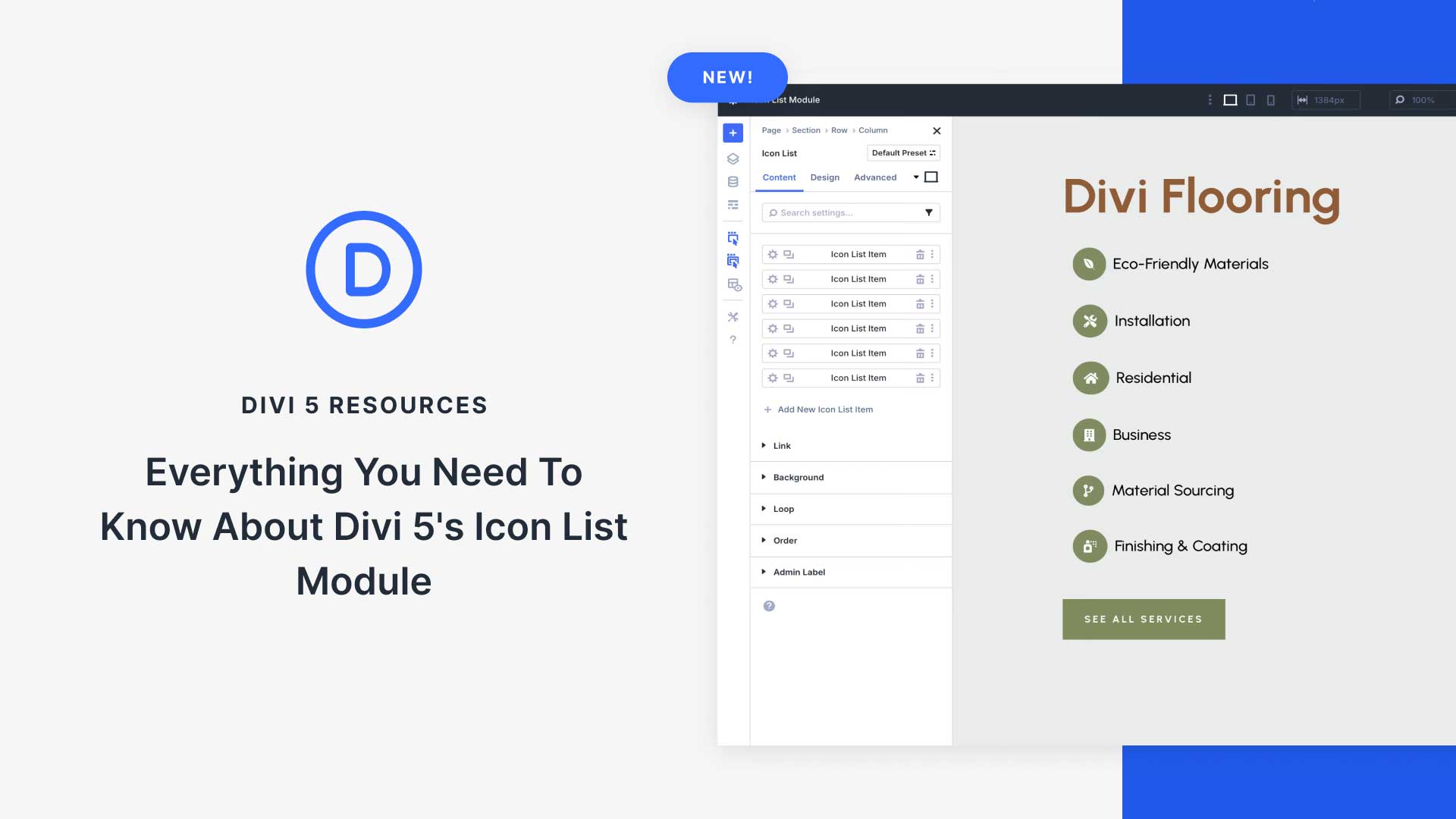
Introducing the Icon List Module of Divi 5
Divi, a powerful theme by Elegant Themes, has consistently led the way in website building with its intuitive tools and extensive customization options. Among its many features, the Icon List Module in Divi 5 stands out as a versatile tool for presenting information in a visually appealing way. In this blog post, we’ll explore the functionalities, benefits, and best practices for utilizing the Icon List Module effectively.
What is the Icon List Module?
The Icon List Module in Divi 5 enables users to create clean, organized lists paired with icons. This feature is especially useful for showcasing services, skills, or noteworthy points in an engaging format. By integrating icons, you can enhance the visual appeal of your content while ensuring clarity and ease of understanding.
Key Features of the Icon List Module
1. Extensive Icon Library
Divi 5 offers a robust library of icons, allowing users to choose from various styles and categories. Whether you need icons for social media, technology, or business, the selection is vast, ensuring that you find the perfect match for your project.
2. Customization Options
One of the hallmarks of Divi is its customization capabilities. With the Icon List Module, you can modify various elements:
- Icon Size and Color: Adjust the dimensions and color of icons to fit your website’s design.
- Text Styles: Change font types, sizes, and colors to match your theme.
- Spacing and Alignment: Perfect the layout by adjusting spacing between icon and text, as well as their overall alignment.
3. Responsive Design
The module is designed with mobile users in mind. All adjustments made to the Icon List will automatically adapt to mobile devices, ensuring your website maintains an optimal user experience across all platforms.
Benefits of Using the Icon List Module
Enhancing Readability
Incorporating icons into lists makes your content easier to digest. Visual elements can break up large blocks of text, guiding the reader’s eye and making the information more approachable.
Improved User Engagement
Using visual markers like icons can capture attention and keep users engaged. When presented with well-designed lists, visitors are more likely to spend time on your page, reducing bounce rates.
Branding Consistency
Customizing the Icon List Module allows you to align icon styles and colors with your brand identity. Consistency in design reinforces brand recognition and creates a cohesive user experience.
How to Use the Icon List Module in Divi 5
Step 1: Adding the Module
To begin, navigate to the Divi Builder on your WordPress website:
- Select the section where you want to add the Icon List.
- Click on “Add New Module” and choose “Icon List” from the options.
Step 2: Inputting Content
Once you add the module, you’ll see fields to enter your list items. Each item will include:
- Icon Selection: Click on the icon field to browse the library and pick an icon that best fits your content.
- Text Description: Enter the corresponding text for each icon, detailing the service, skill, or feature you want to highlight.
Step 3: Customization
After entering the content, head to the settings panel:
- Design Tab: Here, you can adjust the icon sizes, colors, and spacing. Customize the text to enhance visibility and alignment.
- Advanced Tab: This section allows for additional CSS and design tweaks, perfect for users wanting deeper customization.
Step 4: Save and Preview
After completing your changes, save your settings and preview the page. This allows you to see how the Icon List integrates with the overall layout and design.
Best Practices for Using the Icon List Module
Keep it Concise
While the Icon List Module is excellent for providing detailed information, aim to keep your descriptions concise. Stick to the key points to avoid overwhelming your readers.
Use Relevant Icons
Choose icons that are directly relevant to your content. Icons should enhance clarity, not confuse the reader. A well-chosen icon can convey meaning quickly and effectively.
Prioritize Mobile Formatting
Always preview your page on various devices. Ensure that your Icon List displays well on mobile platforms, as a significant portion of web traffic comes from mobile users.
Test for Performance
Monitor the impact of your Icon List on page load times. While visually appealing, excessive use of large icons can slow down your site. Optimize image sizes and utilize caching solutions to maintain performance.
Common Mistakes to Avoid
Overloading with Icons
Using too many icons can clutter your design. Aim for a clean, organized layout that highlights only the most critical information.
Neglecting Accessibility
Ensure that your icons are accessible to all users, including those with visual impairments. Utilize alt text effectively and choose color contrasts that are easily distinguishable.
Conclusion
The Icon List Module in Divi 5 is more than just a visual enhancement; it’s a potent tool for presenting information in a clear and engaging manner. By leveraging its features, you can improve user interaction and enhance the overall appeal of your website. Whether you’re highlighting services, skills, or key points, the Icon List Module can effectively communicate your message while contributing to a polished, professional aesthetic. Embrace this versatile feature and elevate your website design to new heights!
