
Blog
Create ANY Custom Popup in WordPress (Free Plugin)
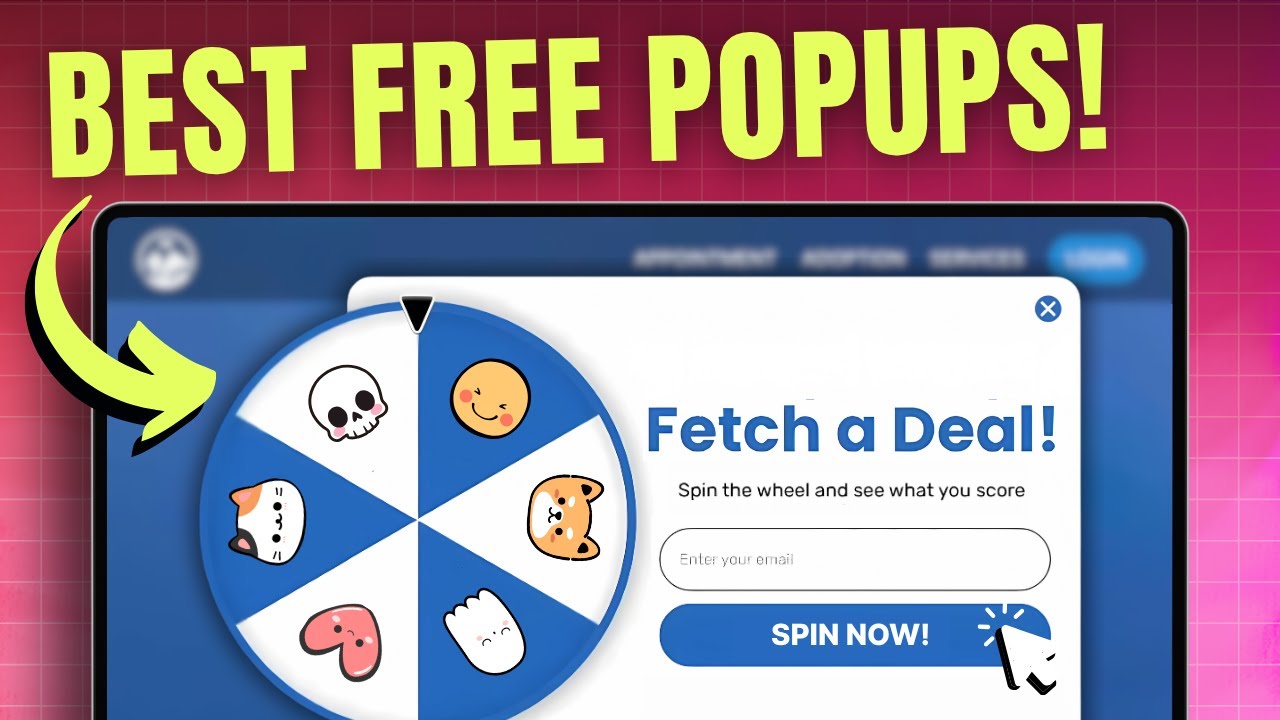
Unlock Your Website’s Potential: Create Custom Popups in WordPress with Free Plugins
When it comes to engaging your visitors and improving lead generation on your WordPress site, popups can be an incredibly effective tool. Whether you aim to capture emails, promote sales, or announce new content, customizing popups to fit your brand can make all the difference. In this guide, we will walk you through the process of creating custom popups in WordPress using a free plugin, making it simple and efficient for anyone, regardless of their technical expertise.
Why Use Popups?
Popups have garnered both praise and criticism in the online community. However, many marketers still advocate for their utility, citing several compelling reasons:
- Higher Conversion Rates: Popups can significantly increase sign-up rates and sales by drawing attention to specific offers.
- User Engagement: Well-crafted popups can encourage visitors to interact with your content, leading to longer site visits.
- Targeted Messaging: Popups enable tailored messaging based on user behavior, demographics, or time on site.
Selecting the Right Popup Plugin
Before diving into the creation process, it’s crucial to select a plugin that meets your needs while offering robust features. One of the most popular free options is Popup Maker. Known for its user-friendly interface and flexibility, it’s an excellent choice for WordPress users of all skill levels.
Features of Popup Maker
- Customizable Designs: Choose from a variety of templates or design your own to align with your brand.
- Targeting Options: Set conditions for when and where your popups appear on your site.
- Integration: Seamlessly integrate with email marketing services and other essential tools.
How to Install Popup Maker
Getting started with Popup Maker is a straightforward process. Follow these steps to install the plugin:
- Log Into Your WordPress Dashboard: Access your admin panel from your website.
- Navigate to Plugins: From the left sidebar, click on “Plugins” and select “Add New.”
- Search for Popup Maker: In the search bar, type “Popup Maker” and wait for the search results.
- Install the Plugin: Click the “Install Now” button next to Popup Maker, and then click “Activate” once it’s installed.
- Access Popup Maker Settings: You’ll find the new “Popup Maker” option on your sidebar.
Creating Your First Popup
Once you’ve activated Popup Maker, it’s time to create your first customized popup. Here’s a step-by-step process:
Step 1: Create a New Popup
- Click on Popup Maker: From your WordPress dashboard, select “Add Popup.”
- Enter a Popup Title: Give your popup a descriptive title that reflects its purpose.
- Add Popup Content: Use the WordPress editor to add text, images, or videos. You can format your content just like a standard post.
Step 2: Customize Your Popup
Customizing your popup can enhance its effectiveness. Utilize the options below:
- Choose a Template: Select a pre-made template or customize your own by adjusting colors, fonts, and button styles.
- Add Animation: Choose an entrance animation to capture user attention when the popup appears.
Step 3: Set Targeting and Triggers
Setting the right conditions will ensure your popup reaches the right audience:
- Triggers: Determine how and when your popup appears (e.g., upon page load, after scrolling, or on exit intent).
- Targeting Conditions: Define where the popup shows up on your site. This can be on specific pages, posts, or across the entire site.
Advanced Features: A Deeper Dive
Beyond basic functionality, Popup Maker offers several advanced features to enhance your popups.
A/B Testing
A/B testing allows you to compare two versions of your popup to see which performs better. By changing elements like headlines or images, you can optimize for improved engagement and conversions.
Analytics
Tracking the performance metrics of your popups is essential. Popup Maker integrates with Google Analytics, enabling you to monitor conversions, views, and other key stats.
Integrations
Popup Maker supports integrations with various email marketing services like Mailchimp, Constant Contact, and more. This allows for automatic addition of contacts collected through your popup.
Best Practices for Popup Creation
To ensure your popups are effective and well-received, keep the following best practices in mind:
1. Keep it Simple
Avoid overwhelming visitors with complicated forms or excessive text. A simple, concise message will resonate better.
2. Use Eye-Catching Visuals
Incorporate attractive images or graphics to capture attention. Ensure these align with your overall branding.
3. Offer Value
Your popup should provide something of value to your visitors, whether it’s a discount, an eBook, or exclusive content.
4. Optimize the Timing
Be strategic about when your popup appears. Ensure it doesn’t interrupt the user experience; consider using exit-intent popups, which can catch visitors as they leave.
Testing and Optimization
Once your popup is live, don’t forget about testing and optimization. Monitor your popup’s performance and make adjustments based on user interactions. Use A/B testing to identify successful elements and discard what doesn’t work.
Conclusion
Creating custom popups in WordPress doesn’t have to be daunting. With tools like Popup Maker, you can effortlessly design engaging popups that resonate with your audience. By following the steps outlined in this guide and adhering to best practices, you can unlock the full potential of your website. Start building your first popup today and watch your engagement and conversion rates soar!
Get Started with Popups
Ready to boost your site’s performance? Install Popup Maker, create your first custom popup, and join the ranks of successful WordPress site owners who leverage this powerful tool to engage their audience effectively. Your journey toward enhanced site performance and higher conversion rates begins now!
