
Blog
Comment créer un site WordPress 100% GRATUIT : Tutoriel complet
Introduction
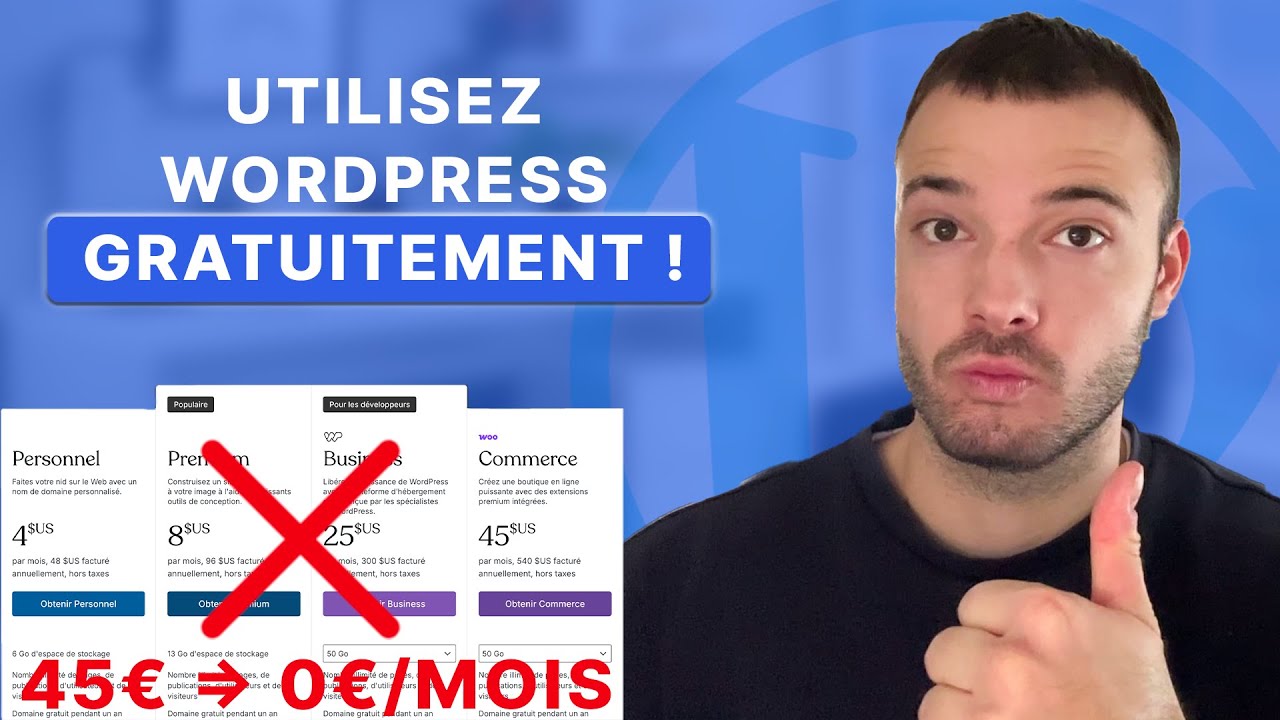
WordPress has long been hailed as the go-to platform for building websites, whether you’re launching a blog, an online portfolio, or a business page. But did you know you can create a WordPress site entirely for free? In this step-by-step guide, we’ll explore how to set up a professional-looking website without spending a dime. From selecting the right platform to publishing your site, let’s break down the process into simple, actionable steps.
Understanding WordPress: Free vs. Self-Hosted Options
Before diving into the setup, it’s essential to distinguish between WordPress.com and WordPress.org. While both platforms share the same core software, their features and costs differ significantly:
- WordPress.com: This is a hosted platform where you can create a free website instantly. It includes a subdomain (e.g., yourwebsite.wordpress.com), basic customization tools, and limited storage. Ideal for beginners or those testing the waters.
- WordPress.org: This self-hosted version requires purchasing a domain name and hosting plan. It offers full control over design, plugins, and monetization but comes with ongoing costs.
For this tutorial, we’ll focus on WordPress.com’s free plan to keep your budget at $0.
Step 1: Sign Up for a WordPress.com Account
Getting started is straightforward. Follow these steps:
- Visit WordPress.com and click Start Your Website.
- Enter your email address and create a password.
- Choose a username for your account. This will also serve as your site’s default subdomain (e.g., username.wordpress.com).
- Confirm your email through the verification link sent to your inbox.
Step 2: Choose Your Site’s Name and Domain
Once logged in, WordPress.com will prompt you to select a domain name. Here’s how to navigate this step:
- Opt for a free subdomain to keep costs at zero. For example, myblog.wordpress.com.
- If you prefer a custom domain (e.g., myblog.com), you’ll need to upgrade to a paid plan.
- Pro Tip: Make your subdomain short, memorable, and relevant to your site’s purpose.
Step 3: Select the “Free” Plan
WordPress.com offers multiple pricing tiers, but the free plan is sufficient for basic websites. During setup:
- Scroll to the “Free” plan option under the pricing grid.
- Click Start with Free.
- Confirm your selection.
Note: The free plan includes 1 GB of storage, basic themes, and essential SEO tools. Ads will appear on your site, but you can remove them by upgrading later.
Step 4: Customize Your Site’s Design
With the setup complete, it’s time to design your website. WordPress.com offers intuitive tools to personalize your site:
Choose a Theme
- Navigate to Appearance > Themes from your dashboard.
- Browse the library of free themes and click Activate on your preferred design.
- Use the Customize tool to tweak colors, fonts, and layouts.
Create Essential Pages
Every website needs core pages:
- Homepage: Introduce your brand or content.
- About: Share your story, mission, or expertise.
- Contact: Add a form or email address for visitor inquiries.
To create a page:
- Go to Pages > Add New.
- Use the block editor to add text, images, or buttons.
- Click Publish once satisfied.
Step 5: Craft Compelling Content
Content is the backbone of your website. Whether you’re blogging, showcasing products, or sharing updates, focus on quality and relevance.
Writing Your First Blog Post
- From the dashboard, select Posts > Add New.
- Add a catchy title and use headings (H2, H3) to structure your content.
- Enhance readability with short paragraphs, bullet points, and visuals.
- Assign categories or tags to improve navigation.
Pro Tip: Use free stock photo platforms like Unsplash or Pexels to source eye-catching images.
Step 6: Optimize for Search Engines
Even on a free plan, basic SEO practices can boost your visibility:
- Keyword Research: Identify terms your audience searches for (e.g., “free WordPress tutorial”).
- On-Page SEO: Include keywords in titles, headers, and meta descriptions.
- Alt Text: Describe images with relevant keywords to improve accessibility and SEO.
Access SEO tools under Settings > Traffic in your dashboard.
Step 7: Publish and Promote Your Site
Ready to go live?
- Review your site using the Preview tool to catch errors or formatting issues.
- Click Publish to make your site accessible to the public.
- Promote your site by sharing it with friends, communities, or via email newsletters.
Maintaining Your Free WordPress Site
Keep your site running smoothly with these practices:
- Regular Updates: Check for theme or plugin updates (available on higher-tier plans).
- Analytics: Monitor traffic with free tools like Google Analytics or WordPress.com Stats.
- Backups: Manually save copies of your content to avoid data loss.
Note: The free plan has limitations, such as no e-commerce features or premium plugins. Consider upgrading as your site grows.
Conclusion
Creating a free WordPress site is an accessible way to establish your online presence without financial risk. By following this guide, you’ve learned how to set up a functional website, customize its design, and optimize it for search engines—all at no cost. While the free plan has constraints, it’s a fantastic starting point for aspiring bloggers, creatives, and small businesses. Ready to launch? Head to WordPress.com and turn your vision into reality today.
