
Blog
Cara Integrasi Payment Gateway (Tripay) ke WooCommerce – WordPress Tutorial
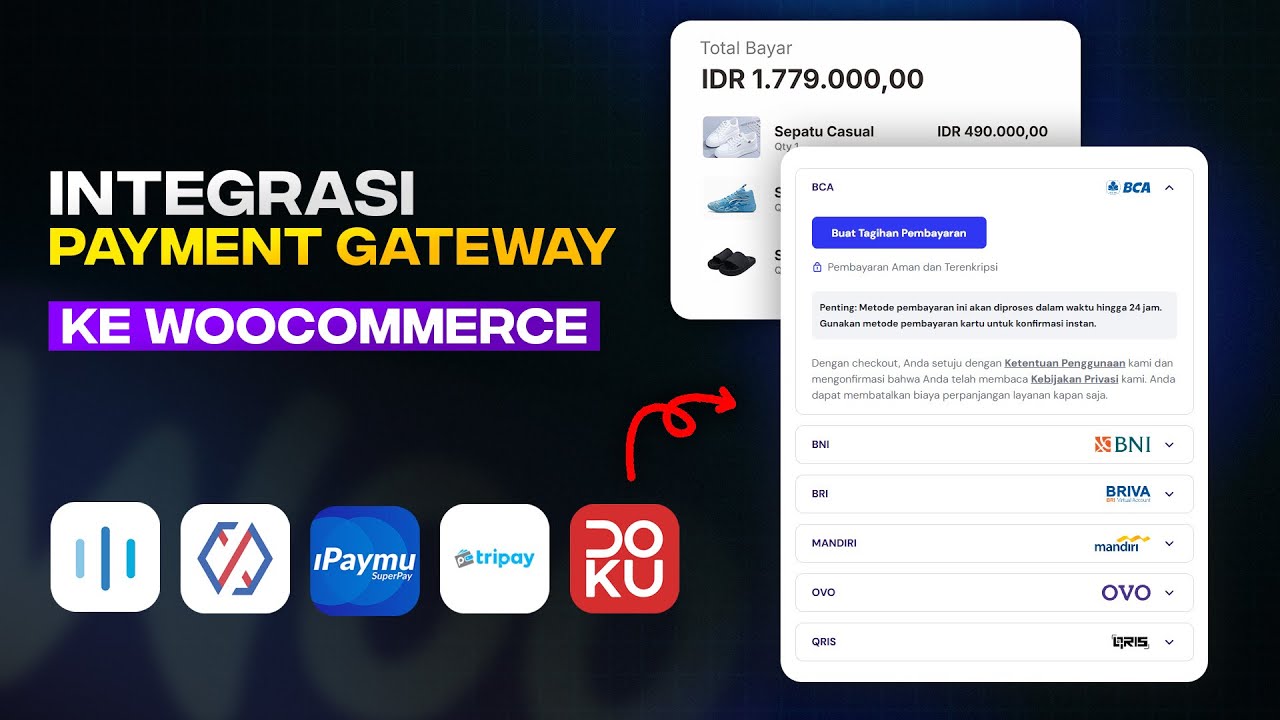
Integrating Tripay Payment Gateway into WooCommerce: A Comprehensive Guide
In the world of e-commerce, a seamless payment process can significantly enhance the shopping experience for customers. Integrating a reliable payment gateway like Tripay into your WooCommerce store can help simplify transactions and improve overall efficiency. This guide will walk you through the entire process of setting up Tripay as your payment solution in WooCommerce, ensuring you can easily accept payments while providing a smooth user experience.
Understanding Tripay
Tripay is a payment gateway that allows businesses to accept various forms of payments, including credit cards, bank transfers, and e-wallets. It offers a user-friendly interface and is designed to cater to online stores, making it a popular choice among WooCommerce users. With its wide-ranging support for local banks and transactions, Tripay can help streamline your online business.
Benefits of Using Tripay with WooCommerce
-
Multiple Payment Options: Tripay supports various payment methods, allowing customers to select their preferred option, which can lead to higher conversion rates.
-
Security: Ensuring secure transactions is crucial in e-commerce. Tripay employs advanced security measures to protect sensitive customer information.
-
User-Friendly Interface: The integration process is straightforward, making it accessible even for those who may not have extensive technical knowledge.
- Local Payment Options: Tripay integrates well with local banks and e-wallets, catering specifically to the regional market and enhancing customer satisfaction.
Prerequisites for Integration
Before you begin the integration process, make sure you have the following:
- An active WooCommerce store running on WordPress.
- A Tripay account. If you don’t have one, visit the Tripay website to sign up.
- Basic knowledge of WordPress and WooCommerce to navigate through the settings easily.
Step-by-Step Guide to Integrate Tripay Payment Gateway
Step 1: Install the Tripay WooCommerce Plugin
-
Log into Your WordPress Dashboard: Access your WordPress admin panel.
-
Navigate to Plugins: Click on "Plugins" in the left-hand sidebar and select "Add New."
-
Search for Tripay: In the search bar, type "Tripay Payment Gateway."
- Install and Activate the Plugin: Locate the Tripay plugin from the search results and click "Install Now." Once the installation is complete, click "Activate."
Step 2: Configure the Tripay Plugin
-
Access WooCommerce Settings: From your WordPress dashboard, go to "WooCommerce" and then "Settings."
-
Payment Tab: Click on the "Payments" tab to view available payment methods.
-
Enable Tripay: Find Tripay in the list and toggle the switch to enable it. A new option will appear for configuring settings.
-
Enter API Credentials: Click on the Tripay option to access its settings. You will need to enter your Tripay API Key and Secret, which you can obtain from your Tripay account dashboard.
-
Set Up Payment Method Title: Choose a title for your payment method that users will see at checkout, such as “Pay with Tripay.”
- Configure Additional Settings: Customize other settings according to your business needs, such as enabling debug mode for troubleshooting.
Step 3: Test the Integration
Once you have configured the plugin, the next step is to test the integration to ensure that everything is functioning properly.
-
Switch to Test Mode: If available, enable test mode in the Tripay settings to process dummy transactions without processing actual payments.
-
Create a Test Order: Go to your WooCommerce store and simulate a purchase using the Tripay payment option.
-
Check Transaction Logs: Review transaction logs in your Tripay account to confirm that the test payment was recorded correctly.
- Disable Test Mode: After successfully testing, remember to switch back to live mode to start accepting real payments.
Troubleshooting Common Issues
Integrating payment gateways can sometimes lead to unexpected issues. Here are some common problems and their solutions:
-
Payment Not Showing at Checkout: Ensure that the Tripay plugin is activated and properly configured in WooCommerce settings. Double-check the API credentials.
-
Transaction Errors: If transactions are failing, verify that you are using the correct mode (test or live). Review your Tripay account settings for any restrictions.
- Slow Loading Times: Heavy plugins can affect website performance. Optimize your WooCommerce website and consider reviewing hosting options if necessary.
Enhancing Customer Experience
To provide an optimal experience for your customers, consider the following tips:
Clear Payment Instructions
Help your customers by providing clear instructions on how to use Tripay at checkout. You can add a short description alongside the payment options.
Customer Support Channels
Provide accessible customer support for any payment-related queries. A dedicated FAQ section about payment issues can also assist customers in completing their transactions confidently.
Regular Updates
Ensure that your Tripay plugin and other WooCommerce components are kept up-to-date. Regular updates can prevent security vulnerabilities and improve functionality.
Conclusion
Integrating Tripay into your WooCommerce store offers a multitude of advantages, from enhanced security to a variety of payment options. Following this comprehensive guide, you can ensure a smooth integration process, allowing you to focus on growing your online business. By prioritizing customer experience and maintaining your payment system, you can create a reputable and successful e-commerce platform.
