
Blog
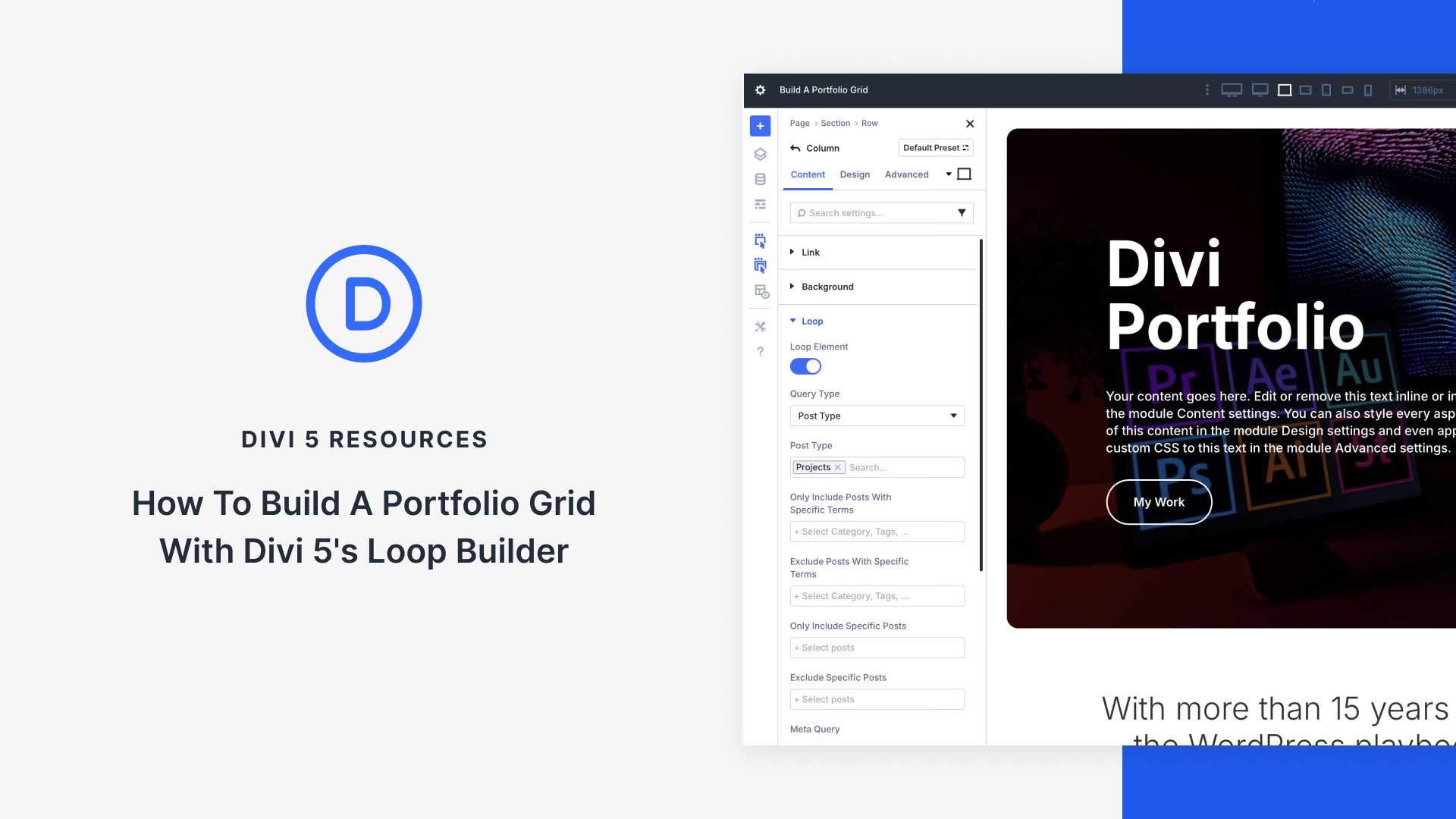
Creating an effective portfolio grid is essential for showcasing your work, whether you’re a freelancer, an artist, or running a business. With Divi 5’s Loop Builder, crafting an eye-catching portfolio grid becomes a streamlined process. In this comprehensive guide, you’ll learn how to create a stunning portfolio grid using the new features in Divi 5, ensuring that your work stands out and attracts the right audience.
Understanding Divi 5’s Loop Builder
Divi 5’s Loop Builder offers a powerful framework for designing custom layouts. Unlike its predecessors, Loop Builder allows users to create dynamic content layouts easily without extensive coding knowledge. It provides a more intuitive way to display various items, such as portfolio pieces, blog posts, and products.
What Makes Loop Builder Unique?
This innovative feature allows for the creation of complex layouts with simplicity. Users can set their designs to automatically pull content from their database, making it easy to update the portfolio with new projects as they arise.
Getting Started with Loop Builder
To begin crafting your portfolio grid, ensure you’re using the latest version of Divi. Here’s a step-by-step breakdown:
Step 1: Accessing the Loop Builder
- Log in to your WordPress Dashboard.
- Navigate to Divi > Theme Builder.
- Select ‘Add New Template.’ Choose to create a custom layout for your portfolio.
Step 2: Choosing a Layout
Divi offers pre-made layouts, which can serve as a foundation for your custom portfolio. Look for layouts labeled as “Portfolio” or “Grid,” as these will give you the right starting point.
Designing Your Portfolio Grid
Once you’ve selected a layout, it’s time to customize it to better reflect your brand and the projects you wish to showcase.
Step 3: Adding the Portfolio Module
- Insert the Portfolio Module. This module will allow you to control which projects to display.
- Adjust the settings. Configure items such as:
- Content Type: Select how you want to filter your portfolio (by category, tags, etc.).
- Number of Posts: Determine how many portfolio entries to display.
Step 4: Customizing Your Grid Appearance
Now, focus on aesthetics. Divi’s built-in options provide immense flexibility:
- Grid Layout: Choose between masonry or grid layouts for a more dynamic feel.
- Thumbnail Aspect Ratio: Adjust the size of your thumbnails to create a cohesive look.
- Hover Effects: Add effects that engage visitors when they hover over your projects.
Integrating Dynamic Content
One of the key features of the Loop Builder is its ability to showcase dynamic content. Here’s how to make the most of this functionality:
Step 5: Utilizing Dynamic Data
Using dynamic data allows you to pull information automatically from your project entries. This is how you do it:
- Enable Dynamic Content: Access settings within your module.
- Select Data Sources: Choose what information you want to show, such as titles, descriptions, and categories.
Step 6: Custom Attributes
Consider adding custom attributes to your portfolio items. This can include links to project case studies, testimonials, or external sites that provide additional context for potential clients.
Enhancing User Experience
To keep visitors engaged, consider the following enhancements for your portfolio grid:
Step 7: User-Friendly Navigation
Ensure your visitors can easily navigate through your portfolio. You might implement:
- Pagination: Useful for larger portfolios, allowing users to browse through items efficiently.
- Filters: Let users sort portfolios by categories or tags based on their interests.
Optimizing for SEO
Creating a visually appealing portfolio is only half the battle; you also want it to be discoverable. Here are proven SEO techniques to boost your portfolio’s visibility:
Step 8: Image Optimization
Images play a vital role in portfolio presentation but can slow down your site if not optimized properly. Follow these practices:
- File Naming: Use descriptive filenames that include relevant keywords.
- Alt Text: Ensure each image features alt text that describes the visual and includes target keywords.
Step 9: Meta Tags
If your portfolio items are in blog format, use meta tags effectively:
- Title Tags: Craft unique, keyword-rich titles for each portfolio item.
- Meta Descriptions: Write compelling descriptions that encourage clicks from search engine results.
Testing and Launching Your Portfolio
Before going live, it’s crucial to test your portfolio grid’s responsiveness and performance. Follow these steps:
Step 10: Cross-Device Testing
Check how your portfolio appears across various devices—smartphones, tablets, and desktops. Ensure that elements scale correctly and all features work seamlessly.
Step 11: User Feedback
Consider gathering feedback from friends or colleagues. They might offer valuable insights or reveal areas in need of improvement.
Keeping Your Portfolio Up to Date
Once your portfolio grid is live, don’t forget about it. A portfolio is a living document that requires regular updates to showcase your latest work. Schedule time to review and refresh your content periodically.
Step 12: Analyze Performance
Keep track of your portfolio grid’s performance through tools like Google Analytics. Look for metrics such as visitor numbers, time spent on the page, and bounce rates to understand how effectively your portfolio is engaging visitors.
Conclusion
Building a portfolio grid with Divi 5’s Loop Builder empowers you to showcase your work in a visually appealing, organized manner. By following the steps outlined in this guide, you can create a dynamic portfolio that not only highlights your skills but also enhances user experience and boosts SEO.
With consistent updates and optimizations, your portfolio will remain a powerful tool for attracting potential clients and showcasing your talents to the world. Embrace the features available in Divi 5 and take your portfolio to new heights today!