
Blog
Google Drive Download Node to Automate Your WordPress Blog with N8N
Streamline Your WordPress Blog Automation with Google Drive and N8N
In the digital age, automation is key to maximizing productivity, especially for content creators and bloggers using WordPress. By harnessing the power of Google Drive and N8N, you can automate tasks related to your blog, such as file management and content updates. This article will guide you through the process of integrating Google Drive with your WordPress blog using N8N, empowering you to work smarter, not harder.
What is N8N?
N8N is a versatile and powerful open-source workflow automation tool. It allows users to connect various applications and automate processes without extensive coding knowledge. With N8N, you can create workflows that connect Google Drive, WordPress, and hundreds of other services, making it an invaluable asset for bloggers looking to enhance their efficiency.
Why Use Google Drive for Your WordPress Blog?
Google Drive offers several benefits for managing your WordPress blog:
- Cloud Storage: Safe and secure storage for your media files, documents, and backups.
- Collaboration: Easily share access with team members or collaborators.
- Integration: Seamless connectivity with various applications, including N8N.
Setting Up N8N
Before you can automate tasks, you need to set up N8N. Here’s how to get started:
Step 1: Installation
You can install N8N in various environments, including local machines, cloud platforms, or using a Docker container. For beginners, using a Docker installation is recommended:
- Install Docker on your machine.
-
Run the command:
bash
docker run -d -p 5678:5678 n8nio/n8n - Access the N8N editor by navigating to
http://localhost:5678in your web browser.
Step 2: Configuring N8N
Once installed, you’ll want to configure N8N to use your Google Drive and WordPress accounts:
-
Google Drive Credentials:
- Go to the Google Cloud Console.
- Create a project and enable the Google Drive API.
- Generate OAuth credentials and download the
credentials.jsonfile. - In N8N, go to “Credentials” and set up Google Drive using the downloaded credentials.
- WordPress Credentials:
- In your WordPress admin panel, navigate to "Settings" > "REST API."
- Generate an application password, which will be used to authenticate N8N with your WordPress account.
- Add the WordPress credentials in N8N as well.
Creating Your First Workflow
Now that both Google Drive and WordPress are connected to N8N, it’s time to create a workflow.
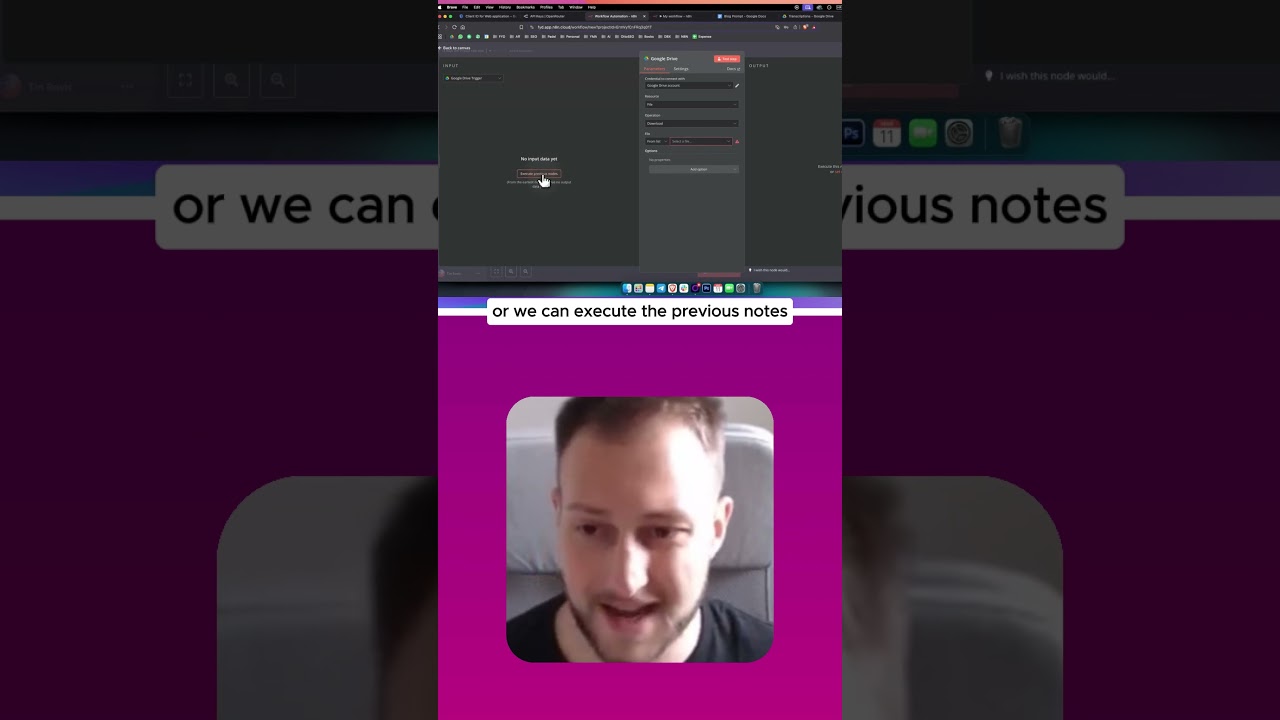
Step 1: Add Google Drive Node
- In N8N, click on “Create Workflow.”
- Drag the Google Drive node into the workflow area.
- Select the desired operation, such as “Get All Files” or “Upload File.”
Step 2: Configure the Node
- Choose your connected Google Drive account.
- Specify the folder if needed and any additional parameters.
- Test the node to ensure it retrieves or uploads files as expected.
Step 3: Add a WordPress Node
- Now, drag and drop the WordPress node into the workflow.
- Choose the operation, such as “Create Post” or “Update Post.”
- Connect the output of the Google Drive node to the input of the WordPress node.
Step 4: Configure WordPress Node
- Select your WordPress credentials.
- Fill in details like the post title, content, and status.
- You can also use dynamic data from the Google Drive node, such as file links or metadata.
Step 5: Activate the Workflow
Once you have everything set up, activate the workflow. This will allow N8N to automatically trigger the tasks based on the defined conditions, such as file uploads to Google Drive resulting in new posts on your WordPress blog.
Use Cases for Automation
Integrating Google Drive with WordPress through N8N can significantly enhance your blogging workflow. Here are a few compelling use cases:
1. Automatic Blog Post Creation
Automatically create blog posts from documents saved in Google Drive. Whenever you upload a new document, the workflow can trigger and convert it into a WordPress post.
2. Media Management
Automatically upload images and videos from your Google Drive to your WordPress media library. This saves time and ensures all your media is organized.
3. Backup WordPress Content
Set up a workflow to backup your WordPress posts to Google Drive periodically. This ensures you always have a recent copy of your content in case of a site failure.
Enhancing Your Workflow
To make the most out of your N8N automation, consider the following enhancements:
Error Handling
Add error handling nodes in your workflows to manage failures gracefully. This ensures you are notified if a task doesn’t execute successfully.
Notifications
Integrate notifications via email or messaging services like Slack to receive alerts for completed tasks or errors.
Scheduling
Use the built-in Cron node in N8N to schedule workflows for specific times or intervals. This is useful for regular backups or content updates.
Conclusion
Automating your WordPress blog with Google Drive using N8N can save you countless hours of manual work, allowing you to focus on creating outstanding content. By following the steps outlined in this guide, you can seamlessly integrate these tools into your blogging workflow. Once set up, you’ll find yourself better organized, more productive, and equipped to handle the demands of modern content creation.
Dive into automation today and unlock the full potential of your WordPress blog with Google Drive and N8N.
