
Blog
Creating a Custom WordPress Plugin #ai #coding #wordpress
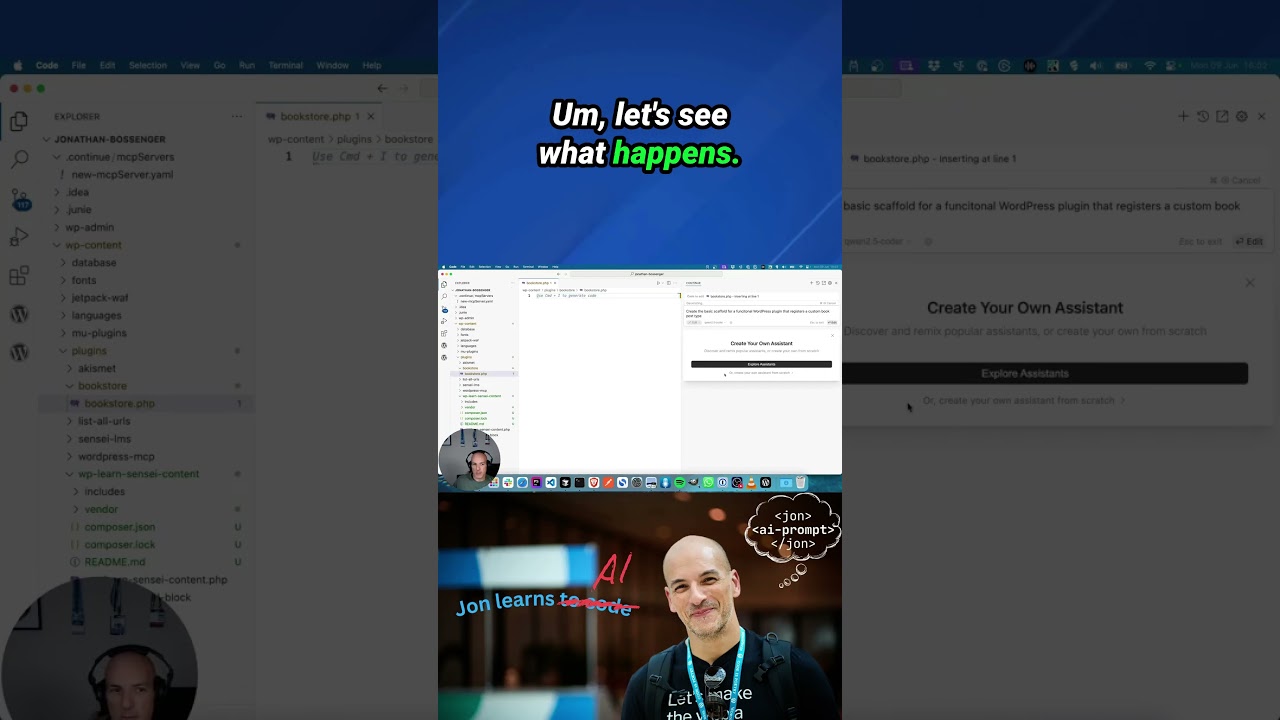
The WordPress ecosystem is a powerhouse of flexibility, largely thanks to its extensive library of plugins. While there’s likely a plugin for nearly every conceivable function, there are compelling reasons to craft your own. Building a custom WordPress plugin allows for tailor-made functionality, optimized performance, and a deeper understanding of the platform’s core mechanics. It’s a journey that blends creativity with technical skill, empowering you to extend your website in uniquely personal ways.
This guide demystifies the process, walking you through the fundamental steps of creating a robust, secure, and professional custom plugin from the ground up.
Why Build a Custom WordPress Plugin?
Before diving into the code, it’s essential to understand the "why." Installing a third-party plugin is often the quickest solution, but a custom build offers distinct advantages.
Unmatched Specificity: Your plugin is designed to solve your exact problem. It won’t be bloated with features you don’t need, ensuring it aligns perfectly with your website’s goals and user experience.
Enhanced Performance: By containing only the essential code, a well-built custom plugin is typically leaner and faster than a multi-purpose alternative that must account for countless use cases.
Total Control and Security: You control the code, the features, and the updates. This eliminates dependency on a third-party developer and reduces potential security risks associated with abandoned or poorly maintained plugins.
A Valuable Learning Experience: The process provides invaluable insight into how WordPress works under the hood, including Actions, Filters, and the core PHP structure. This knowledge makes you a more proficient developer.
Laying the Foundation: Plugin Structure and Setup
Every great plugin starts with proper organization. Unlike themes, plugins reside in the /wp-content/plugins/ directory of your WordPress installation.
1. Create a Plugin Directory
Navigate to wp-content/plugins/ and create a new folder for your plugin. Use a unique, lowercase name with hyphens instead of spaces (e.g., my-custom-functionality).
2. Create the Main Plugin File
Inside your new folder, create a primary PHP file. It’s common practice to name this file the same as your directory (e.g., my-custom-functionality.php).
3. The Plugin Header: Your Plugin’s Identity
The very first thing in your main PHP file must be the plugin header comment. This is how WordPress recognizes your plugin and displays it in the admin dashboard.
php
<?php
/**
- Plugin Name: My Custom Functionality
- Plugin URI: https://yourwebsite.com/my-custom-functionality
- Description: A bespoke plugin created to add unique features to my WordPress site.
- Version: 1.0.0
- Author: Your Name
- Author URI: https://yourwebsite.com
- License: GPL v2 or later
- Text Domain: my-custom-functionality
*/
This header provides all the meta-information WordPress needs. The Text Domain is used for internationalization, making your plugin translatable.
Coding Your First Functionality: A Practical Example
Let’s move from theory to practice by creating a simple but common feature: a custom dashboard widget that displays helpful information or quick links.
1. Hook into WordPress with Actions
WordPress operates on a hook system—Actions and Filters. Actions allow you to execute your code at specific points. We’ll use the wp_dashboard_setup action to add our widget.
2. The Function and The Hook
Add the following code to your main plugin file, below the header.
php
// Add a custom dashboard widget
function my_custom_dashboard_widget() {
wp_add_dashboard_widget(
‘my_custom_dashboard_widget’, // Widget slug/ID
‘Custom Dashboard Widget’, // Title
‘my_custom_widget_content’ // Display function
);
}
add_action( ‘wp_dashboard_setup’, ‘my_custom_dashboard_widget’ );
Here, wp_add_dashboard_widget() is a helper function that handles the widget registration. We tell it to call a function named my_custom_widget_content to render the actual content inside the widget.
3. Creating the Widget Content Function
Now, we define the function that outputs the HTML content for our widget.
php
// Function to display the content of our dashboard widget
function my_custom_widget_content() {
echo ‘
Welcome to your site! Here are some quick links:
‘;
echo ‘
- ‘;
- Write a New Post
- Customize Your Theme
- View Analytics
echo ‘
‘;
echo ‘
‘;
echo ‘
‘;
echo ‘
‘;
}
4. See It in Action
Save your file and navigate to your WordPress admin dashboard. You should now see your new "Custom Dashboard Widget" among the other dashboard modules. You can drag and position it like any other widget.
Enhancing Your Plugin: Best Practices for Growth
As your plugin becomes more complex, adhering to best practices is crucial for maintainability, security, and professionalism.
1. Organization is Key: Avoid putting all your code in one massive file. As features grow, create subdirectories for different purposes:
/admin/for backend-related code/public/for frontend-related code/includes/for core functions and classes/assets/for JavaScript, CSS, and images
Use require_once or include_once to load these files from your main plugin file.
2. Security: Nonce Verification and Data Sanitization
Never trust user input. Always sanitize data coming from users and escape data before outputting it to the browser.
- Sanitization: Use functions like
sanitize_text_field()when saving data from forms to the database. - Escaping: Use functions like
esc_html(),esc_url(), andwp_kses_post()when echoing data to the screen. - Nonces: Use
wp_nonce_field()andwp_verify_nonce()to verify that form submissions originated from your site and with the intended user, preventing Cross-Site Request Forgery (CSRF) attacks.
3. Internationalization (I18n): Prepare for Translation
Make your plugin accessible to a global audience by wrapping all translatable strings with the appropriate functions. Use the text domain you defined in your header.
php
// Instead of:
echo ‘Welcome to your site!’;
// Use:
echo esc_html__( ‘Welcome to your site!’, ‘my-custom-functionality’ );
4. Utilize WordPress Core Functions: WordPress provides a vast array of built-in functions for common tasks—working with the database, creating options pages, handling URLs. Leveraging these is always better than writing your own from scratch, as they are well-tested and secure.
Taking the Next Steps in Plugin Development
Once you’ve mastered the basics, a world of possibilities opens up. You can explore more advanced concepts to build truly powerful tools.
- Creating a Settings Page: Use the WordPress Settings API to create a dedicated options page in the admin menu for your plugin, allowing users to configure its behavior without touching code.
- Custom Post Types and Taxonomies: Extend WordPress’s content structure by defining your own post types (e.g., ‘Portfolio’, ‘Testimonials’) and taxonomies to organize them.
- Custom Shortcodes: Create simple shortcuts—
[my_shortcode]—that users can insert into posts and pages to output dynamic content or functionality. - REST API Integration: Build endpoints that allow your plugin to communicate with other applications and services, enabling headless WordPress setups and mobile app integrations.
Conclusion: Your Journey as a Plugin Developer Begins
Building your first custom WordPress plugin is a rewarding milestone. It transforms you from a user of the platform into an active contributor to its capabilities. You start with a single PHP file and a simple idea, and through the power of hooks and WordPress’s robust API, you can architect solutions that are perfectly attuned to your needs.
Start small. Experiment with one feature. Get it working, secure it, and then iteratively add more. The skills you develop in the process—in PHP, security, and software architecture—are immensely valuable. Embrace the challenge, and you’ll unlock a new level of mastery over your WordPress projects.
