
Blog
🎥 How to add a new Blog Category on WordPress
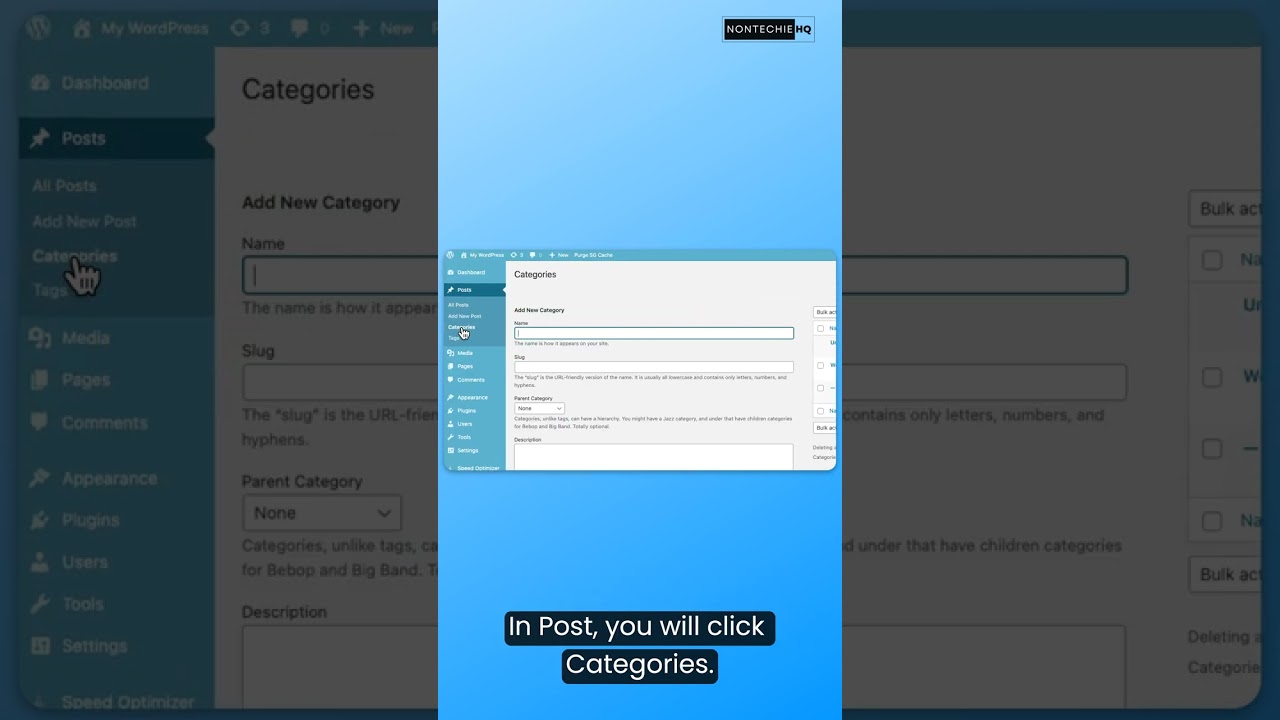
Adding a new category to your WordPress blog is a fundamental skill, yet it’s one of the most impactful actions you can take to improve your site’s organization and user experience. A well-structured category system acts like a roadmap, guiding your visitors directly to the content they crave. It’s not just about tidiness; it’s a core component of smart website management and SEO strategy.
This guide will walk you through the entire process, from the simple one-click method to more advanced techniques for bulk management and optimization. We’ll also explore why categories are so crucial and how to develop a strategic plan for them.
Why Your WordPress Categories Matter More Than You Think
Before we dive into the "how," it’s essential to understand the "why." Categories are far more than just labels; they are the architectural backbone of your website.
- Enhanced User Experience (UX): Visitors are often looking for specific information. Clear, logical categories allow them to navigate your site effortlessly, find related posts, and spend more time engaged with your content. A positive UX reduces bounce rates and encourages return visits.
- Improved SEO (Search Engine Optimization): Search engines like Google love organized content. Categories create thematic hubs that are easier for search engine crawlers to understand and index. Each category page itself can rank for broader keywords, driving organic traffic to your site.
- Content Strategy and Planning: A predefined category structure helps you plan your content calendar. It ensures you’re creating a balanced mix of content across all your topic areas, preventing you from neglecting important subjects.
- Internal Linking: Categories naturally facilitate internal linking. When you assign a post to a category, that post is automatically linked from the category archive page, distributing page authority throughout your site.
Step-by-Step: How to Create a New Category in WordPress
There are two primary ways to add a new category: directly from the WordPress post editor or from the dedicated Categories screen. Both are straightforward.
Method 1: Adding a Category While Editing a Post
This is the most common method, especially when you’re writing a new post and realize you need a fresh category.
- Navigate to the Post Editor: Open an existing post or create a new one by going to Posts > Add New in your WordPress dashboard.
- Locate the Document Settings: On the right-hand side of the editor, you’ll find a panel called "Post" or "Document" settings. If you don’t see it, you may need to click the gear icon to open the settings panel.
- Find the Categories Module: Within this panel, scroll down until you see the Categories box. Here, you’ll see a list of all your existing categories with checkboxes to assign them to the post.
- Create the New Category: Click the + Add New Category link.
- Enter Category Details: A simple form will appear.
- Category Name: Enter the name of your new category (e.g., "Advanced WordPress Tips").
- Parent Category (Optional): If this new category should be a sub-category (e.g., "Plugins" under a main category of "WordPress"), use the dropdown to select its parent. Leave it as "None" if it’s a top-level category.
- Save: Click the Add New Category button. The new category will be created and automatically checked for the current post.
Method 2: Adding a Category from the Categories Menu
This method is ideal for planning your site structure in advance or adding multiple categories at once without being in a post.
- Go to the Categories Screen: In your WordPress admin dashboard, navigate to Posts > Categories.
- Fill in the Details: You will see a form on the left side of the screen with several fields:
- Name: The name of your category as it will appear on your site.
- Slug: The URL-friendly version of the name. It is usually all lowercase and contains only letters, numbers, and hyphens. WordPress will generate this automatically from the name, but you can customize it for better SEO (e.g., "wordpress-tips" instead of "WordPress Tips").
- Parent Category: Again, select a parent if this is to be a subcategory.
- Description (Optional): Some themes display this text on the category archive page. It’s a great place to add a brief summary and keywords related to the topic.
- Create: Click the Add New Category button. Your new category is now saved and ready to be assigned to posts.
Going Beyond the Basics: Editing, Managing, and Deleting
Creating categories is just the beginning. Proper management is key.
- Editing a Category: To edit a category’s name, slug, or description, go to Posts > Categories. Find the category you want to modify in the list on the right, hover over its name, and click Edit. Make your changes and click Update.
- Deleting a Category: From the same list, hover over the category name and click Delete. Important: When you delete a category, WordPress will ask you what to do with the posts that were assigned to it. You must reassign them to another existing category. This prevents you from having posts with no category assignment.
Bulk Assigning Posts to a New Category
Perhaps you’ve created a new category and need to move dozens of old posts into it. You don’t have to edit each one individually.
- Go to Posts > All Posts.
- Select the checkboxes for all the posts you want to reassign.
- From the Bulk Actions dropdown at the top, select Edit and click Apply.
- A new menu will appear. Find the Categories section, select your new category, and ensure you also manage the existing category assignments (e.g., you may want to deselect the old category).
- Click Update. All selected posts will now be assigned to the new category.
Crafting a Winning Category Strategy
Simply creating dozens of random categories can lead to a messy and confusing site. Here’s how to build a strategic framework.
- Think Like Your Audience: Create categories based on the topics your readers are searching for, not just the internal names you use. Use keyword research tools to understand their language.
- Keep it Simple: Start with 5-10 broad, top-level categories. Avoid creating a new category for every single post; instead, use tags for more specific details. A good rule of thumb is if you can’t imagine writing at least 5-10 posts about a topic, it should probably be a tag, not a category.
- Use Subcategories Judiciously: If a top-level category like "Recipes" becomes too large, break it down into logical subcategories like "Desserts," "Vegetarian," and "Quick Meals." This creates a clean hierarchy.
- Be Consistent: Stick to your chosen category names and structures. Consistency helps with both UX and SEO.
- Optimize Category Pages: Remember that each category has its own archive page (e.g.,
yoursite.com/category/recipes/). Treat this page as valuable real estate. Ensure your theme displays it well, and consider adding a unique introductory paragraph (via the description field) to make it more useful for visitors and search engines.
Troubleshooting Common Category Issues
- Category Not Showing in Menu: Simply creating a category doesn’t add it to your navigation. You must go to Appearance > Menus, find your new category under the "Categories" tab, add it to your menu, and save.
- Changing the Category Base in Permalinks: By default, category URLs start with
/category/. Some site owners prefer to remove this for cleaner URLs (e.g.,yoursite.com/recipes/instead ofyoursite.com/category/recipes/). This can be done in Settings > Permalinks by typing your desired base (like.for nothing) into the "Category base" field. Caution: This is an advanced change; ensure you set up redirects if you do this on an established site to avoid broken links.
Mastering WordPress categories is a non-negotiable skill for any serious website owner. By taking the time to create a logical, user-focused structure, you are investing in your site’s long-term usability, SEO health, and ultimately, its success. Start planning your categories strategically today—your visitors (and your search engine rankings) will thank you for it.
