
Blog
Ultimate Member WordPress Plugin Tutorial
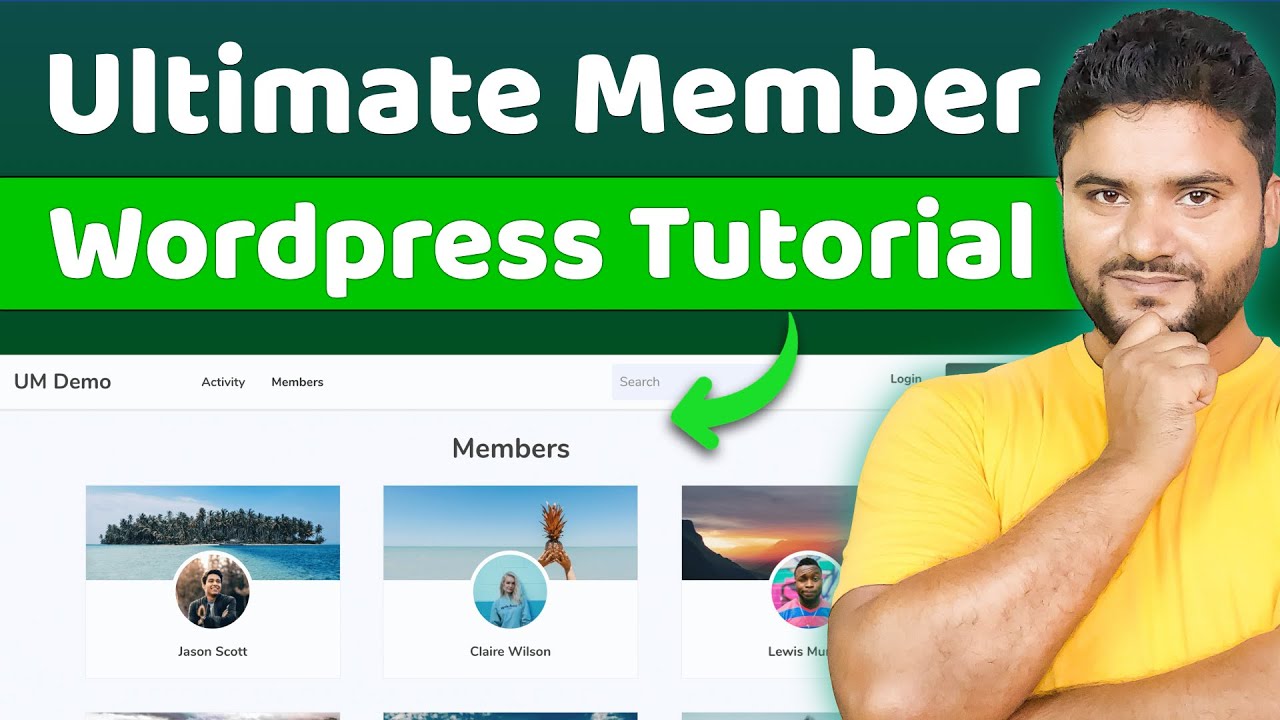
Introduction to Ultimate Member Plugin
In the world of WordPress, creating an engaging and interactive community site has never been easier. One powerful tool that stands out in this realm is the Ultimate Member plugin. This comprehensive solution provides a user-friendly way to create membership sites, directories, and user profiles. Whether you are managing a social network, a business site, or a learning platform, Ultimate Member offers an array of features designed to enhance user experience.
Why Choose Ultimate Member?
Versatile Membership Options
Ultimate Member caters to a variety of needs. It allows site administrators to define different user roles, granting or restricting access to content based on these roles. This flexibility is essential for businesses or organizations that require segmented access, ensuring members only see what pertains to them.
Customizable User Profiles
With Ultimate Member, you can create customized user profiles that showcase essential information tailored to your community’s needs. You can include profile pictures, bios, and social links, making sites more personalized and engaging for users.
Easy Member Management
Managing users has never been simpler. Ultimate Member provides tools for user approvals, notifications, and even the ability to edit user roles directly from the dashboard. This streamlined approach makes it easy for site administrators to maintain an organized platform.
Getting Started with Ultimate Member
Installation Process
Installing Ultimate Member is straightforward. Here’s how you can get started:
- Log into your WordPress Dashboard: Begin by accessing your site’s admin area.
- Navigate to Plugins: Click on "Plugins" and then select "Add New."
- Search for Ultimate Member: In the search bar, type "Ultimate Member" to locate the plugin.
- Install and Activate: Once you find the plugin, click "Install Now" and then activate it after installation.
Initial Configuration
After activation, you’ll need to configure the plugin:
- Settings: Go to the Ultimate Member menu within the dashboard to access settings. Here, you can customize general settings, user roles, member directory options, and more.
- User Roles: You can create multiple user roles with different capabilities. This will assist in managing various user accesses smoothly.
- Form Building: Ultimate Member features a form builder that allows you to create registration forms and profile forms according to your community’s requirements.
Creating Registration and Profile Forms
Registration Form
Creating a registration form is vital for building your member community. Here’s how you can do it:
- Access Forms: Navigate to the "Forms" section in Ultimate Member.
- Add New Form: Select "Add New" to create a fresh registration form.
- Customize Fields: Utilize the drag-and-drop interface to add fields such as username, email, password, and any custom fields relevant to your site.
- Publish: Once you’re happy with the form, save your changes and publish it.
Profile Form
Just like the registration form, the profile form requires careful consideration:
- Create Profile Form: Follow similar steps as the registration form creation process.
- Add Relevant Fields: Include fields that represent user data you wish to capture. This may include skills, interests, or social media links.
- Save and Customize Appearance: After publishing, ensure you adjust appearance settings for a cohesive look that aligns with your site’s design.
User Directories and Member Pages
Customize User Directories
User directories allow visitors to browse through member profiles easily. Ultimate Member enables you to create visually appealing and functional member directories:
- Access Directory Settings: Under the Ultimate Member menu, navigate to “Member Directory”.
- Set Up Directory: You can choose the layout, filtering options, and what information to display about members.
- Add Directory to Your Site: Use a shortcode to add the directory to any page you wish, making it easy for users to navigate through.
Member Pages
Ultimate Member simplifies the process of generating member pages. This includes profile pages, registration pages, and login pages that can be customized according to your preferences. Use shortcodes or the page builder to integrate these components seamlessly into your site.
Enhancing Your Community with Extensions
Premium Add-ons
While the free version of Ultimate Member offers abundant features, there are premium extensions available that can significantly enhance your community site:
- Online Courses: If you are planning to offer courses, integrate the Learning Management System (LMS) to manage course content effectively.
- Private Messaging: Allow members to communicate privately within the community, fostering engagement and interaction.
- Gamification: Introduce badges, points, and leaderboards to motivate user participation and increase site activity.
Marketing Your Membership Site
SEO Best Practices
To attract members, implementing SEO strategies is crucial. Here are some best practices:
- Keyword Research: Identify relevant keywords your target audience uses to find community sites. Use Google Keyword Planner or other tools to assist in this process.
- Optimize Content: Ensure every page, especially registration and directory pages, feature optimized content. Incorporate primary and secondary keywords appropriately.
- Mobile-Friendly Design: Since an increasing number of users access websites via mobile, ensure your site adapts seamlessly to different devices.
Building a Community
An engaged community is more likely to flourish:
- Social Media Integration: Encourage users to share their profiles and connect with the broader community via social media.
- Update Frequently: Regular updates about events, new features, or user highlights keep the community engaged and excited.
- Feedback Mechanism: Implement feedback tools within your community platform. Listening to users’ suggestions will guide improvements and demonstrate that you value their input.
Conclusion
Ultimate Member is a robust WordPress plugin that helps you create a vibrant online community. From powerful membership options to customizable user profiles, it caters to various community needs. By following the steps outlined in this guide, you can efficiently set up and manage your membership site, fostering a sense of belonging among members. Remember to focus on SEO and community engagement to ensure the long-term success of your platform. Whether you’re launching a niche community or a larger network, leveraging the capabilities of Ultimate Member will undoubtedly transform your WordPress experience.
