
Blog
How To Build A Custom Fullscreen Slider With Divi 5 (Free Download)
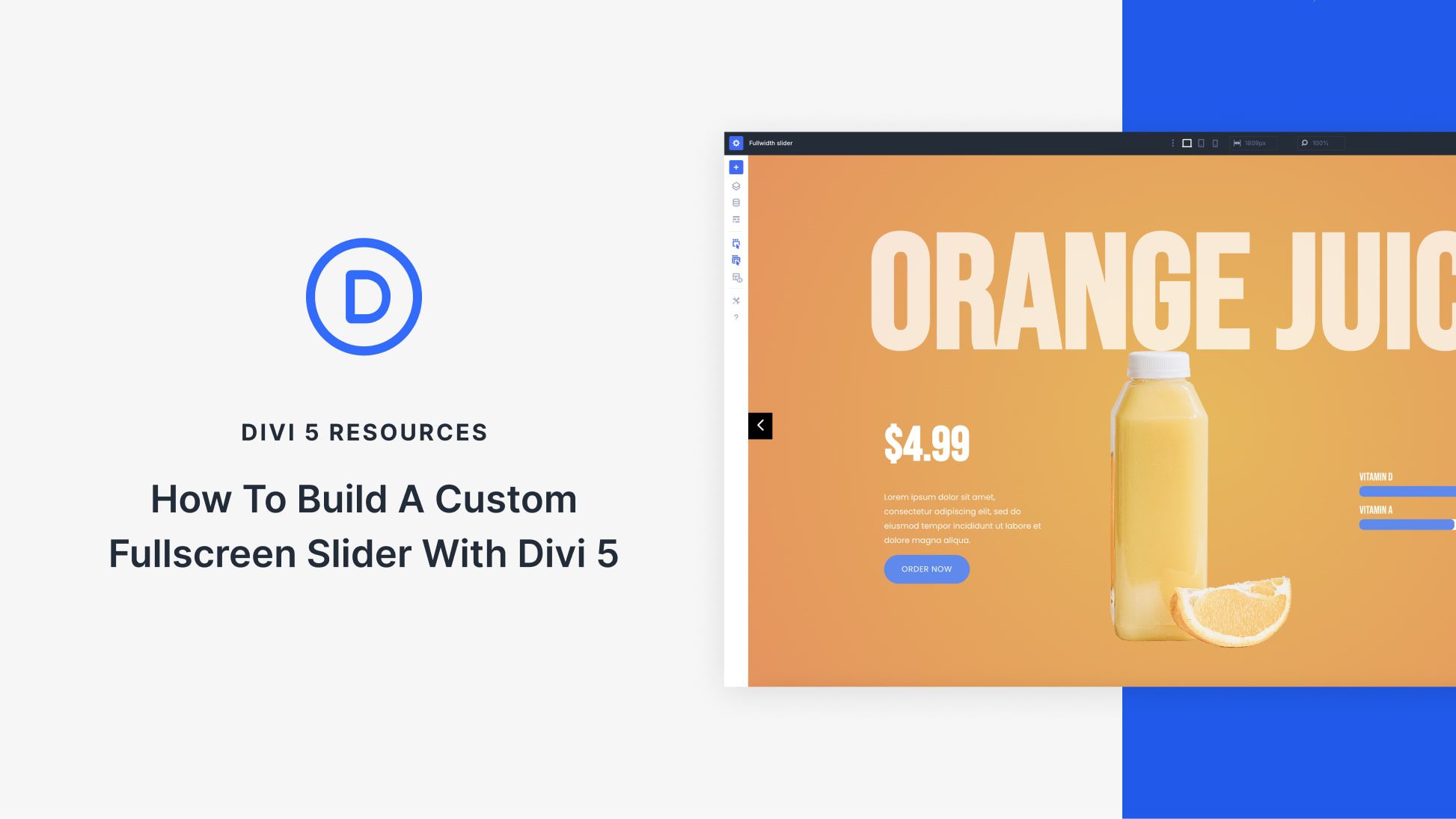
Creating a Custom Fullscreen Slider with Divi 5
If you’re looking to enhance your website’s visual appeal, a custom fullscreen slider can be a fantastic addition. The Divi 5 theme offers a user-friendly platform for building stunning sliders without any coding knowledge. In this guide, we’ll walk you through the steps to create a customized fullscreen slider that will captivate your audience.
Why Use a Fullscreen Slider?
Fullscreen sliders serve multiple purposes:
- Visual Engagement: Captivating images and illustrations draw visitors in.
- Promote Content: Showcase multiple pieces of content in a visually appealing way.
- Responsive Design: Adapt to different devices seamlessly.
Preparing for Your Slider
Before diving into the creation process, you need to gather your materials:
- Select High-Quality Images: Choose images that align with your brand and message.
- Decide on Content: Determine the text and calls to action you want to include.
- Prepare Your Divi Installation: Ensure that your Divi theme is up to date and functional.
Step-by-Step Guide to Building Your Fullscreen Slider
Step 1: Adding a New Section
- Open Divi Builder: Navigate to the page where you want your slider.
- Add New Section: Click on the "+" icon to add a new section. Select "Regular Section."
- Select Full Width: For a fullscreen effect, choose the “Full Width” option.
Step 2: Inserting a Fullwidth Slider Module
- Add Module: After creating the section, you’ll be prompted to add a module. Choose the "Fullwidth Slider" module.
- Review the Layout: You can select between various layouts offered by Divi. Choose the one that fits your design needs.
Step 3: Customizing Slide Content
Customize each slide according to your preferences:
- Slide Title and Subtitle: Populate these fields with engaging text. Make sure the title is catchy while the subtitle provides additional context.
- Button Settings: If you want to include a call to action, fill in the button text and link.
- Background Image: Upload your selected high-quality image for each slide. Ensure it’s optimized for fast loading.
Step 4: Adjusting Slider Settings
Dive into the settings to fine-tune your slider’s appearance:
- Transition Effects: Choose from a variety of transition effects that Divi offers for smooth sliding.
- Duration Settings: Determine how long each slide will appear before transitioning.
- Navigation Options: Enable or disable arrows and dots depending on your design preference.
Step 5: Styling Your Slider
With the basic structure in place, let’s move on to the styling:
- Text Color and Font: Customize font colors and sizes to ensure readability against your slideshow background.
- Spacing and Padding: Adjust these elements to ensure the content looks balanced and not cluttered.
- Alignment: Ensure that the text and buttons are properly aligned for a professional look.
Preview and Adjustments
Before publishing, preview your slider. This is crucial to ensure that all elements appear as intended:
- Responsive Check: Make sure your slider looks good on various devices. Divi allows you to preview how it will appear on desktop, tablet, and mobile.
- Adjust If Necessary: Tweak any parts that need improvement — this may involve altering text sizes or image placements.
Advanced Customizations
For those who are comfortable with a bit of coding or want additional functionalities, consider these advanced customizations:
- Custom CSS: Adding your CSS can help personalize the slider further. This could involve changing button styles, hover effects, and more.
- JavaScript Interactions: For interactive elements, custom JavaScript can also be implemented.
Final Steps: Save and Publish
- Save Changes: Once you’re satisfied with everything, save your configurations.
- Publish: Hit the publish button to make the slider live on your site.
Benefits of a Fully Customizable Slider
- Flexibility: Tailor your slider according to the specific needs of your website and target audience.
- SEO Benefits: A well-designed slider can improve your site’s SEO by keeping visitors engaged longer.
- Versatility: Ideal for various sites, whether for portfolios, businesses, or blogs.
Conclusion
Creating a custom fullscreen slider using Divi 5 is an effective way to enhance your website’s aesthetic value and functionality. By following these steps, you can build a visually stunning slider that captivates your audience. Remember, the key to an effective slider lies in the balance of captivating imagery, concise messaging, and strategic call-to-action.
With your new skills in building a fullscreen slider, take your website to the next level. Continually experiment with designs and content to find what resonates best with your visitors. Happy designing!
