
Blog
Oxygen Builder 6 Elements view #WordPress #wordpressdevelopment #oxygenbuilder #oxygen6
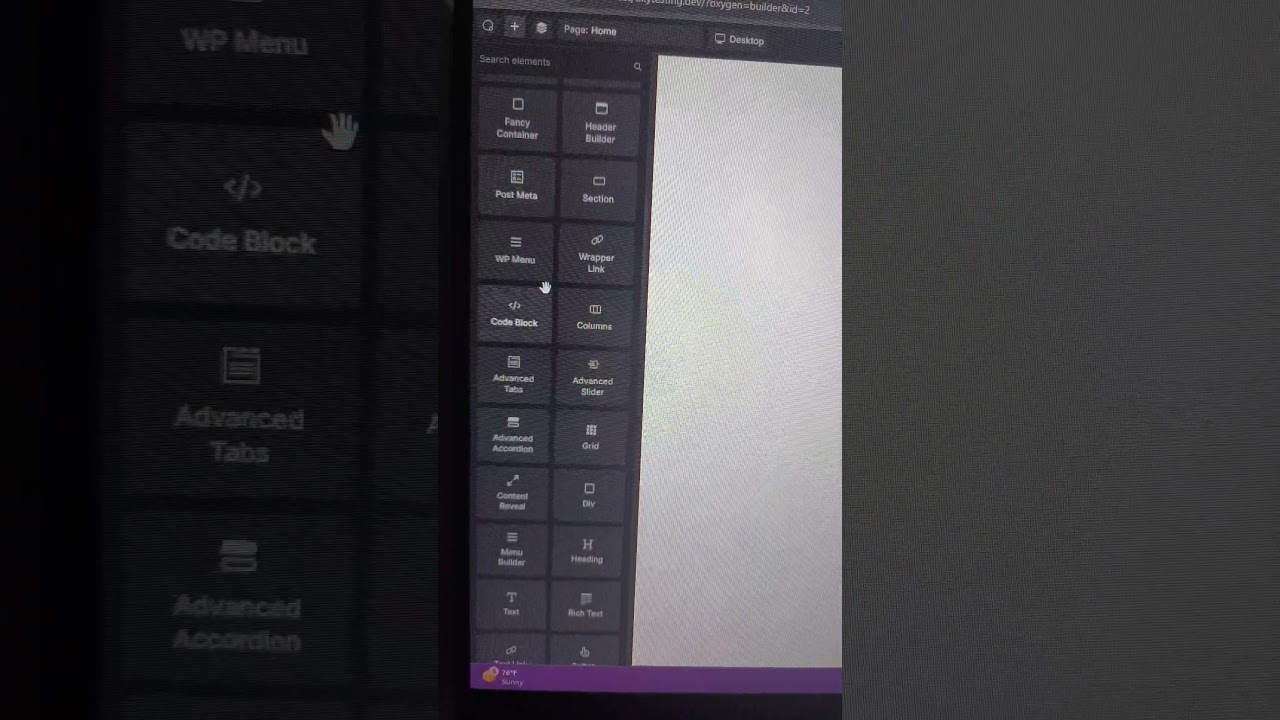
The WordPress ecosystem thrives on innovation, and page builders have fundamentally changed how we approach web design. For years, developers and designers sought a tool that offered the perfect blend of visual editing and raw code control. Enter Oxygen Builder, a solution that quickly distinguished itself from the crowd by prioritizing power and flexibility over simplistic drag-and-drop.
With the release of its landmark version 4.0, Oxygen had already cemented its reputation. However, the launch of Oxygen 6 represents not just an update, but a paradigm shift in the user experience. At the heart of this transformation lies a feature that has redefined the workflow for countless users: the revolutionary Elements view.
The Foundation: Understanding Oxygen Builder’s Philosophy
Before diving into the specifics of the new interface, it’s crucial to grasp what sets Oxygen apart. Unlike many mainstream page builders that operate as plugins layered on top of WordPress, Oxygen integrates at a deeper level. It effectively takes over your WordPress theme, granting you complete visual control over every part of your site—headers, footers, archives, singles, and everything in between.
This approach provides unparalleled freedom. You are not confined to pre-designed templates or a limited set of widgets. You can craft truly custom layouts with precise HTML structure and CSS styling, all through a visual interface. This power, however, came with a learning curve. The introduction of the Elements view in Oxygen 6 is the key that made this power significantly more accessible.
What is the Elements View? A New Way to Navigate Your Design
In previous versions, navigating a complex page structure relied heavily on the Hierarchy Tree. While functional, it could become cumbersome on large projects, requiring a lot of clicking to select deeply nested elements. The Elements view fundamentally changes this dynamic.
Think of it as a comprehensive map of your entire page’s composition. It is a centralized, searchable, and filterable panel that lists every single element on your current page or template—from the outermost sections and containers down to the smallest button or text block.
Key Functionalities of the Elements View
This isn’t just a simple list; it’s a powerful management tool designed to supercharge your productivity.
- Global Search: The most immediate game-changer. You can instantly locate any element by typing its name, class, or ID into the search bar. No more scrolling through the Hierarchy Tree wondering where that specific div is hiding.
- Intelligent Filtering: Beyond search, you can filter the list to show only specific types of elements. Need to quickly adjust all the headings on a page? Filter by "Heading." Want to review all your buttons? Filter by "Button." This allows for rapid, batch-style oversight of your design components.
- Keyboard Navigation: The view supports keyboard shortcuts, enabling you to navigate, select, and manipulate elements without ever touching your mouse, dramatically speeding up the design process for power users.
- Clear Structural Overview: It provides an at-a-glance understanding of your page’s architecture, making it easier to identify potential issues with nesting or to understand how different components relate to one another.
Transforming the Design Workflow: Before and After
The impact of the Elements view is best understood by comparing the typical workflow before and after its introduction.
The "Before" Scenario:
Imagine you’ve built a detailed landing page with numerous sections, columns, and interactive elements. A client requests a change to the styling of all "Learn More" buttons. You would need to manually hunt for each button in the visual canvas or expand countless branches in the Hierarchy Tree, a process prone to human error and wasted time.
The "After" Scenario:
With Oxygen 6, you simply open the Elements view, type "button" in the search bar, or use the filter to show only "Button" elements. Instantly, a list of every button on the page appears. You can select one, make your style changes, and if you’ve wisely used classes (which Oxygen encourages), those changes can be applied globally. What was a tedious task becomes a matter of seconds.
This efficiency gain is compounded on larger websites, making site-wide design audits and consistent updates remarkably straightforward.
Beyond Navigation: The Ripple Effects on Development
The benefits of the Elements view extend beyond mere convenience; they touch on core aspects of modern web development best practices.
Enhanced Component-Based Design: Oxygen has always supported the creation of reusable components. The Elements view makes managing these components infinitely easier. You can quickly find all instances of a custom component, see where it’s used, and modify it with confidence, reinforcing a DRY (Don’t Repeat Yourself) development approach.
Streamlined Debugging and Troubleshooting: When a layout breaks or a style isn’t applying correctly, diagnosing the problem is faster. Developers can swiftly locate the offending element, inspect its properties, and identify conflicts without sifting through lines of code or a crowded visual editor. This reduces frustration and cuts down on project development time.
Improved Collaboration: For teams working on a single Oxygen project, the Elements view acts as a clear guide. It helps new developers quickly orient themselves within a complex template, understanding the structure and relationships between elements without a lengthy onboarding process.
Who Benefits Most from This Innovation?
While every Oxygen user will appreciate the Elements view, certain groups will find it particularly transformative:
- Web Developers: Those who build complex, custom websites will leverage the search and filter functions daily to navigate intricate structures efficiently.
- UX/UI Designers: Designers focused on pixel-perfect precision and consistency across a site will use the view to audit and adjust elements en masse.
- Agency Teams: Teams managing multiple client sites can perform updates and maintenance with greater speed and accuracy, improving profitability and client satisfaction.
- Accessibility Consultants: Professionals ensuring WCAG compliance can more easily locate and check key elements like headings, links, and ARIA landmarks across an entire page.
Mastering the Elements View: Tips for Optimal Use
To truly harness the power of this feature, integrate these practices into your workflow:
- Name Your Elements: Get into the habit of giving your elements descriptive names in the Advanced tab. This makes searching in the Elements view incredibly intuitive. Searching for "primary-nav" is far easier than searching for "div."
- Embrace CSS Classes: The Elements view shines brightest when you use classes to style groups of elements. A change to a class will update every element that uses it, and the filter will show you all of them instantly.
- Learn the Shortcuts: Invest time in learning the keyboard shortcuts for the Elements view. The ability to open it, search, and navigate with your keyboard will make you exponentially faster.
- Use it for Audits: Periodically open the Elements view on a finished page and filter by element type. This is a excellent way to perform a quality control check for consistency in your typography, spacing, and interactive elements.
A Stepping Stone to the Future
The Elements view in Oxygen 6 is more than a quality-of-life improvement; it’s a statement of intent. It signifies a move towards a more professional, developer-friendly, and efficient design environment within the WordPress space. It acknowledges that while visual editing is powerful, the interface must also cater to the needs of those who build sophisticated, large-scale websites.
This focus on improving the user experience for professionals ensures that Oxygen Builder remains at the forefront of WordPress development tools. It demonstrates a deep understanding of the real-world challenges faced by developers and provides an elegant, powerful solution that empowers users to build better websites, faster. For anyone serious about custom WordPress development, mastering the Elements view is not just recommended—it’s essential.
